Stablecoin Bridge
The stablecoin bridge is a feature that moves stablecoins between different blockchain networks. You can bridge the stablecoins held in your Octet wallet without sending them outside.
Ethereum, Polygon, Avalanche
Viewing stablecoin bridge requests
You can view the bridge requests made from all wallets you have permission for.
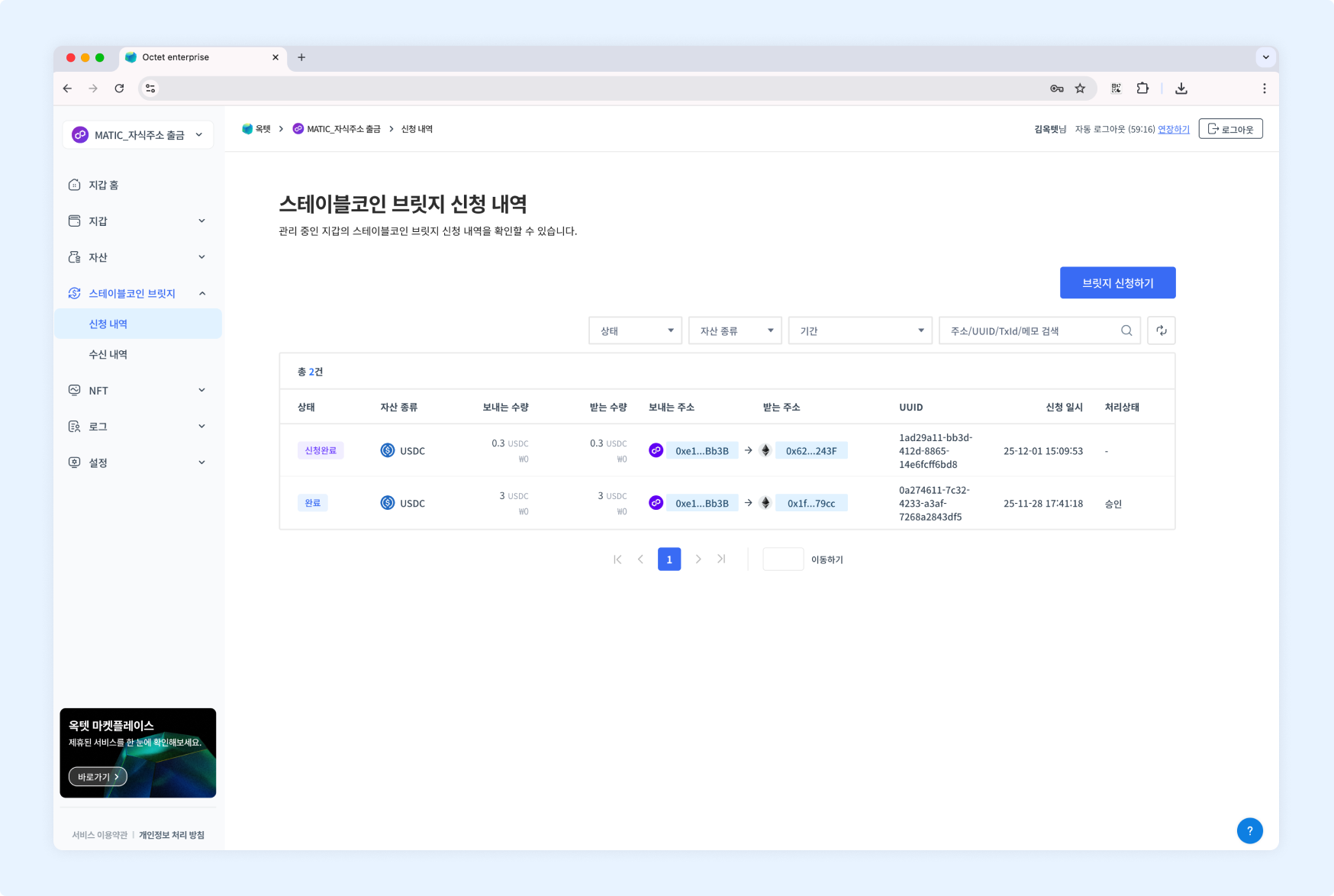
Item | Description |
|---|---|
Status |
|
Asset type | Symbol of the asset for which the bridge was requested |
Sending amount | Amount of the asset for which the bridge was requested |
Receiving amount | Amount of the asset received through the bridge |
Sending address | Address that sent the bridge |
Receiving address | Address that receives the bridge |
UUID | Unique value returned when the bridge is requested |
Requested at | Date and time the bridge was requested |
Processing status |
|
Details
Click a row in the table to view the details of that bridge request.
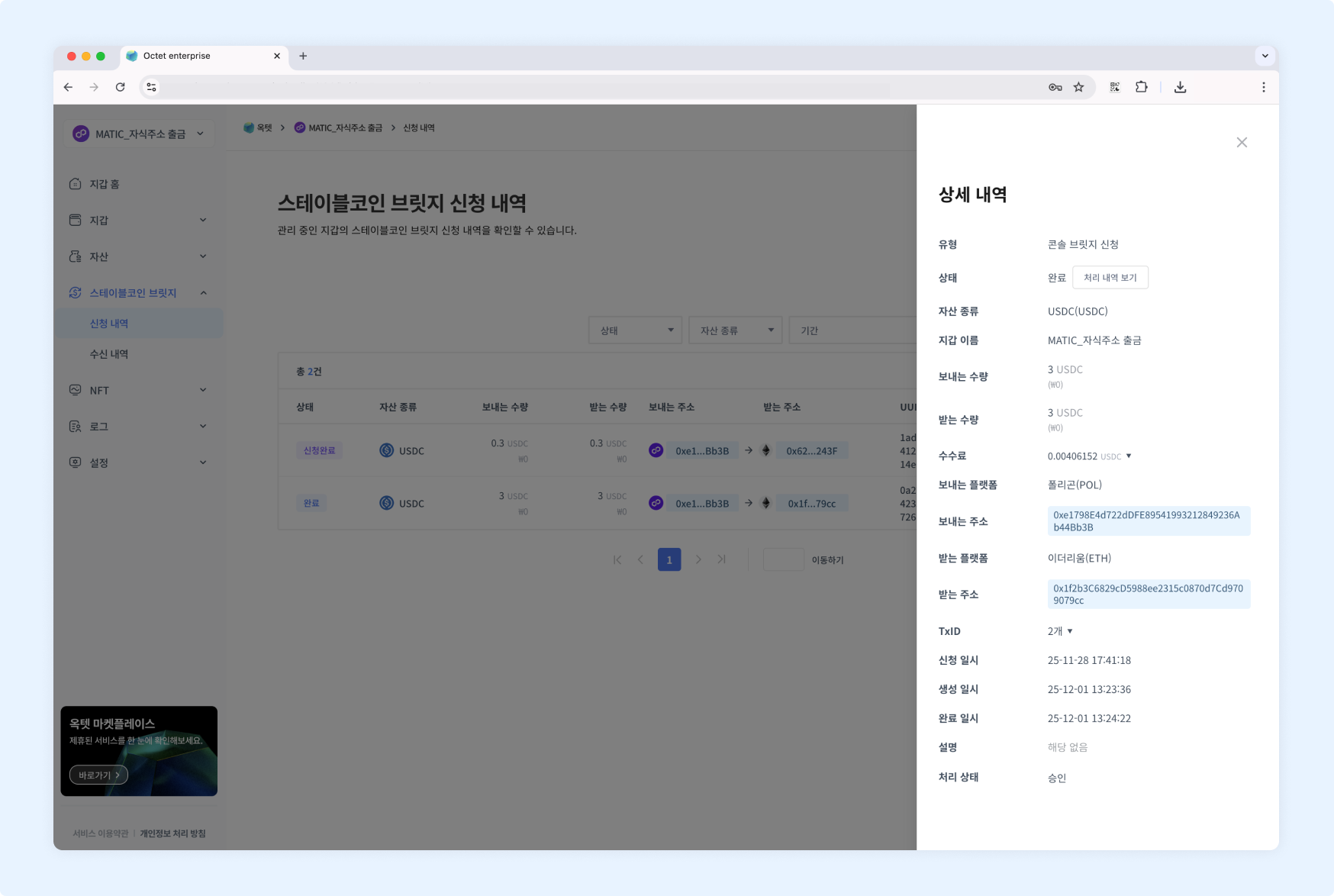
Item | Description |
|---|---|
Type | Console bridge request |
Status |
|
Asset type | Symbol of the asset for which the bridge was requested |
Sending amount | Amount of the asset for which the bridge was requested |
Receiving amount | Amount of the asset received through the bridge |
Fee | Fee used for the bridge request (displayed once the bridge request is completed.) |
Sending platform | Platform of the wallet sending the bridge |
Sending address | Address that sent the bridge |
Receiving platform | Platform of the wallet receiving the bridge |
Receiving address | Address receiving the bridge |
TxID | Unique value of the transaction (displayed once the bridge is in progress.) |
Requested on | Date and time the bridge was requested |
Created at | Date and time the bridge transfer started |
Completed at | Date and time the bridge was completed |
Description | Description entered when requesting the bridge |
Processing status |
|
TIP
Every bridge request has aView Processing Historybutton in the 'Status' item.
Click it to view the processing history of the bridge request.
Requesting a bridge
You can request a bridge from the console. Click the Request Bridge button at the top right to go to the bridge request page.
Permission -
Owner
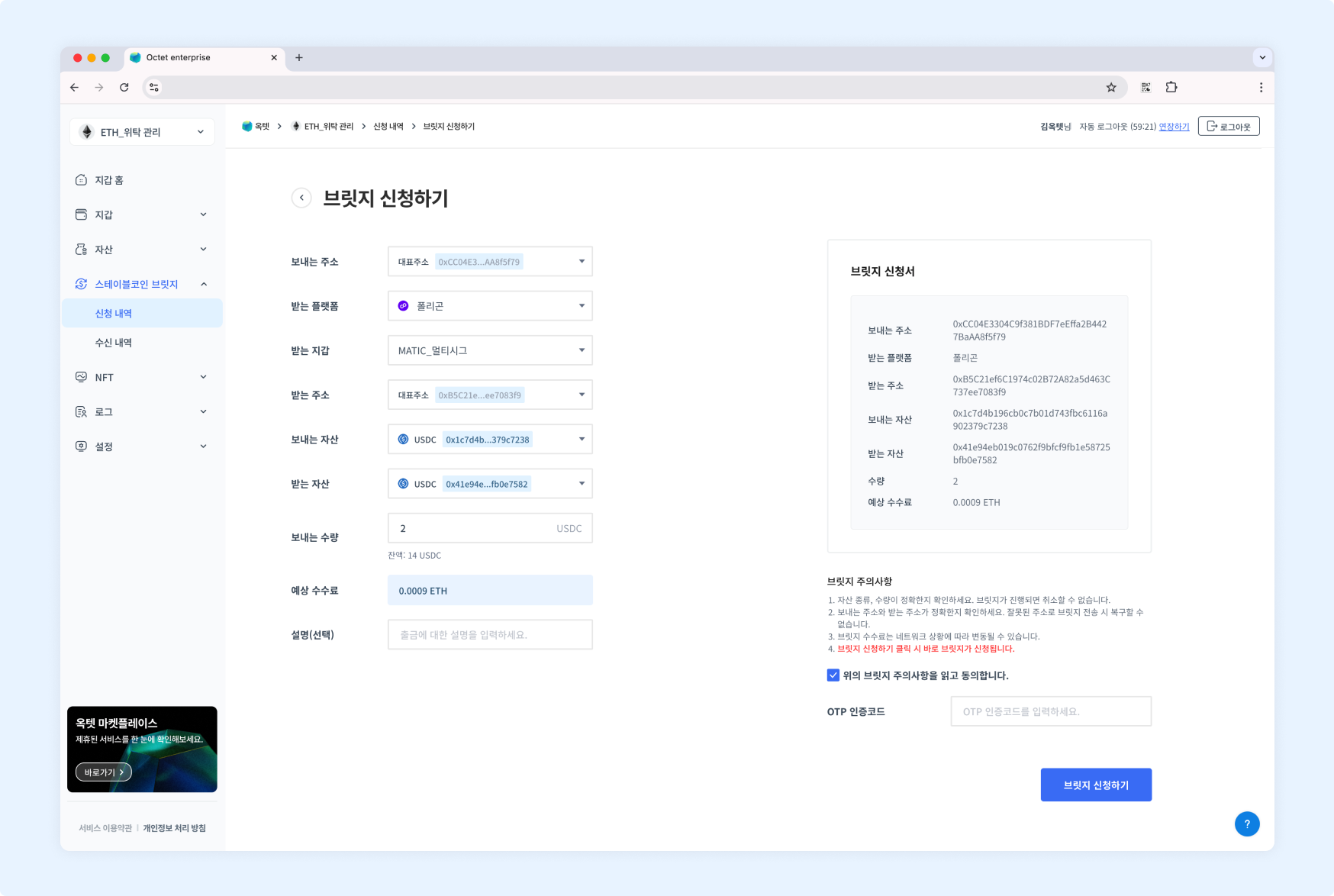
- Select the sending address.
- Select the receiving platform and receiving wallet, then select the receiving address.
- Select the sending asset and the receiving asset.
- Enter the sending amount. It must be less than or equal to the balance you hold.
- Read and check the bridge precautions.
- Enter the OTP code and click the
Request Bridgebutton. The bridge request is completed.
Viewing stablecoin bridge receipts
You can view the bridge receipts for all wallets you have permission for.
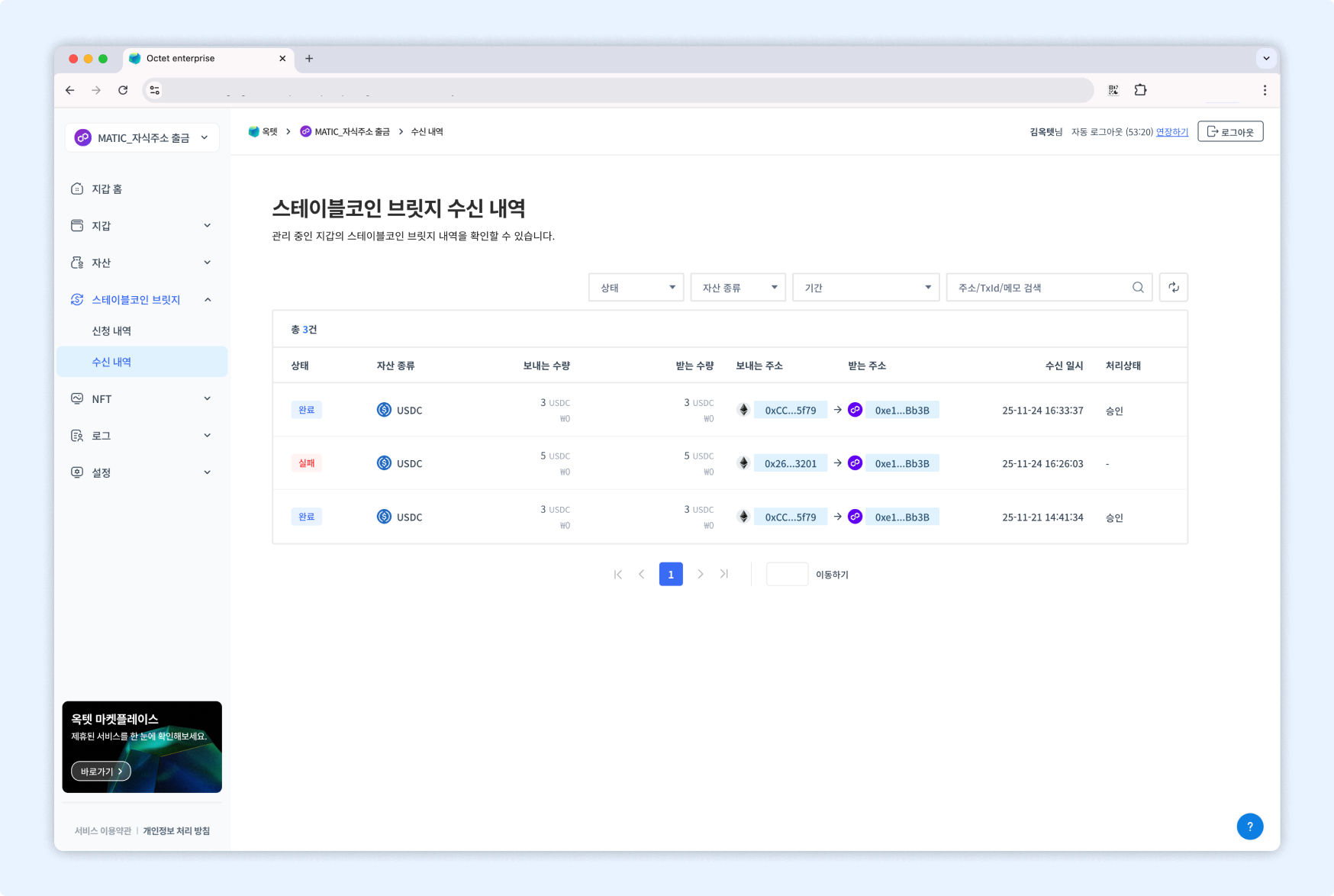
Item | Description |
|---|---|
Status |
|
Asset type | Symbol of the asset received through the bridge |
Sending amount | Amount of the asset for which the bridge was requested |
Receiving amount | Amount of the asset received through the bridge |
Sending address | Address that sent the bridge |
Receiving address | Address that receives the bridge |
Received at | Date and time the bridge was received |
Processing status |
|
Details
Click a row in the table to view the details of that bridge receipt.
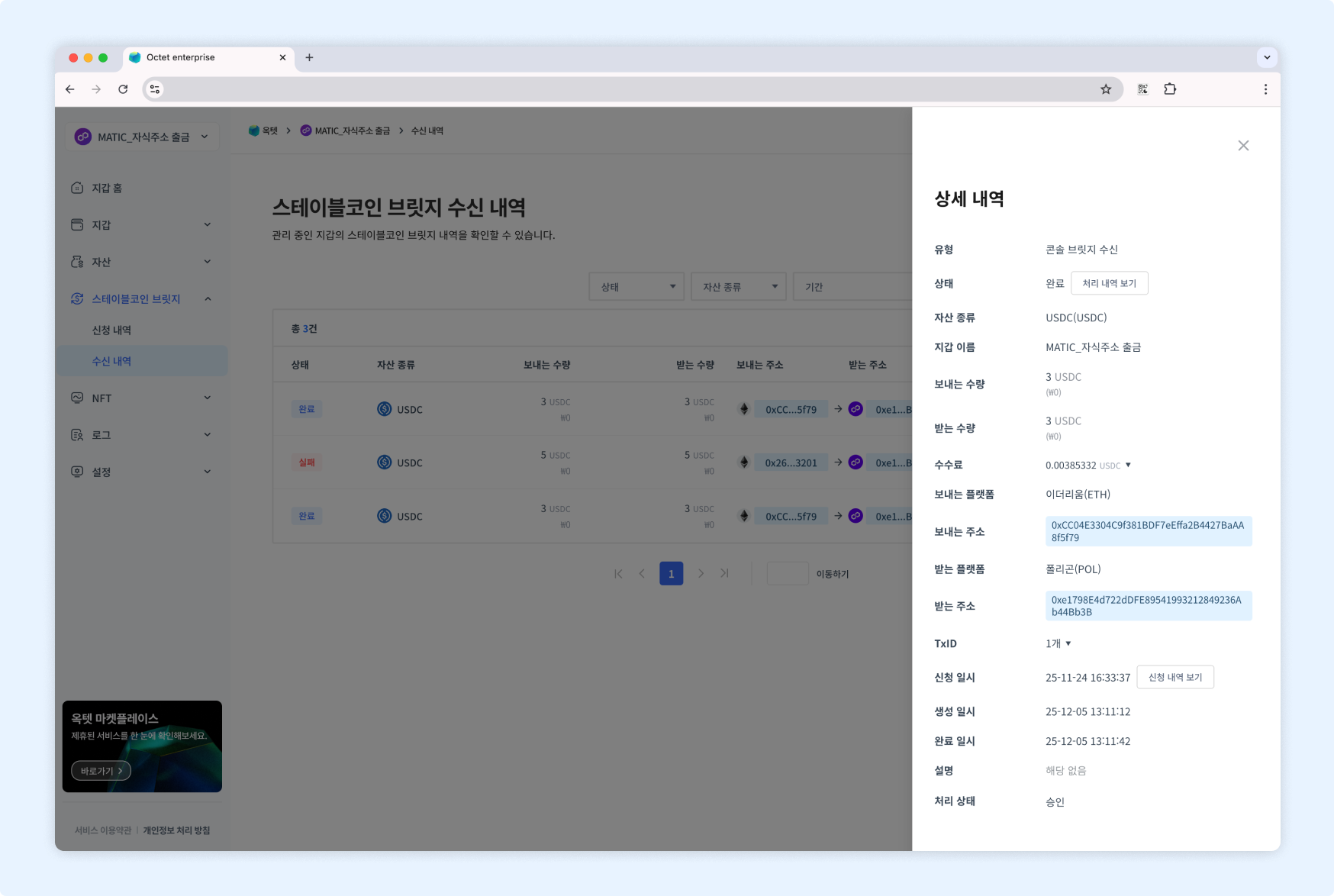
Item | Description |
|---|---|
Type | Console bridge receipt |
Status |
|
Asset type | Symbol of the asset received through the bridge |
Wallet name | Name of the wallet receiving the bridge |
Sending amount | Amount of the asset for which the bridge was requested |
Receiving amount | Amount of the asset received through the bridge |
Fee | Fee used for the bridge receipt (displayed once the bridge receipt is completed.) |
Sending platform | Platform of the wallet sending the bridge |
Sending address | Address that sent the bridge |
Receiving platform | Platform of the wallet receiving the bridge |
Receiving address | Address receiving the bridge |
TxID | Unique value of the transaction (displayed once the bridge is in progress.) |
Requested at | Date and time the bridge was requested |
Created at | Date and time the bridge transfer started |
Completed at | Date and time the bridge was completed |
Description | Description entered when requesting the bridge |
Processing status |
|
TIP
Every bridge request has aView Processing Historybutton in the 'Status' item. Click it to view the processing history of the bridge request.Every bridge receipt has a
View Requestbutton in the 'Requested at' item. Click it to view the details of the bridge request.
Approving a bridge
Once the bridge request is completed, the bridge receipt proceeds after approval in the receiving wallet.
Permission -
Owner
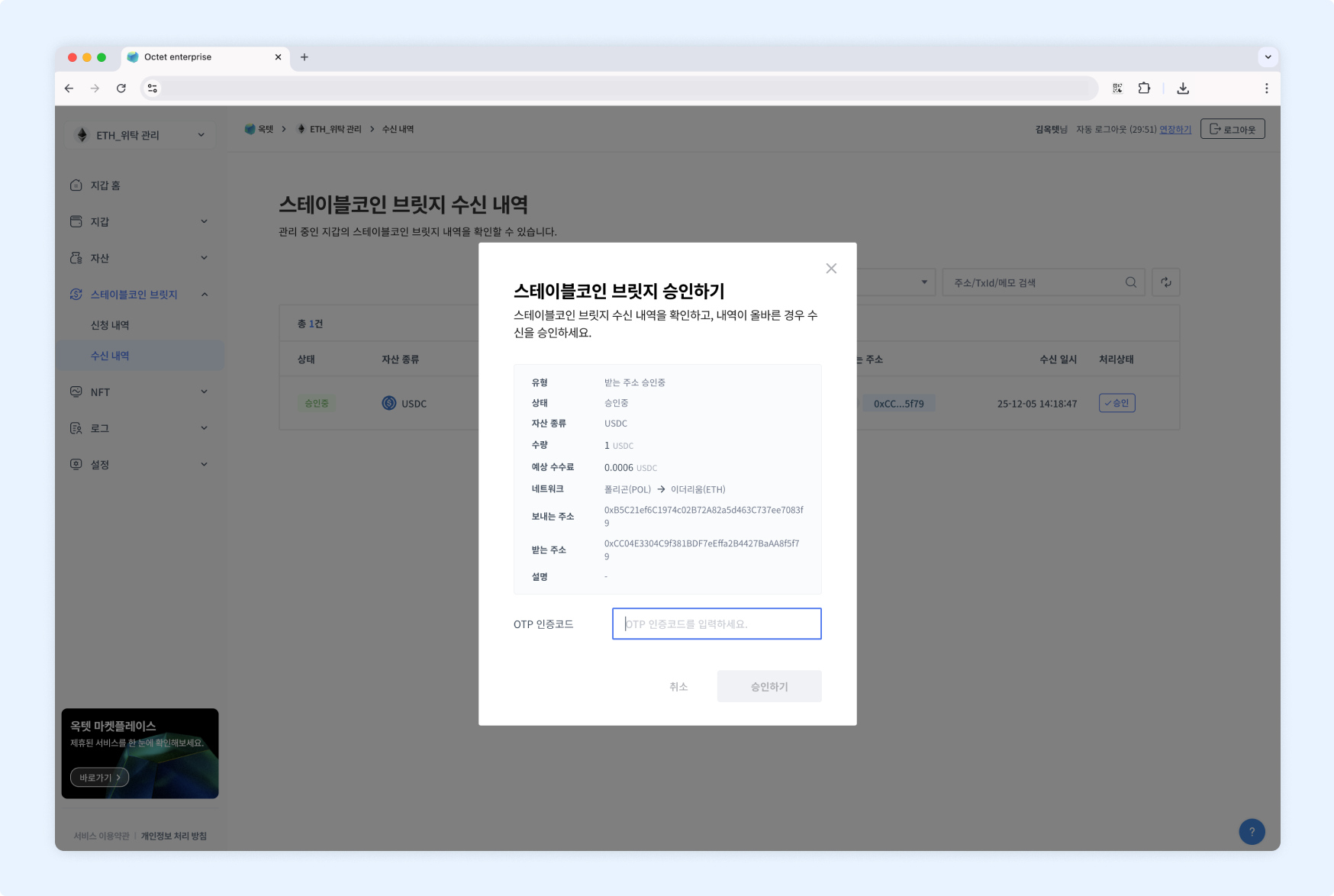
Click the Approve button in the table to display the withdrawal approval popup.
Re-entering the one-time user key
If the key management type of the requesting and receiving wallets is co-managed, you must generate and use a one-time user key when requesting and approving the bridge. If the one-time user key is incorrect, the bridge request and receipt fail.
Permission -
Owner
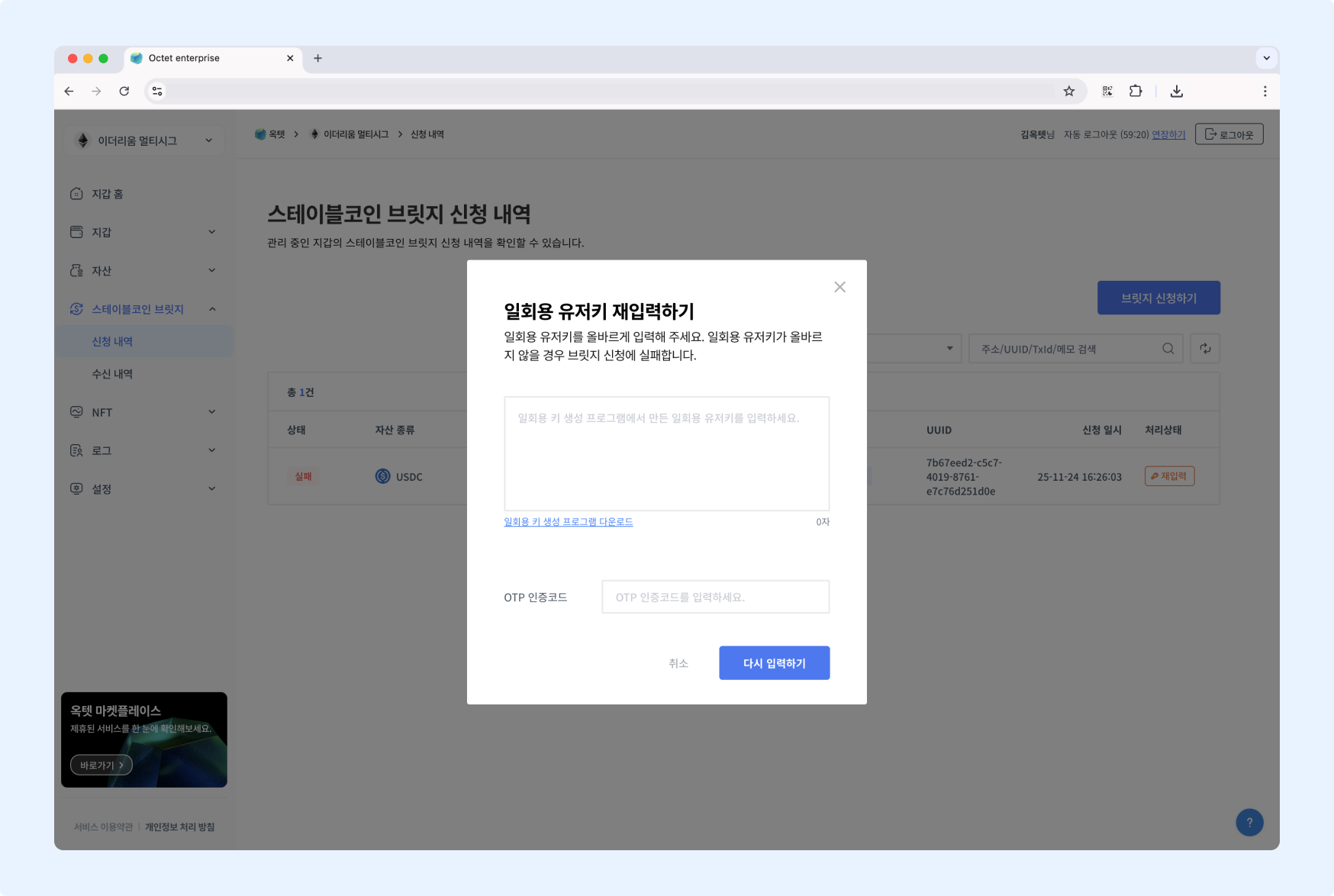
- Enter the one-time user key generated with the one-time key generator. (One-time user key generation guide)
- Enter the OTP code and click the
Re-enterbutton. The one-time user key re-entry is completed.