Security Alert
Security alert
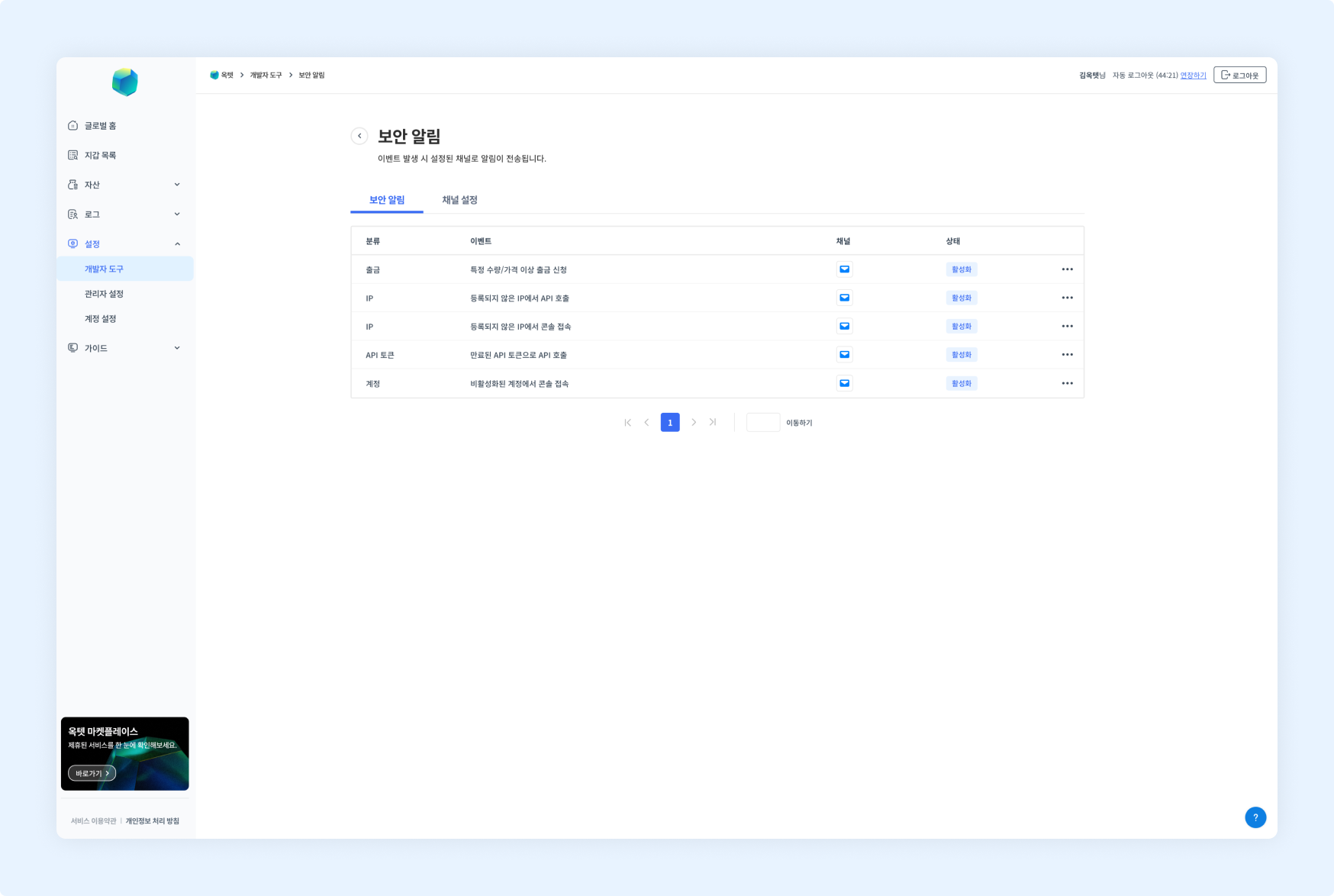
Security alerts let you receive a notification when an outsider gains access or an unintended API call occurs. Set up security alerts to manage your assets more safely.
Security alert events
- Withdrawal request above a specific amount/price
- API call from an unregistered IP
- Console access from an unregistered IP
- API call with an expired API token
- Console access from a deactivated account
Permission -
Owner
Changing the status
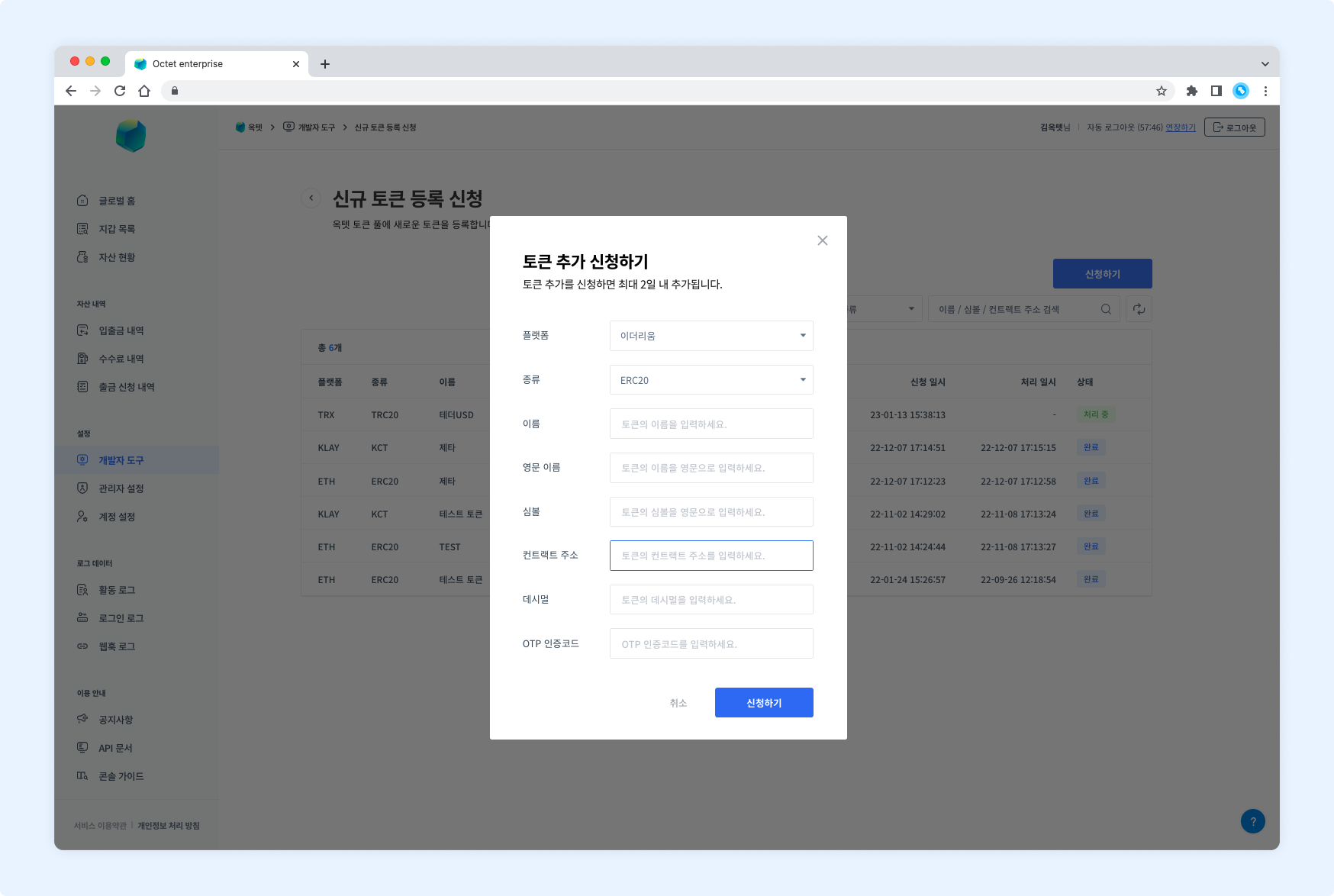
- Click the
Morebutton in the table row. - Click the
DeactivateorActivatebutton. The Change Security Alert Status popup is displayed. - Enter the OTP code, then click the
Changebutton. - The alert status is changed.
Setting up channels
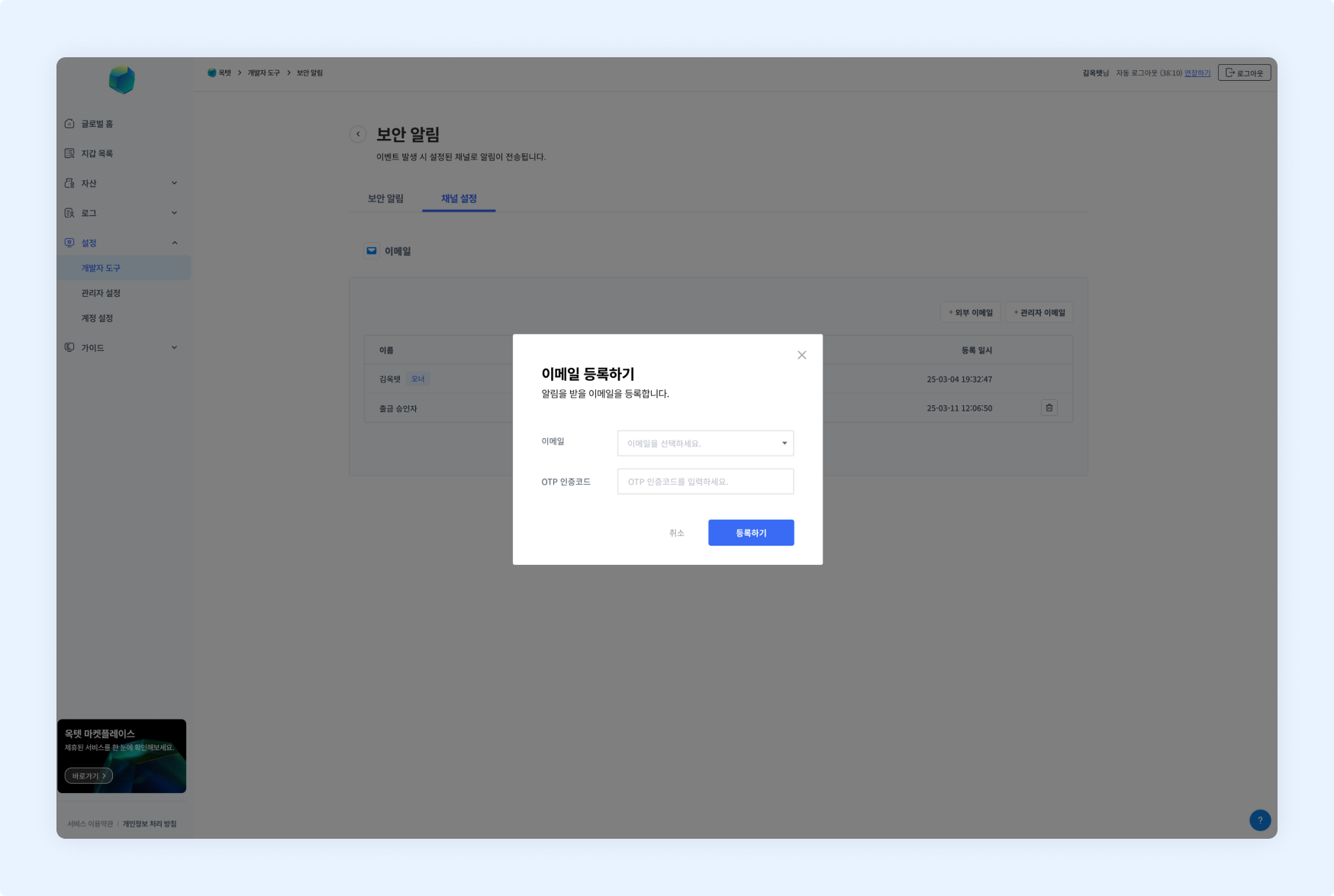
- Click the
External EmailorAdmin Emailadd button.- External email: You can register an email address that is not used in Octet.
- The Register Email popup is displayed.
- Enter a name (alias) for the email to register.
- Enter the email to register.
- Enter the OTP code, then click the
Registerbutton.
- Admin email: You can select and register an email that is in use in Octet.
- The Register Email popup is displayed.
- Select the email to register.
- Enter the OTP code, then click the
Registerbutton.
- External email: You can register an email address that is not used in Octet.
- The email to receive alerts is registered.
Deleting a channel
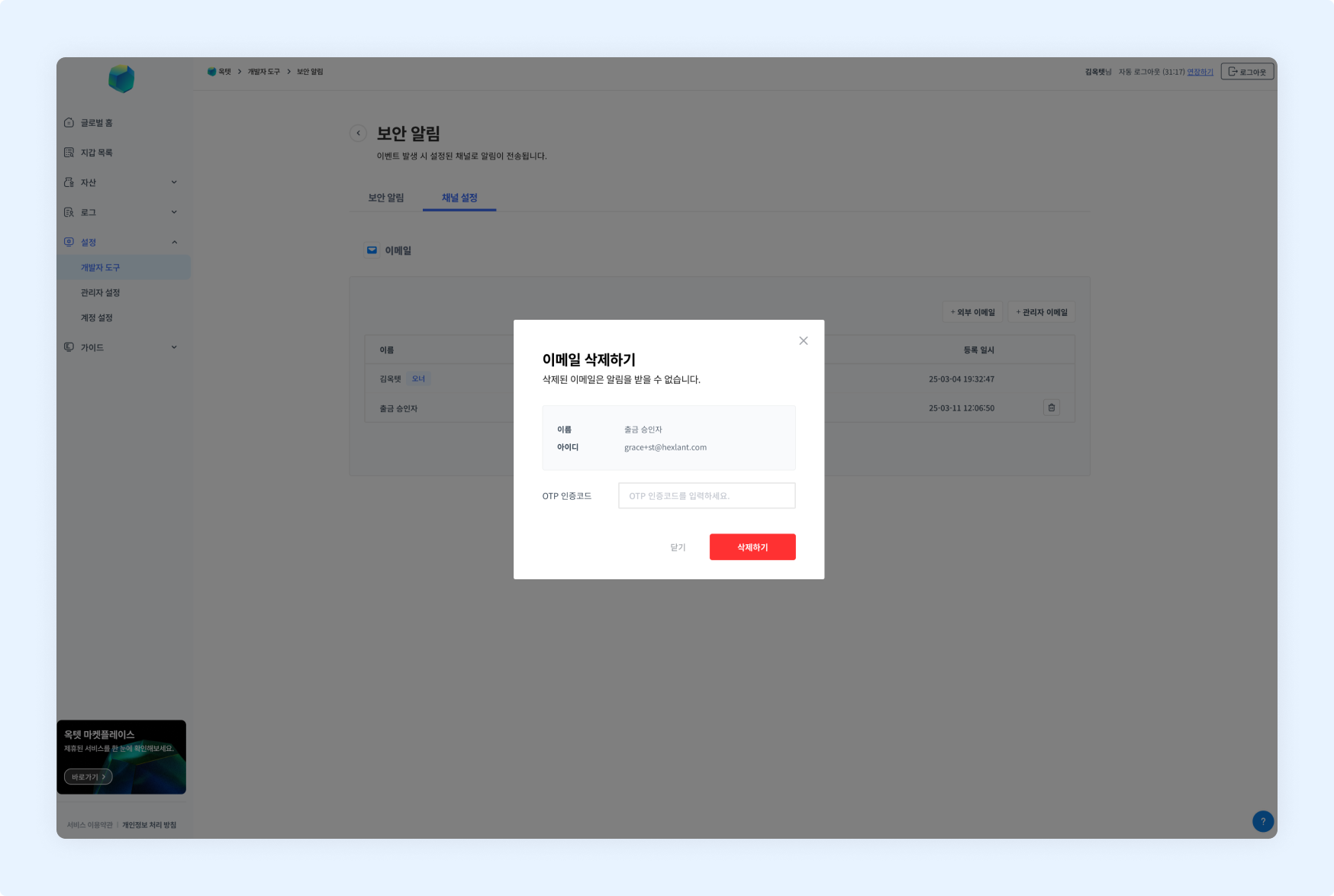
- Click the delete button. The Delete Email popup is displayed.
- Enter the OTP code, then click the
Deletebutton.
TIP
TheOwneremail cannot be deleted.
Withdrawal request above a specific amount/price
You can receive an alert when a withdrawal request above the configured amount or price occurs. You can add alerts on the wallet settings page.
Permission -
Owner,Manager
Details
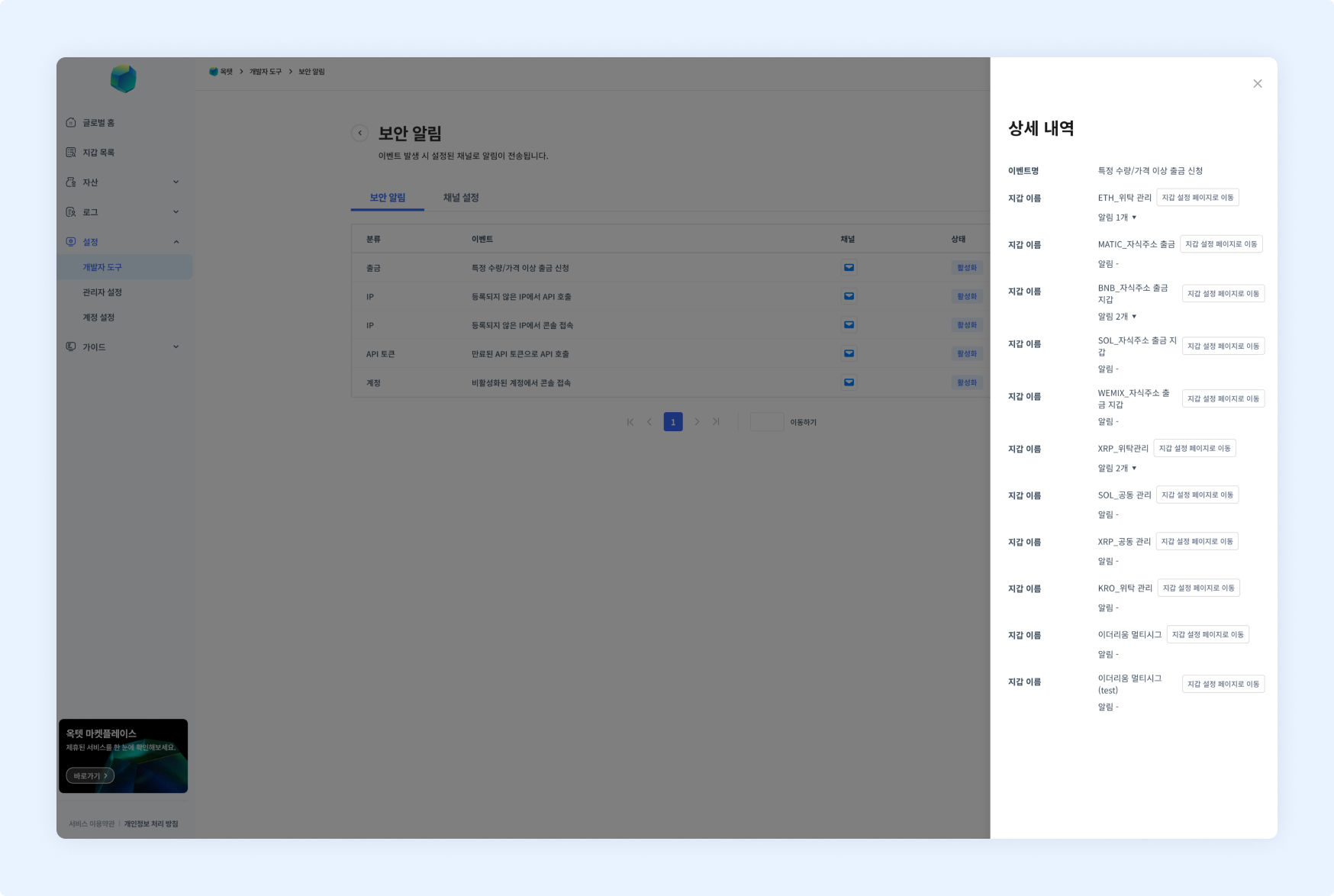
- Click the alert for a withdrawal request above a specific amount/price. The details are displayed.
- Click the
Go to Wallet Settingsbutton in the details to go to the settings page of each wallet.
Adding an alert
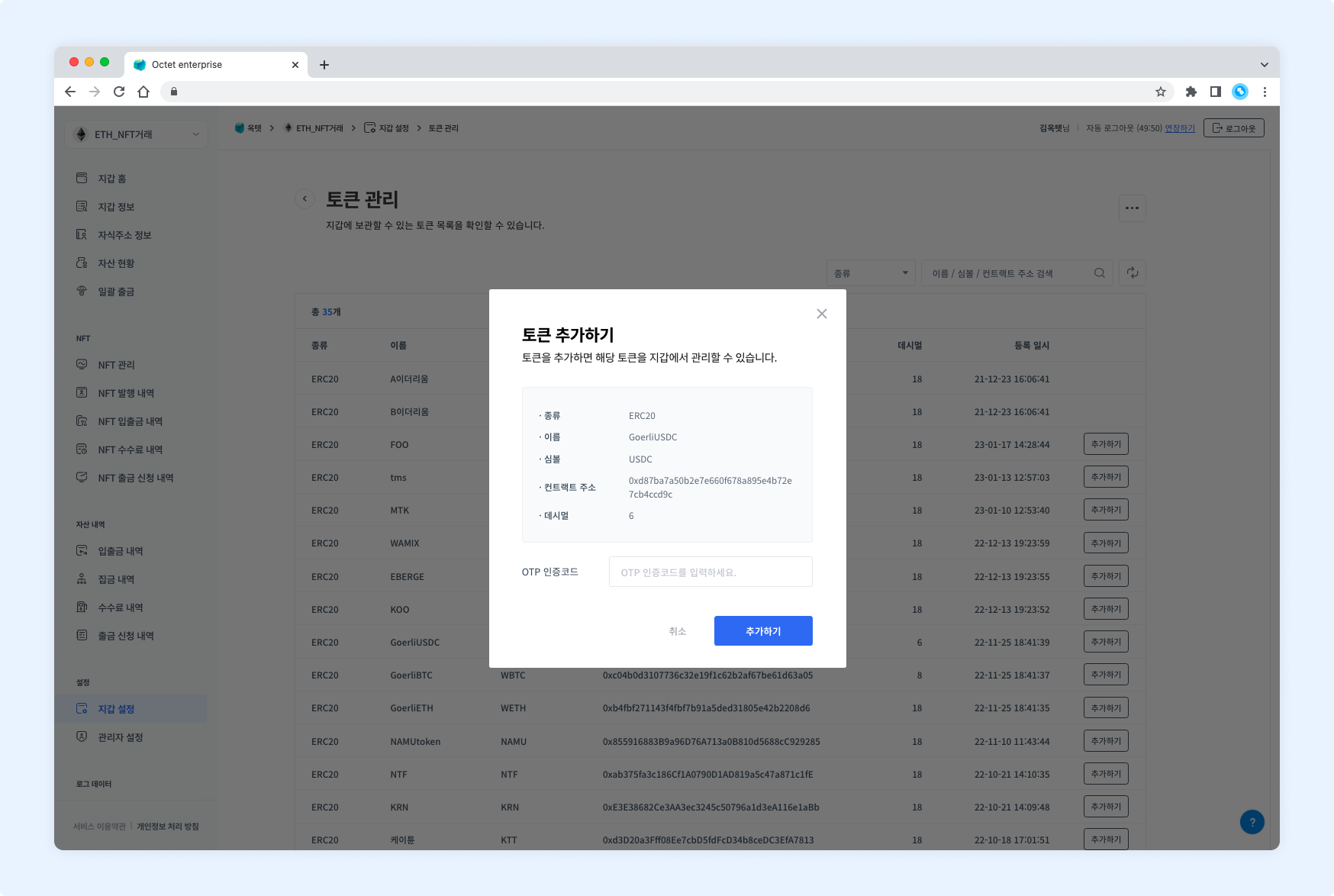
- Click the
Addbutton. The Set Up Alert popup is displayed. - Select the type of alert.
- Withdrawal request above a specific amount/price
- Enter a name for the alert.
- Select the asset type and enter the amount or price condition.
- Enter the OTP code, then click the
Setbutton. - The alert is set.
Changing the status
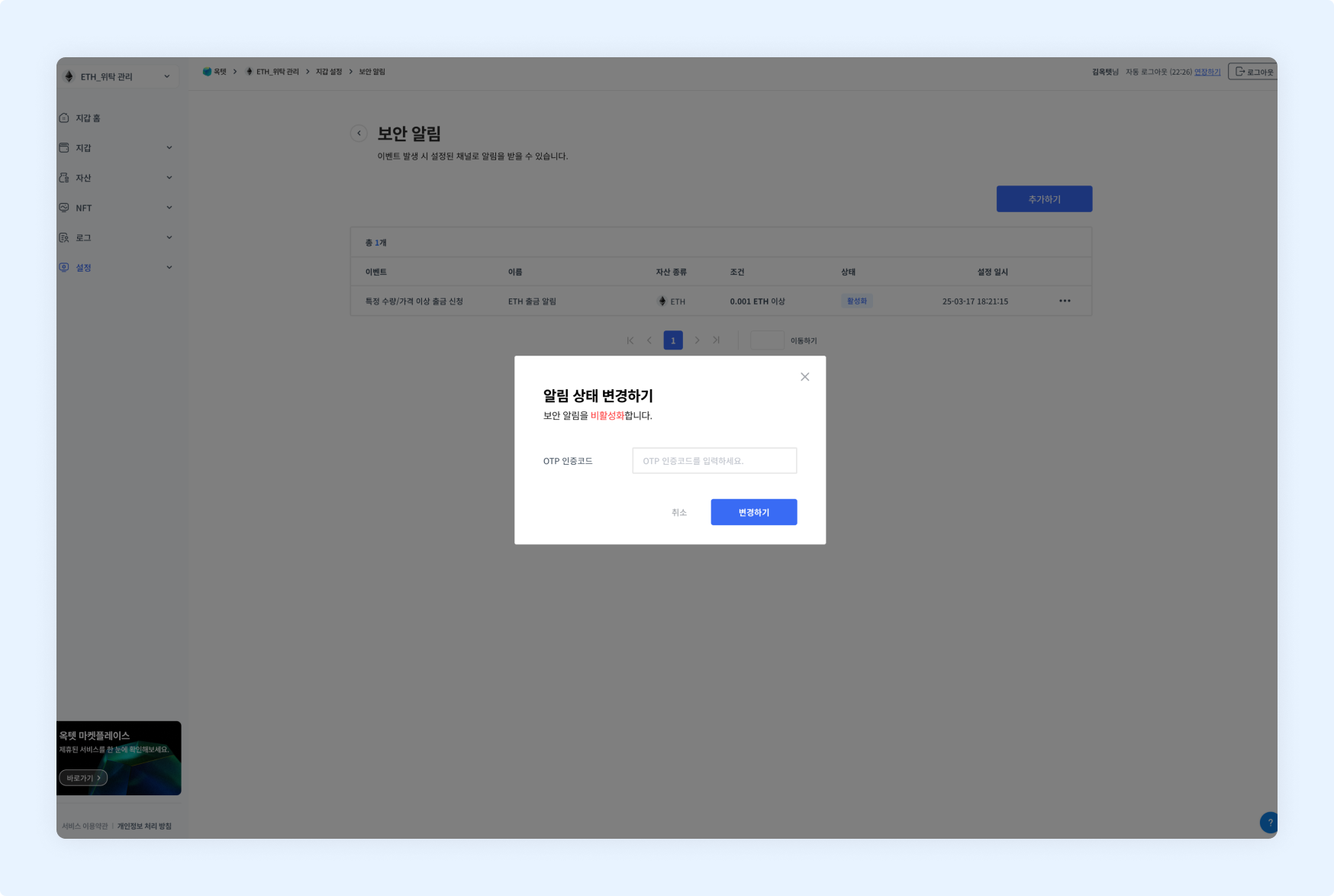
- Click the
Morebutton in the table row. - Click the
DeactivateorActivatebutton. The Change Alert Status popup is displayed. - Enter the OTP code, then click the
Changebutton. - The alert status is changed.
Editing
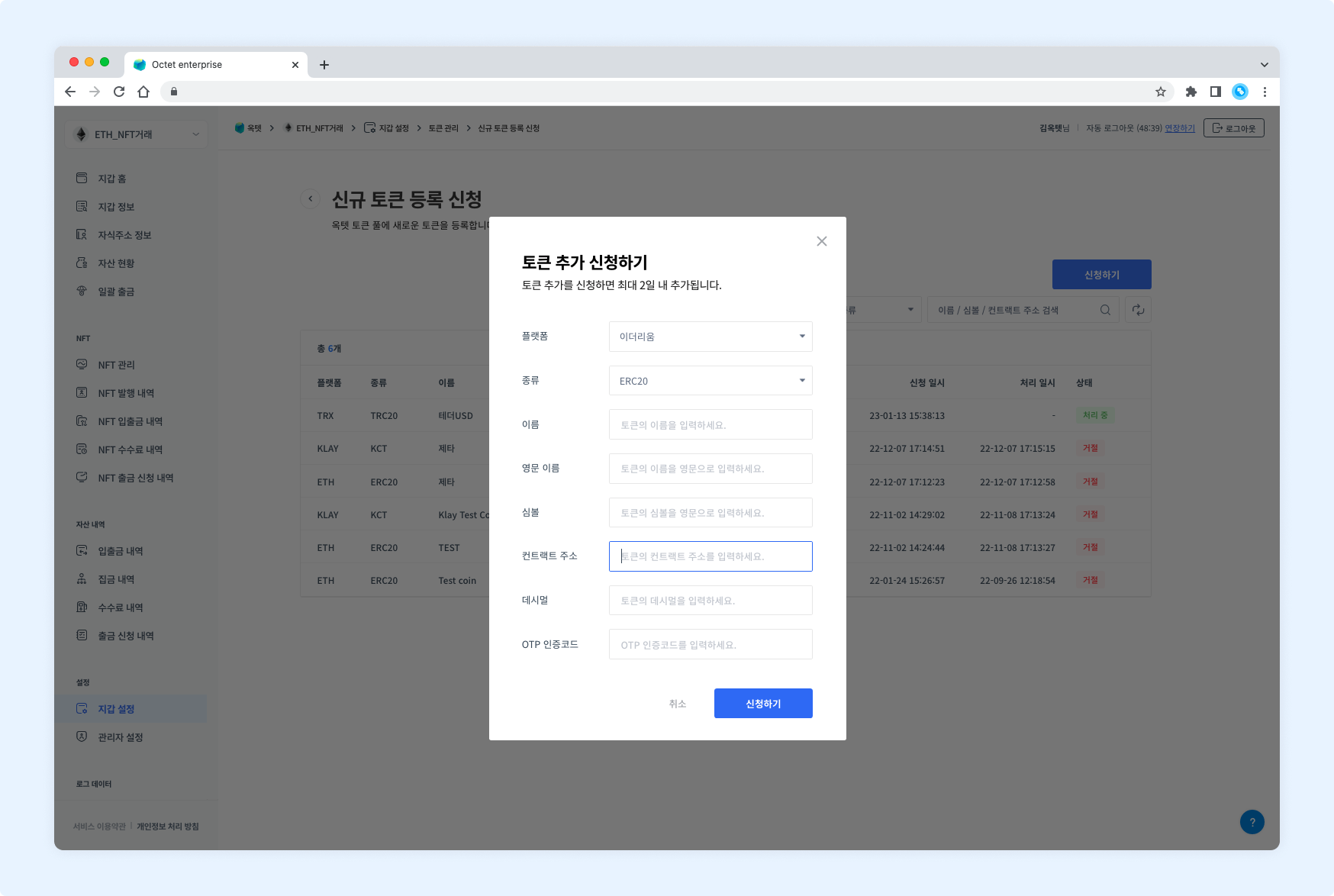
- Click the
Morebutton in the table row. - Click the
Editbutton. The Edit Alert popup is displayed. - Change the information you want to edit, enter the OTP code, then click the
Editbutton. - The alert is edited.
Deleting
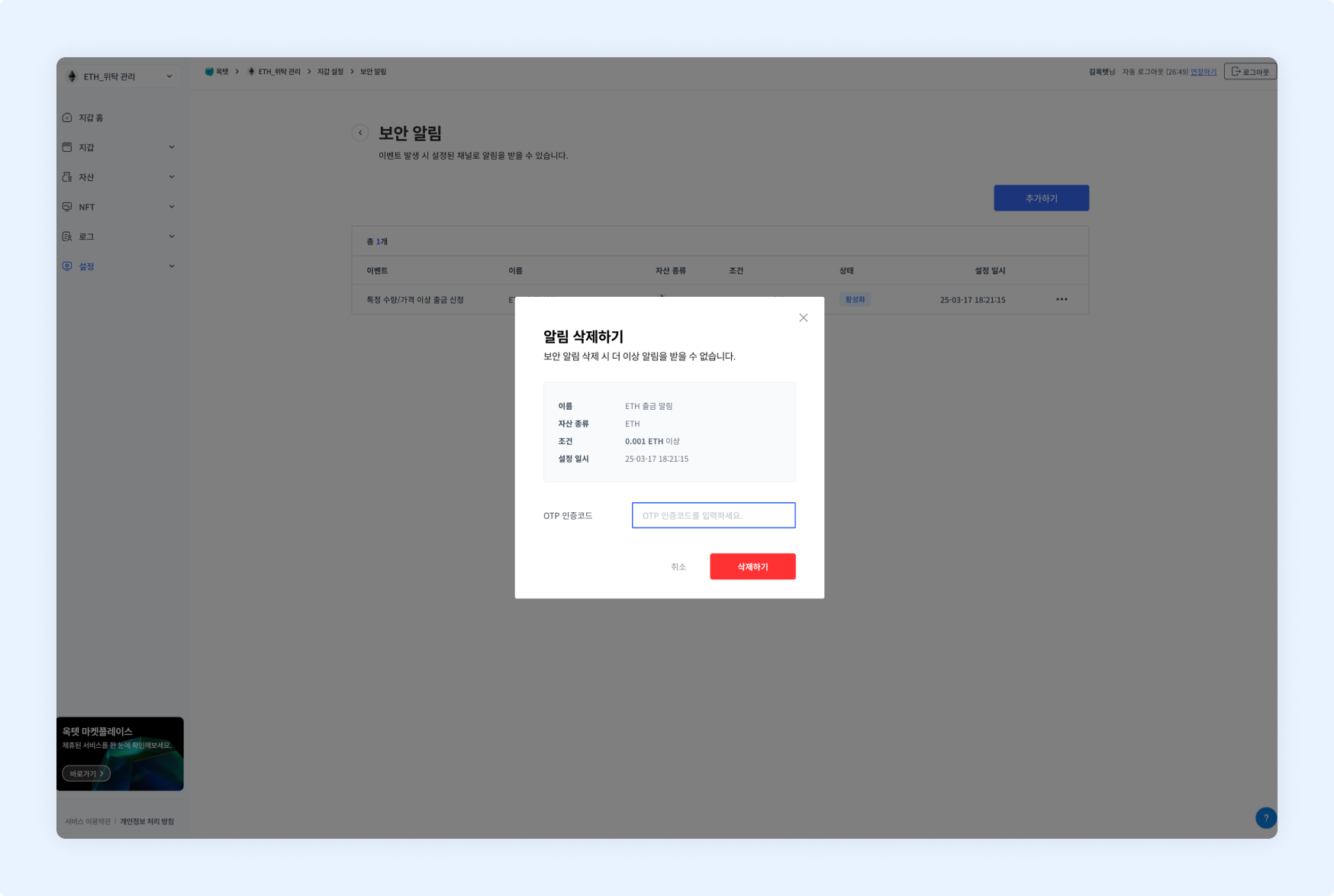
- Click the
Morebutton in the table row. - Click the
Deletebutton. The Delete Alert popup is displayed. - Enter the OTP code, then click the
Deletebutton. - The alert is deleted.