Transactions
View transaction history
You can view the deposit and withdrawal history of this wallet.
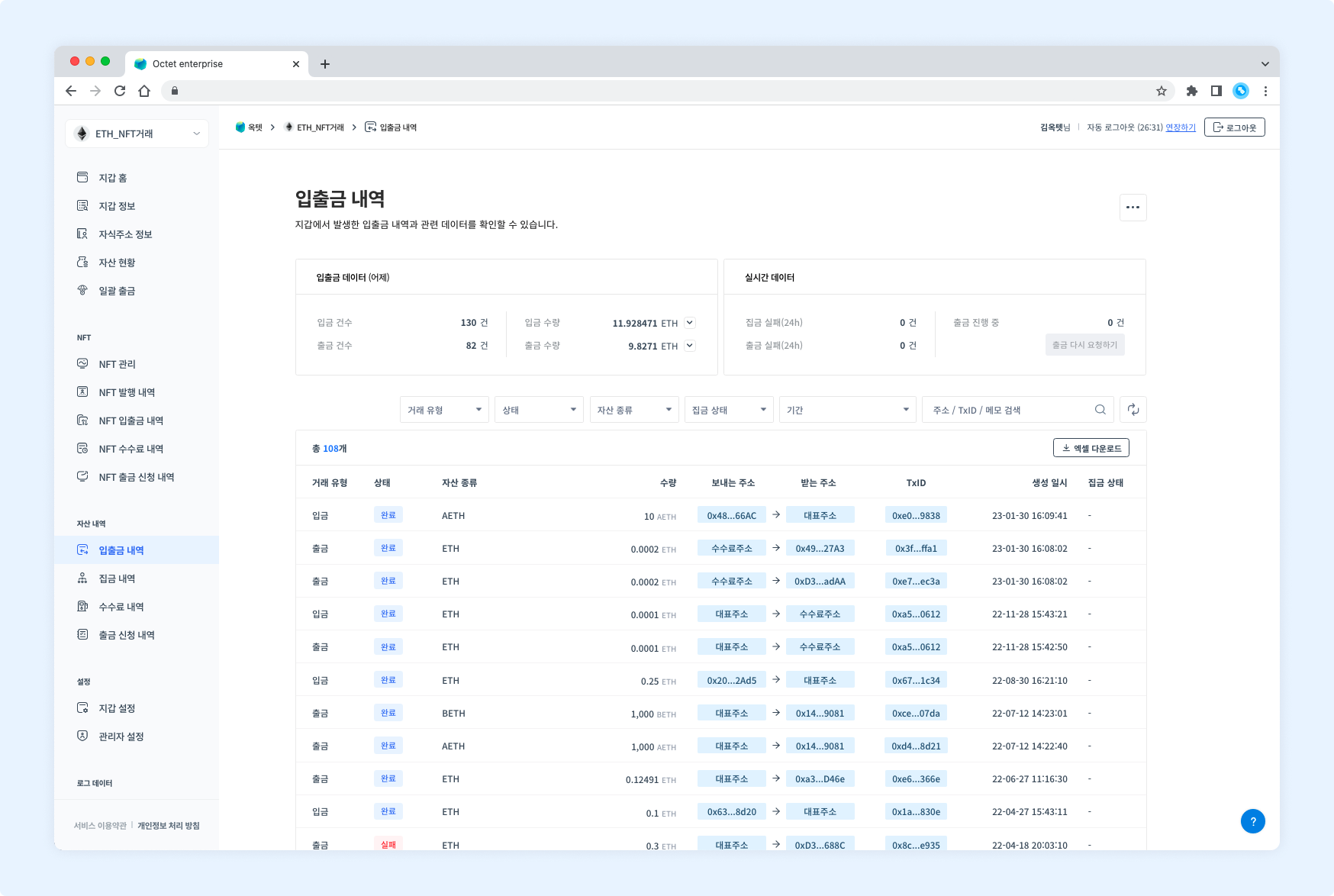
Item | Description |
|---|---|
Transaction type |
|
Status |
|
Asset | Symbol of the deposited or withdrawn asset |
Amount | Amount of the deposited or withdrawn asset |
From address | Address that sent the asset |
To address | Address that received the asset |
TxID | Unique value of the transaction |
Created at | Date and time the transaction was created |
Gathering status | Whether the asset deposited to the centralized wallet has been gathered |
Details
Click a row in the table to view the details of that transaction.
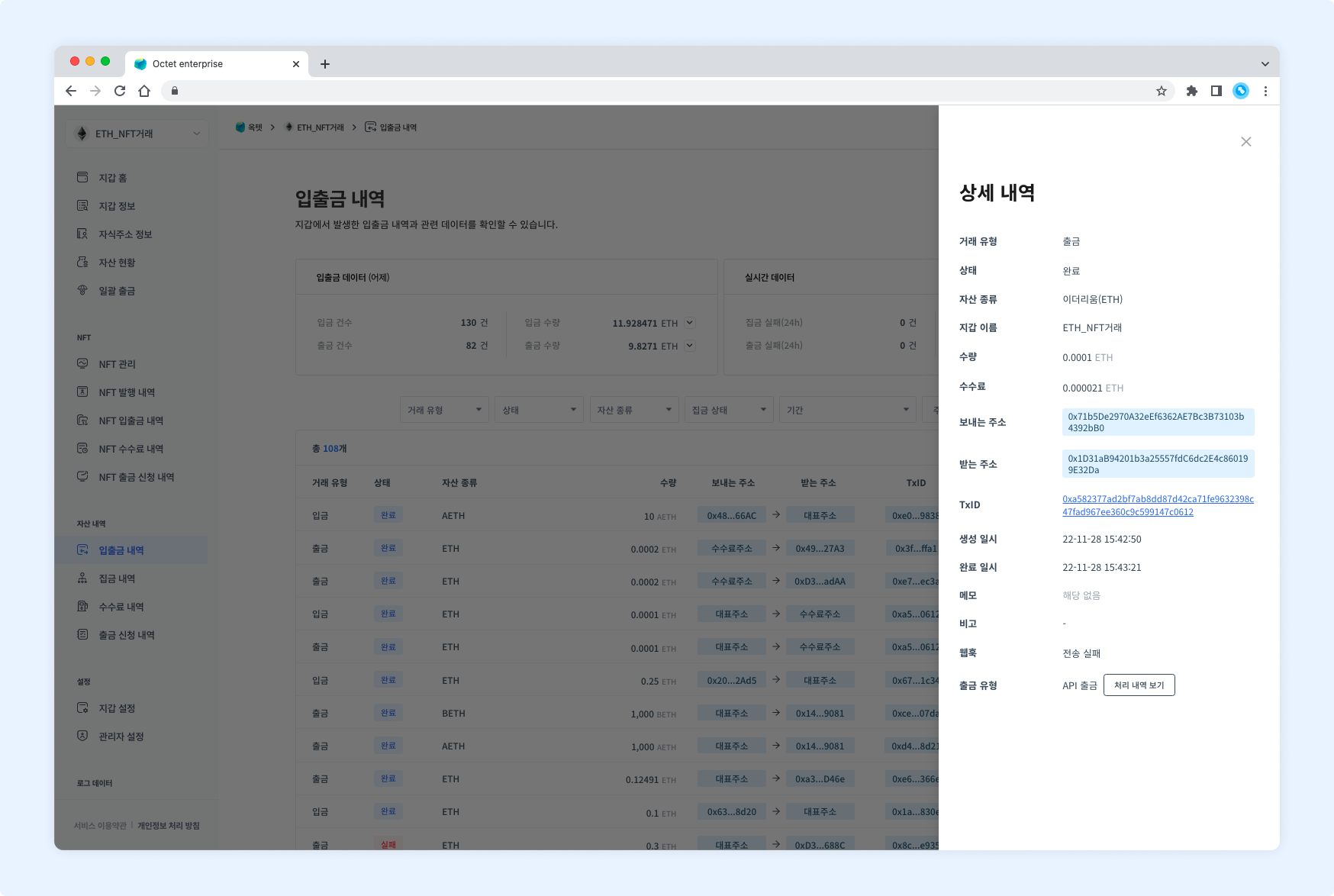
Deposit
Item | Description |
|---|---|
Transaction type |
|
Status |
|
Asset | Name and symbol of the deposited asset |
Wallet name | Name of the wallet the deposit occurred in |
Amount | Amount of the deposited asset |
From address | Address that sent the asset |
To address | Address that received the asset |
TxID | Unique value of the transaction |
Created at | Date and time the transaction was created |
Memo | XRP destination tag or EOS memo |
Webhook |
|
TIP
Once a deposit to a centralized wallet is complete, aView gathering historybutton appears in the 'Status' field.
Click it to view the gathering details.
Withdrawal
Item | Description |
|---|---|
Transaction type |
|
Status |
|
Asset | Name and symbol of the withdrawn asset |
Wallet name | Name of the wallet the withdrawal occurred in |
Amount | Amount of the withdrawn asset |
From address | Address that sent the asset |
To address | Address that received the asset |
TxID | Unique value of the transaction |
Created at | Date and time the transaction was created |
Completed at | Date and time the transaction was completed |
Memo | XRP destination tag or EOS memo |
Note | Description entered when the withdrawal was requested |
Webhook |
|
Withdrawal type |
|
TIP
For withdrawals that went through approval in the console, aView processing historybutton appears in the 'Withdrawal type' field.
Click it to view the withdrawal processing history.
Resend withdrawal
Click the Request withdrawal again button to reset the fee and resend the withdrawal.
Permission -
Owner
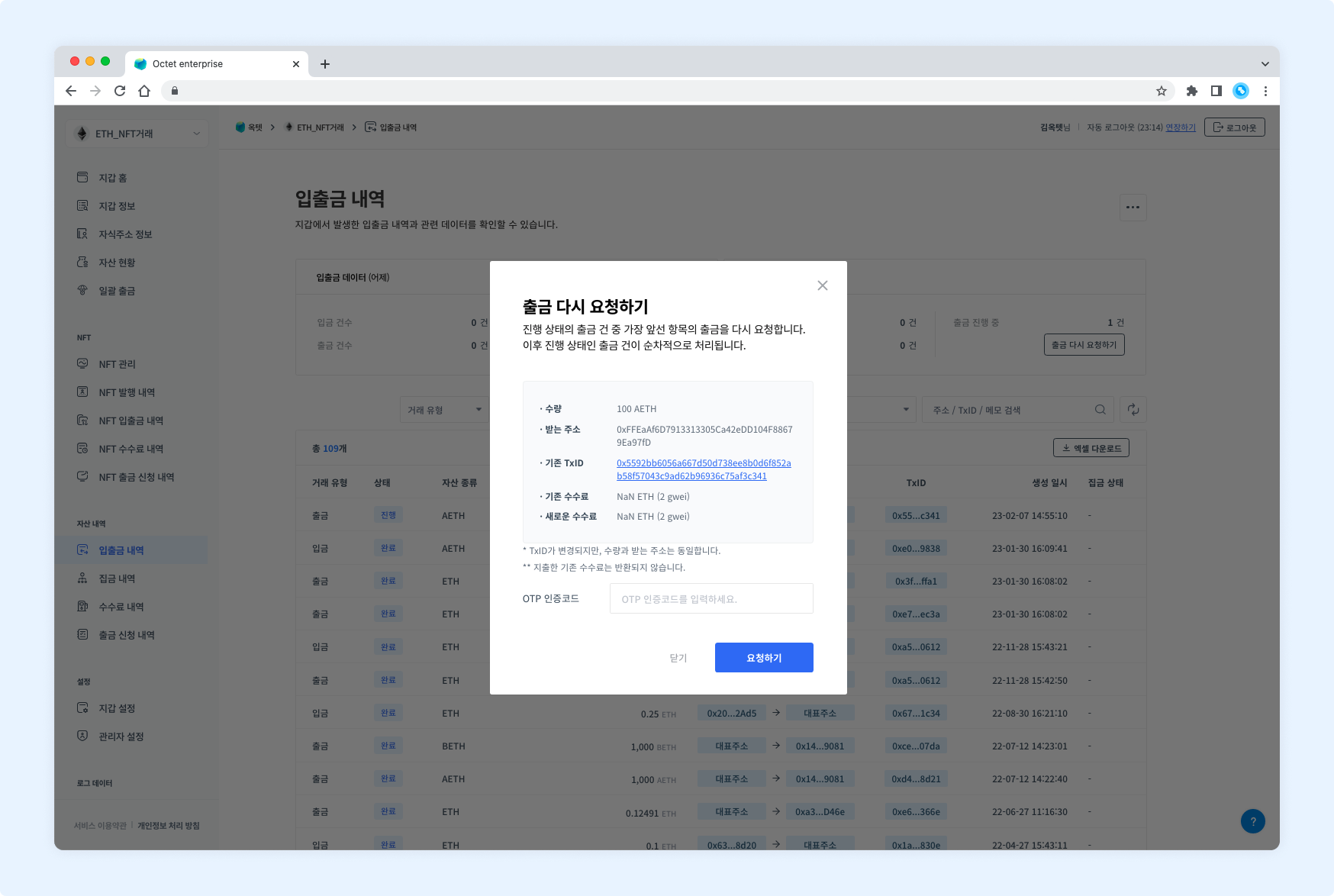
- Check the withdrawal to resend.
- Enter your OTP code and click the Request button. The withdrawal is requested again.
TIP
The fee already spent is not refunded.
Download
Click the Download Excel button at the top of the table to download the transaction history for a specific period as an Excel file.
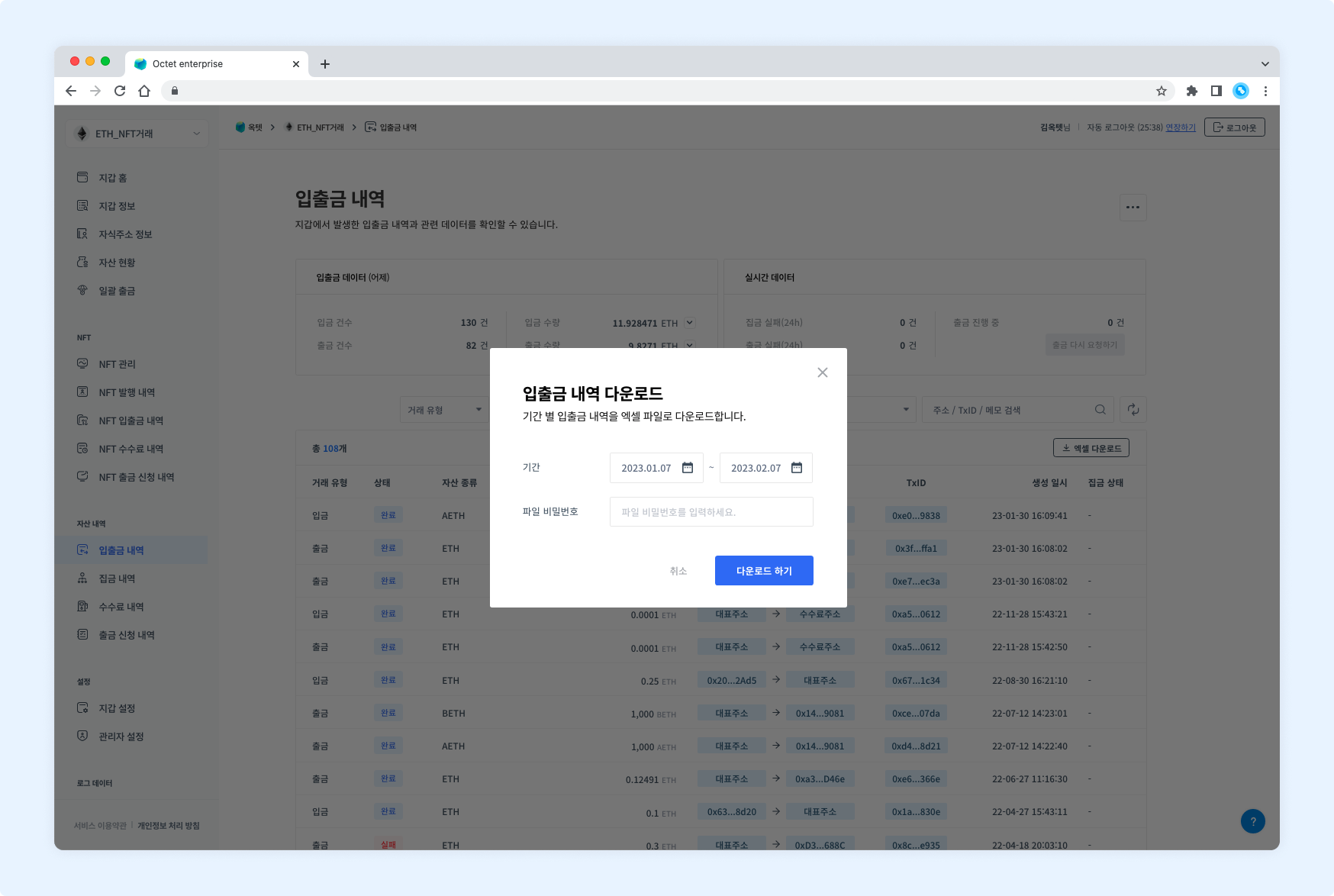
Select the period to view, enter a file password, and click the Download button.
Manual deposit
Click the More button in the upper right to go to the manual deposit page. On the manual deposit page you can manually process missed deposits. If an unregistered token is deposited, use the manual deposit feature to process the deposit.
View manual deposit requests
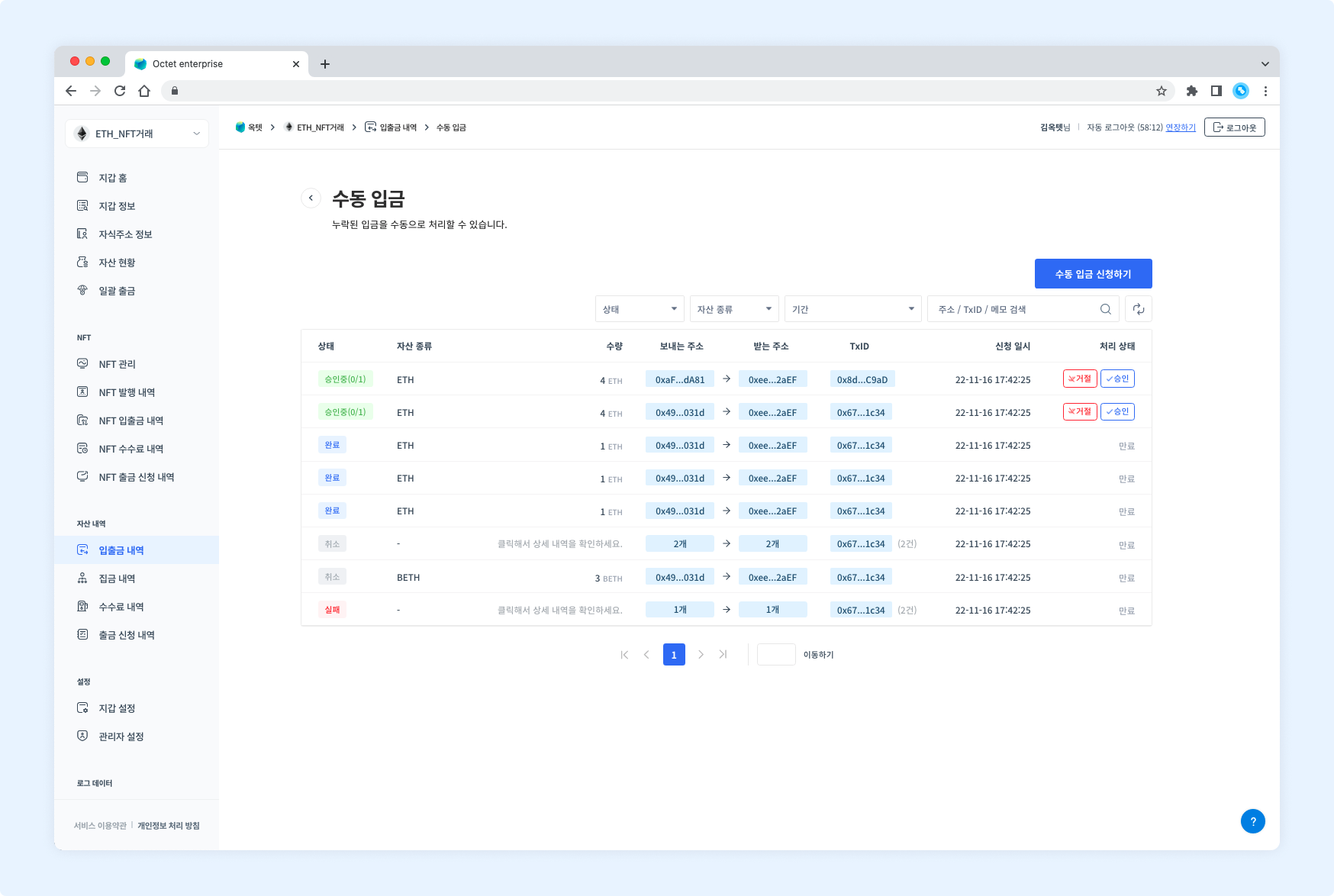
Item | Description |
|---|---|
Status |
|
Asset | Symbol of the asset requested for deposit |
Amount | Amount of the asset requested for deposit |
From address | Address that sent the asset |
To address | Address that received the asset |
TxID | Unique value of the transaction |
Requested at | Date and time the deposit was requested |
Processing status |
|
TIP
If one transaction contains multiple deposits, check the amounts and addresses in the details.
Manual deposit details
Click a row in the table to view the details of that deposit request.
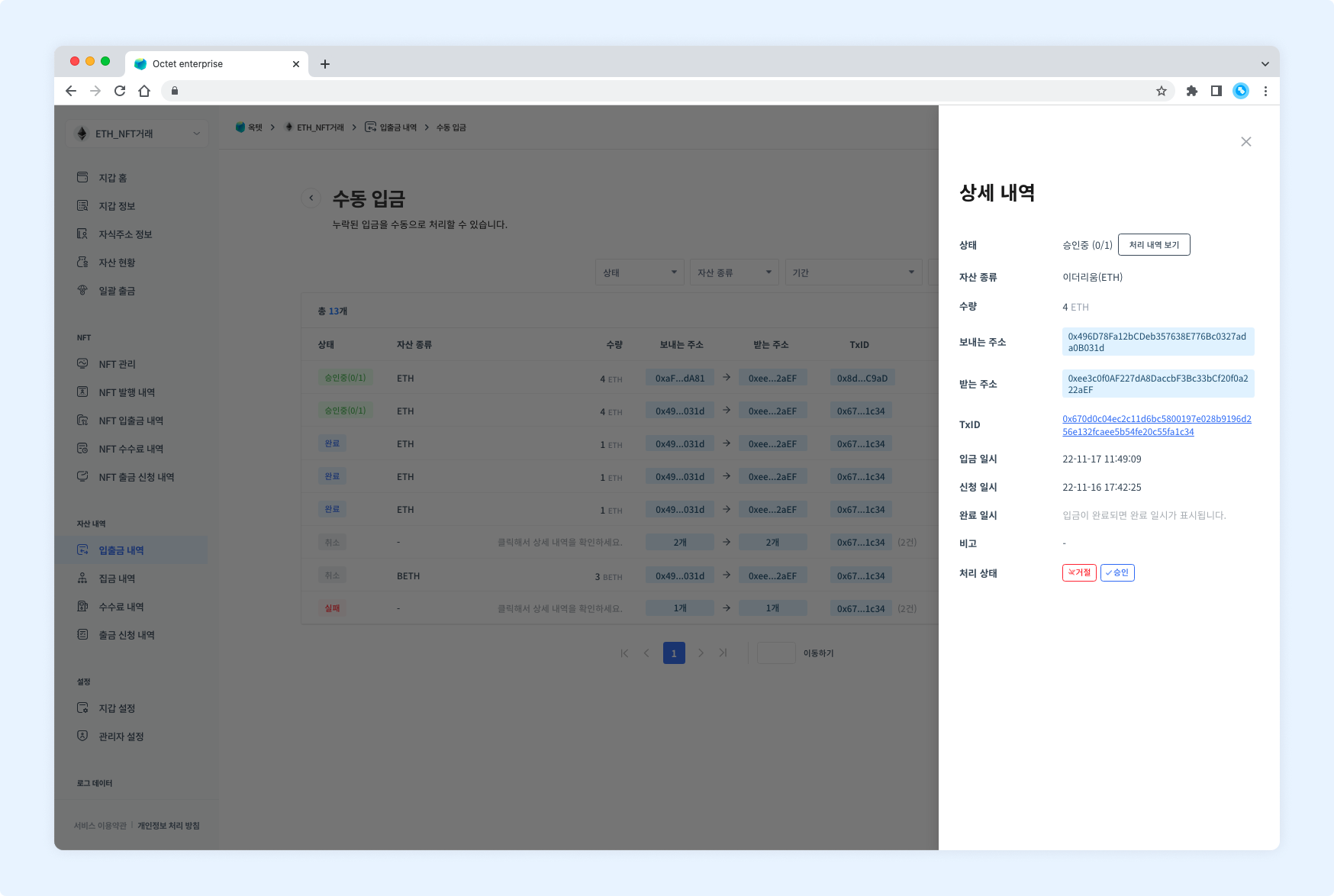
Item | Description |
|---|---|
Status |
|
Asset | Symbol of the asset requested for deposit |
Amount | Amount of the asset requested for deposit |
From address | Address that sent the asset |
To address | Address that received the asset |
TxID | Unique value of the transaction |
Deposited at | Date and time the deposit occurred |
Requested at | Date and time the manual deposit was requested |
Completed at | Date and time the manual deposit transaction was completed |
Note | Description entered when the deposit was requested |
Processing status |
|
Request a manual deposit
Click the Request manual deposit button in the upper right to open the deposit request popup.
Permission -
Requester
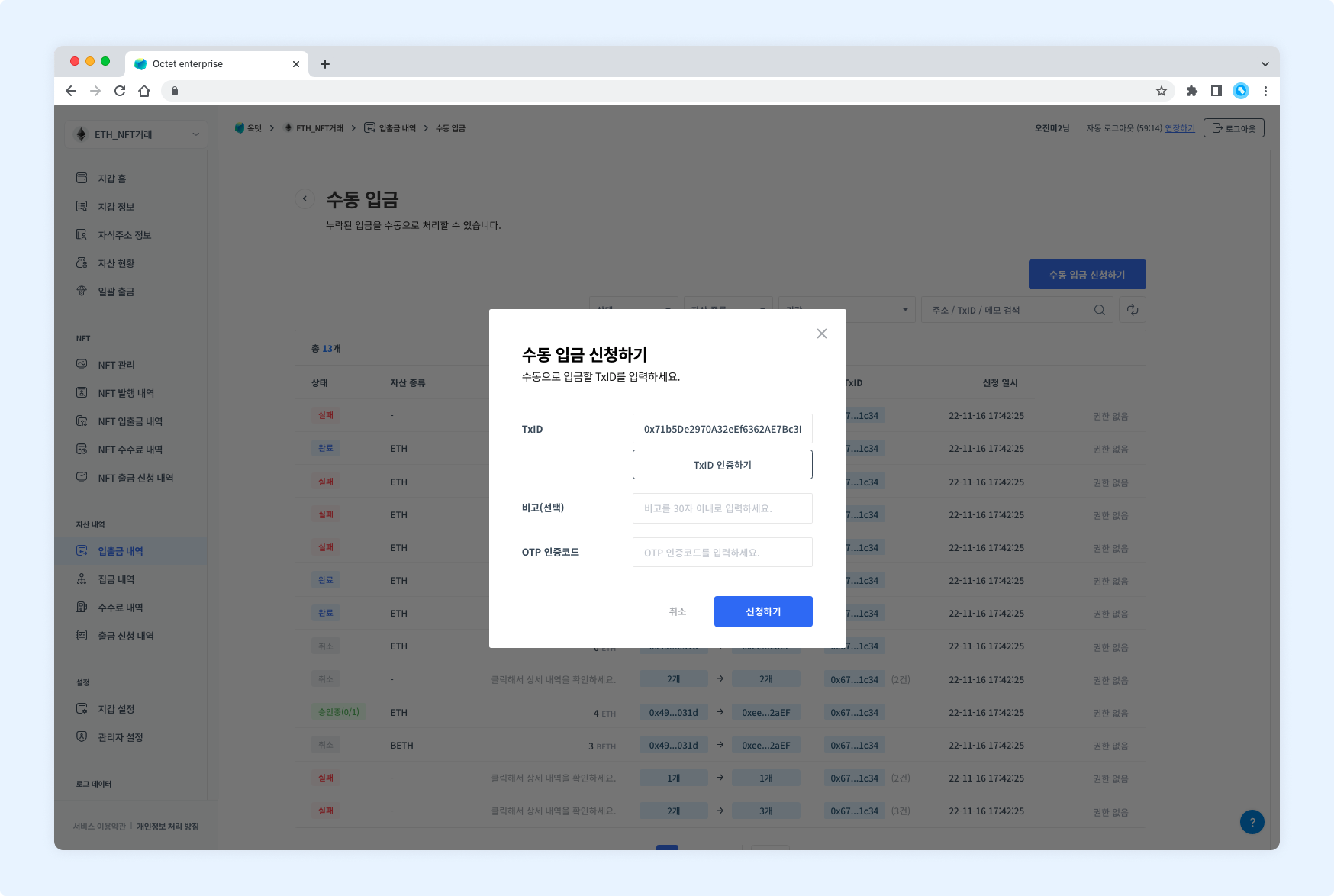
- Enter the TxID to deposit.
- Click the
Verify TxIDbutton to check that the TxID is valid. - Enter your OTP code and click the
Requestbutton. The deposit request is complete.
Approve a manual deposit
Once a deposit is requested, the configured number of approvers must approve it before the deposit proceeds.
Permission -
Owner,Approver
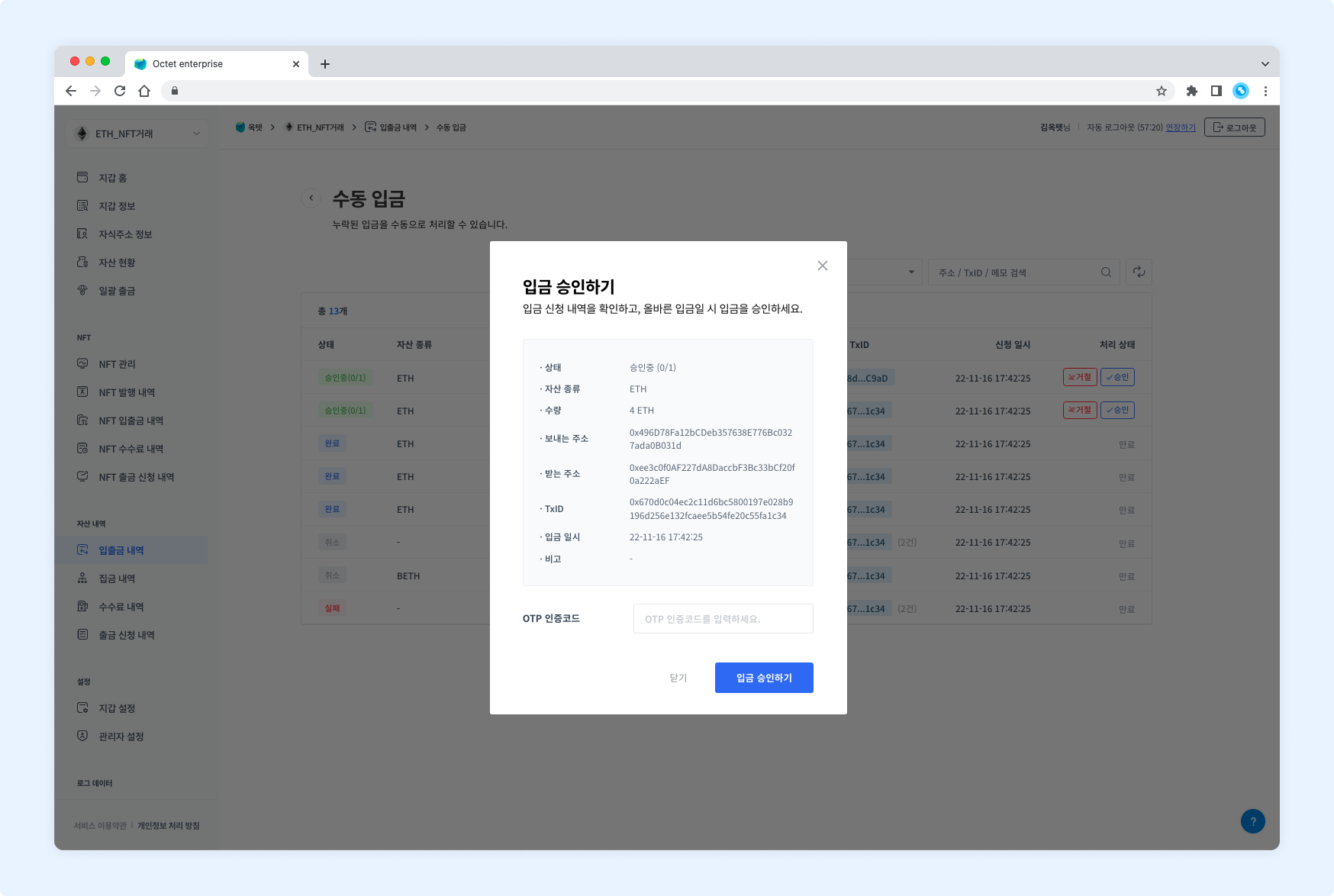
Click the Approve button in the table to open the deposit approval popup.
TIP
The number of deposit approvers follows the withdrawal approver setting.
Reject a manual deposit
If a requested deposit is not valid, you can reject it. Rejecting a deposit immediately cancels the deposit request.
Permission -
Owner,Approver
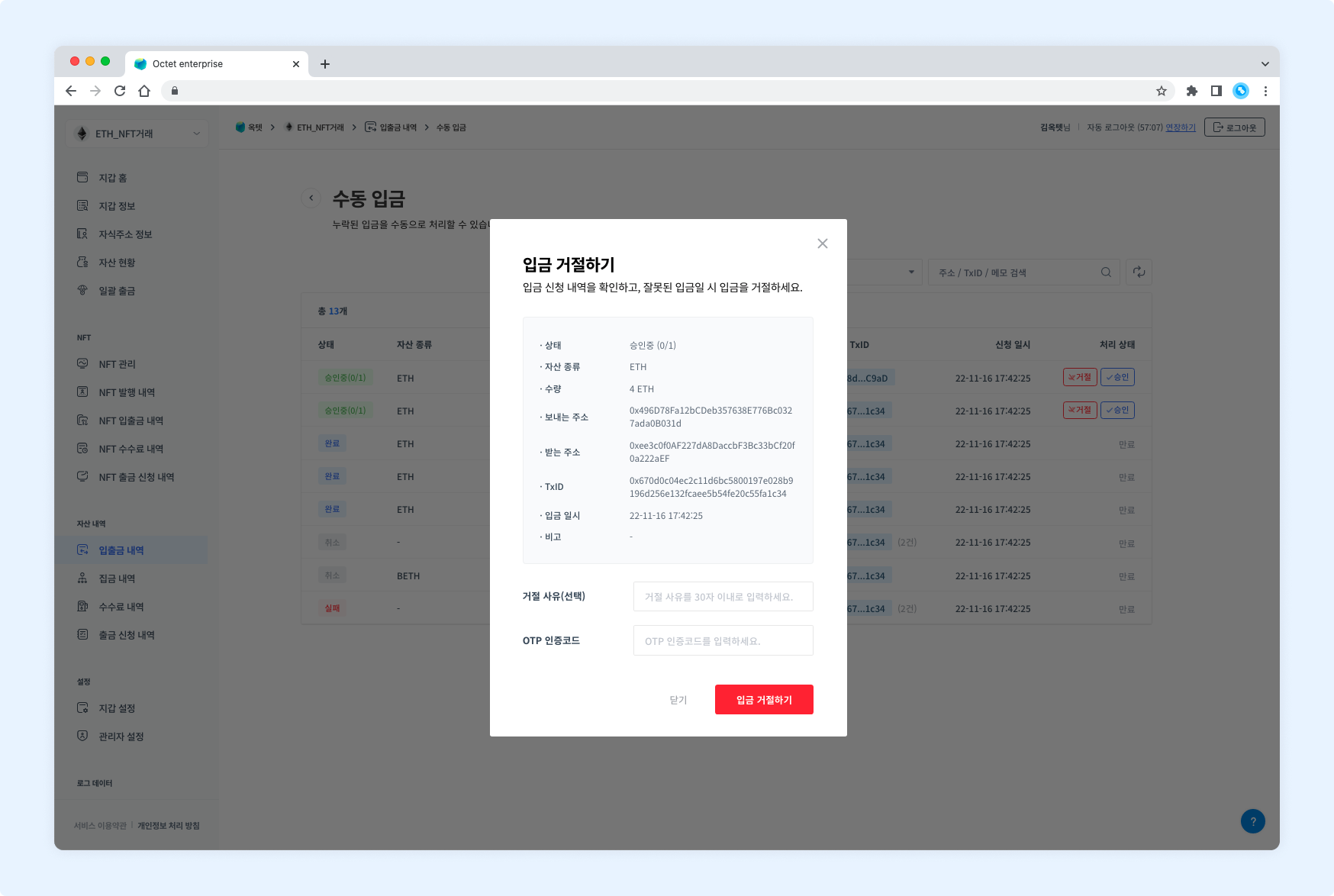
Click the Reject button in the table to open the deposit rejection popup.