Withdrawal Requests
Viewing withdrawal requests
You can view the withdrawal requests of every wallet you have permission for.
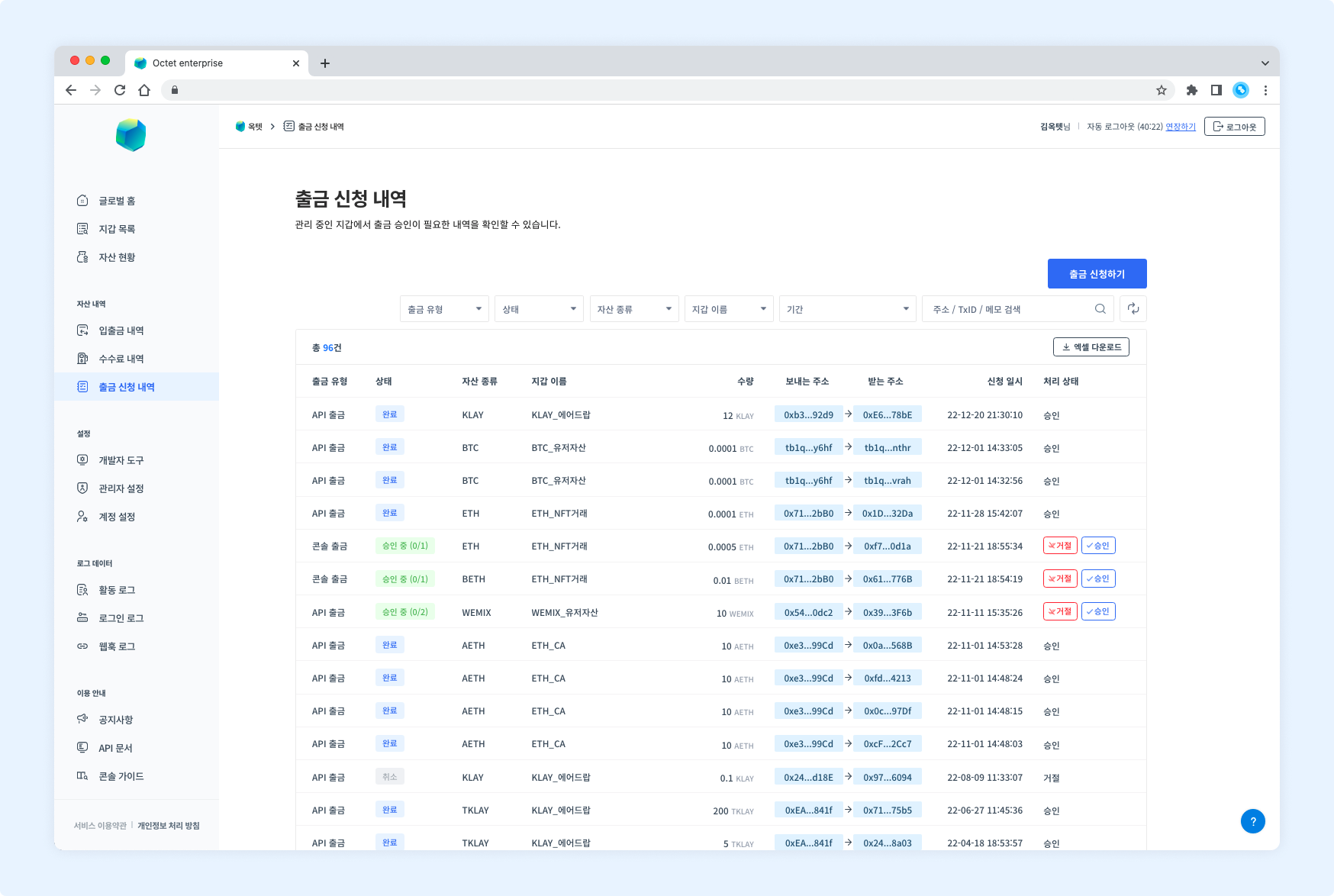
Item | Description |
|---|---|
Withdrawal type |
|
Status |
|
Asset | Symbol of the asset requested for withdrawal |
Wallet name | Name of the wallet where the withdrawal was requested |
Amount | Amount of the asset requested for withdrawal |
From address | Address that sent the asset |
To address | Address that received the asset |
Requested at | Date and time the withdrawal was requested |
Processing status |
|
Details
Click a row in the table to see the details of that withdrawal request.
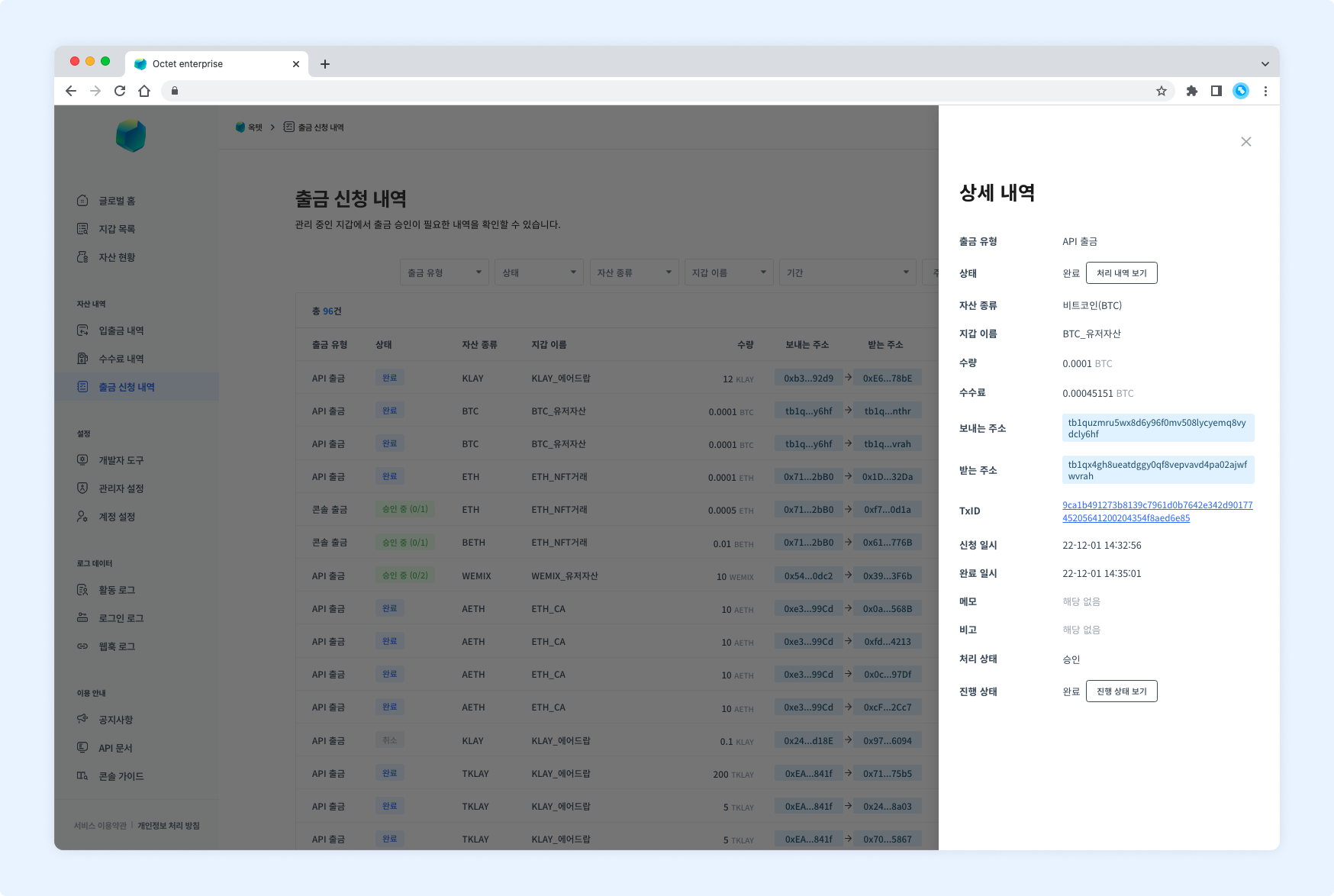
Item | Description |
|---|---|
Withdrawal type |
|
Status |
|
Asset | Symbol of the asset requested for withdrawal |
Wallet name | Name of the wallet where the withdrawal was requested |
Amount | Amount of the asset requested for withdrawal |
Fee | Fee used for the withdrawal (shown once the withdrawal is completed) |
From address | Address that sent the asset |
To address | Address that received the asset |
TxID | Unique value of the transaction (shown once the withdrawal is in progress) |
Requested at | Date and time the withdrawal was requested |
Completed at | Date and time the transaction was completed (shown once the withdrawal is completed) |
Memo | Destination tag for XRP or memo for EOS |
Note | Description entered when the withdrawal was requested |
Processing status |
|
Progress status |
|
TIP
Every withdrawal request has aView Processing Historybutton in the 'Status' item.
Click it to see the withdrawal processing history.Once a withdrawal is completed, a
View Progressbutton appears in the 'Progress status' item.
Click it to see the withdrawal details.
Requesting a withdrawal
You can withdraw assets from the main address in the console. However, console withdrawals are not available when the key management type is co-managed.
Click the Request Withdrawal button at the top right to go to the withdrawal request page.
Permission -
Requester
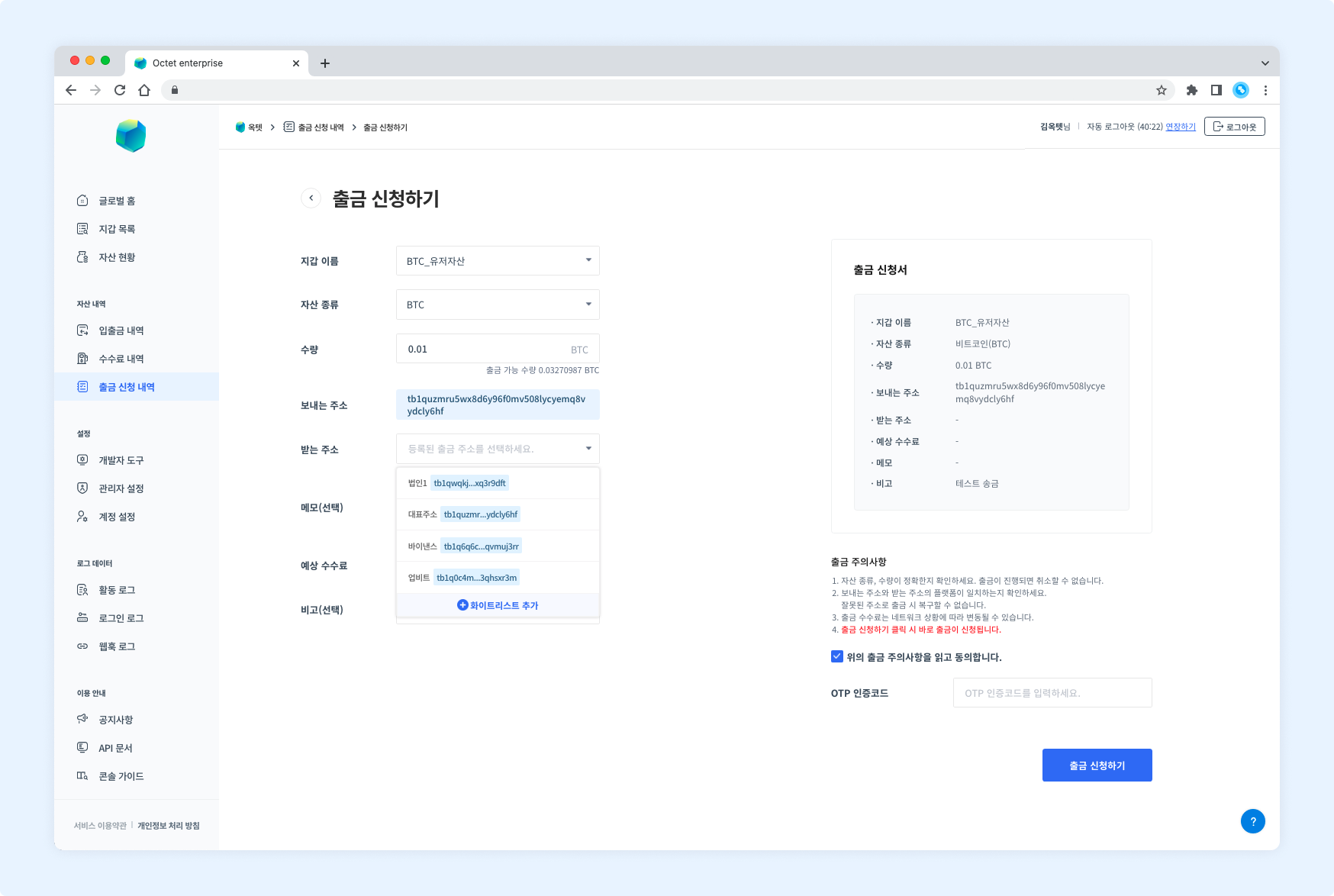
- Select the wallet to withdraw from.
Only wallets whose key management type isOctet-managedand for which you have theRequesterpermission are listed. - Select the asset to withdraw.
- Enter the amount to withdraw. It must be less than or equal to the withdrawable amount.
- Select the receiving address. You can only withdraw to addresses registered in the withdrawal whitelist.
- When withdrawing Ripple or EOS, enter the destination tag or memo in the memo field.
- Read and check the withdrawal precautions.
- Enter the OTP code and click the
Requestbutton. The withdrawal request is complete.
TIP
The withdrawal whitelist can be registered under the wallet > [Wallet Settings] > [Withdrawal Whitelist].
Approving a withdrawal
Once a withdrawal is requested, the configured number of people must approve it before the withdrawal proceeds.
Permission -
Approver
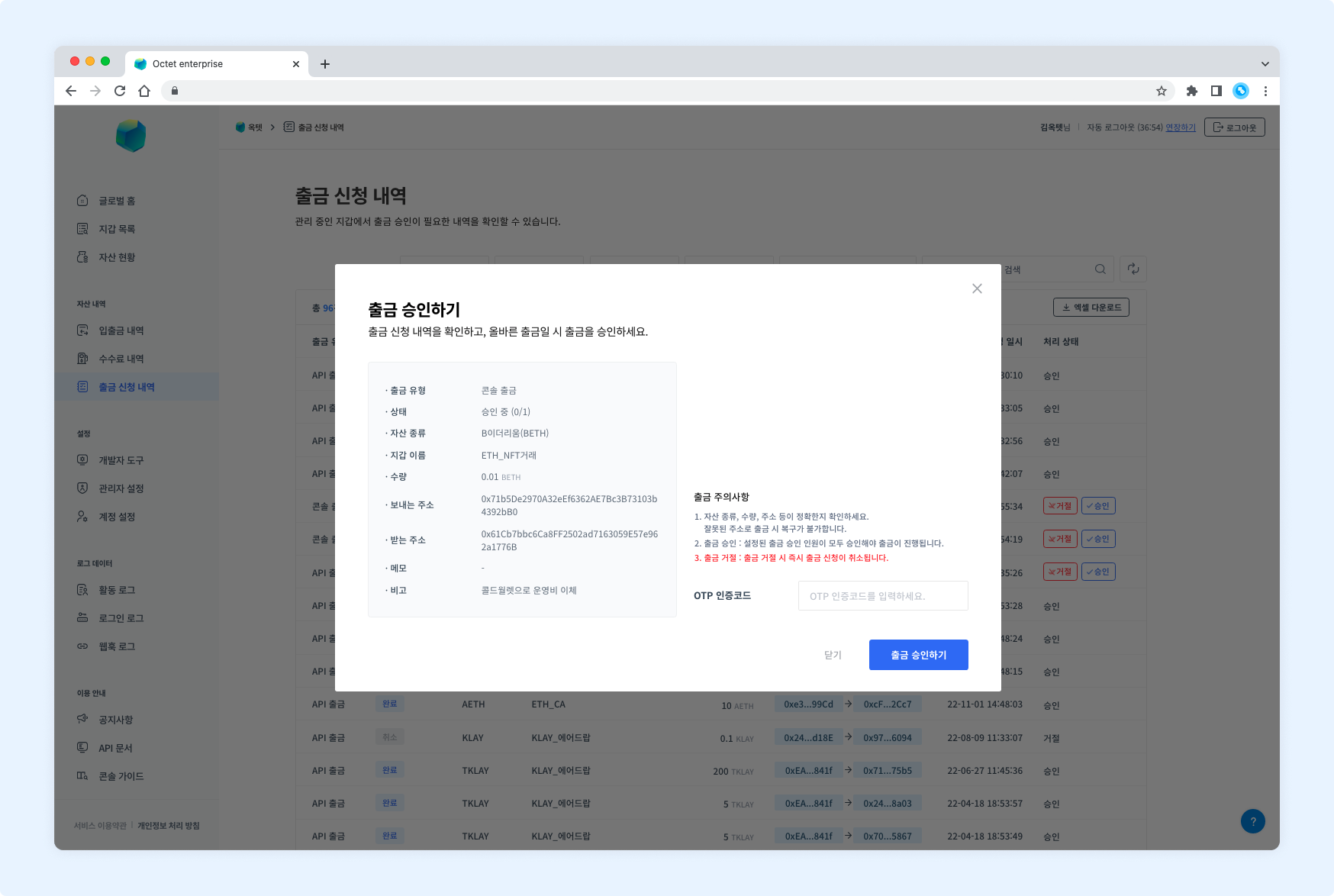
Click the Approve button in the table to open the withdrawal approval popup.
Rejecting a withdrawal
If a requested withdrawal is incorrect, you can reject it. Rejecting a withdrawal cancels the withdrawal request immediately.
Permission -
Owner,Approver
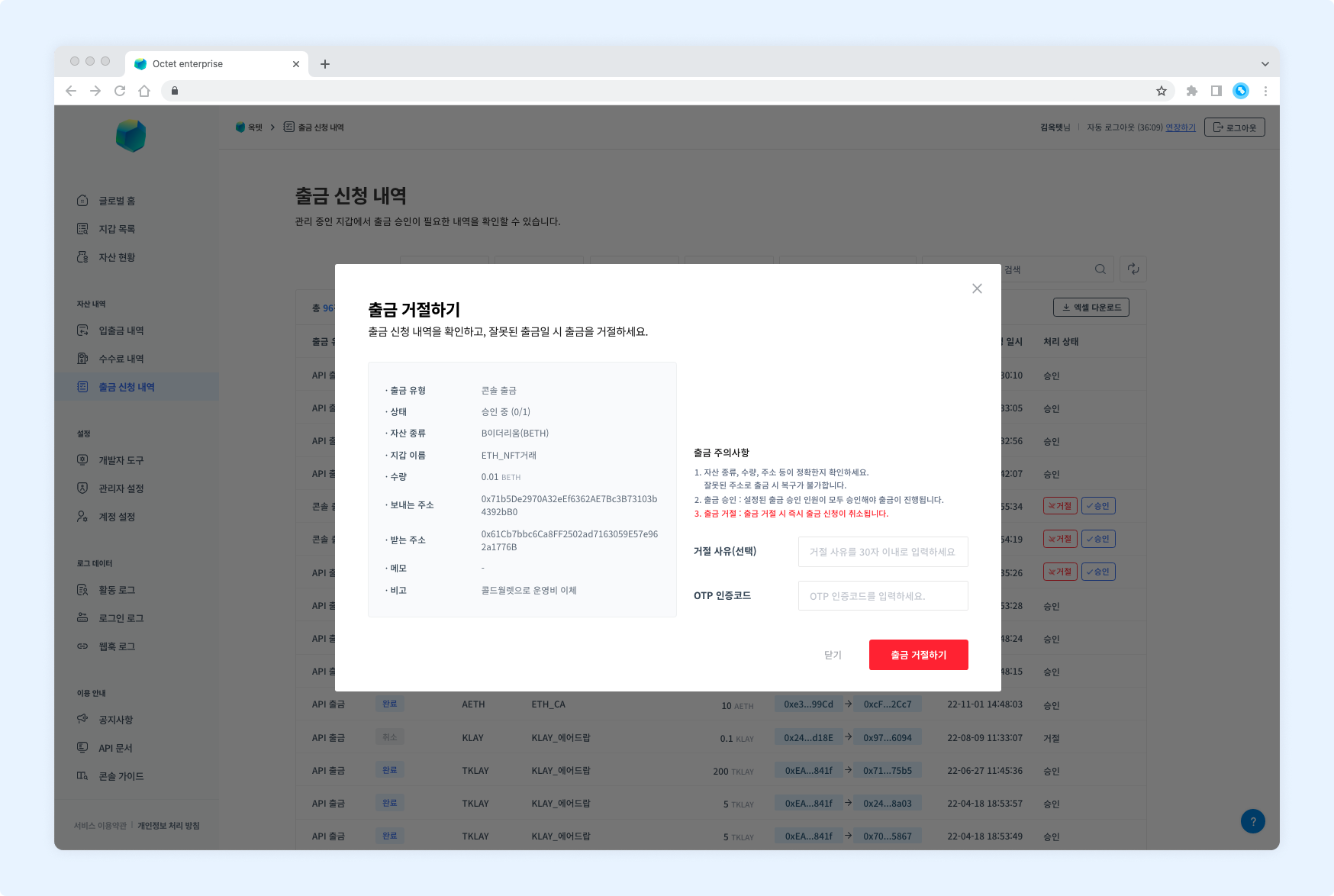
Click the Reject button in the table to open the withdrawal rejection popup.
Download
Click the Download Excel button above the table to download the withdrawal requests for a specific period as an Excel file.
Select the period, enter a file password, and click the Download button.