Developer Tools
On the Developer Tools page, you can configure the features needed for API integration.
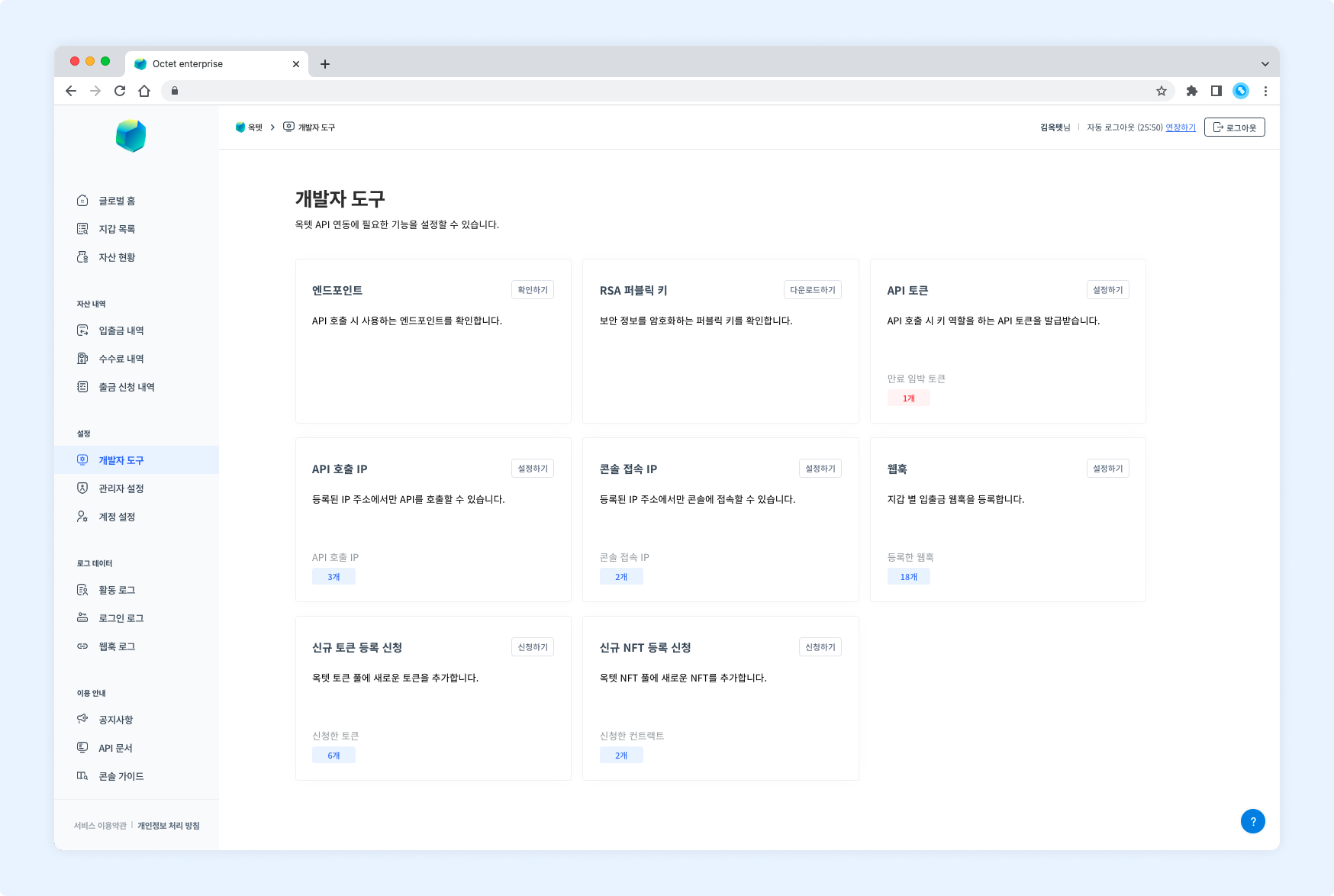
Endpoint
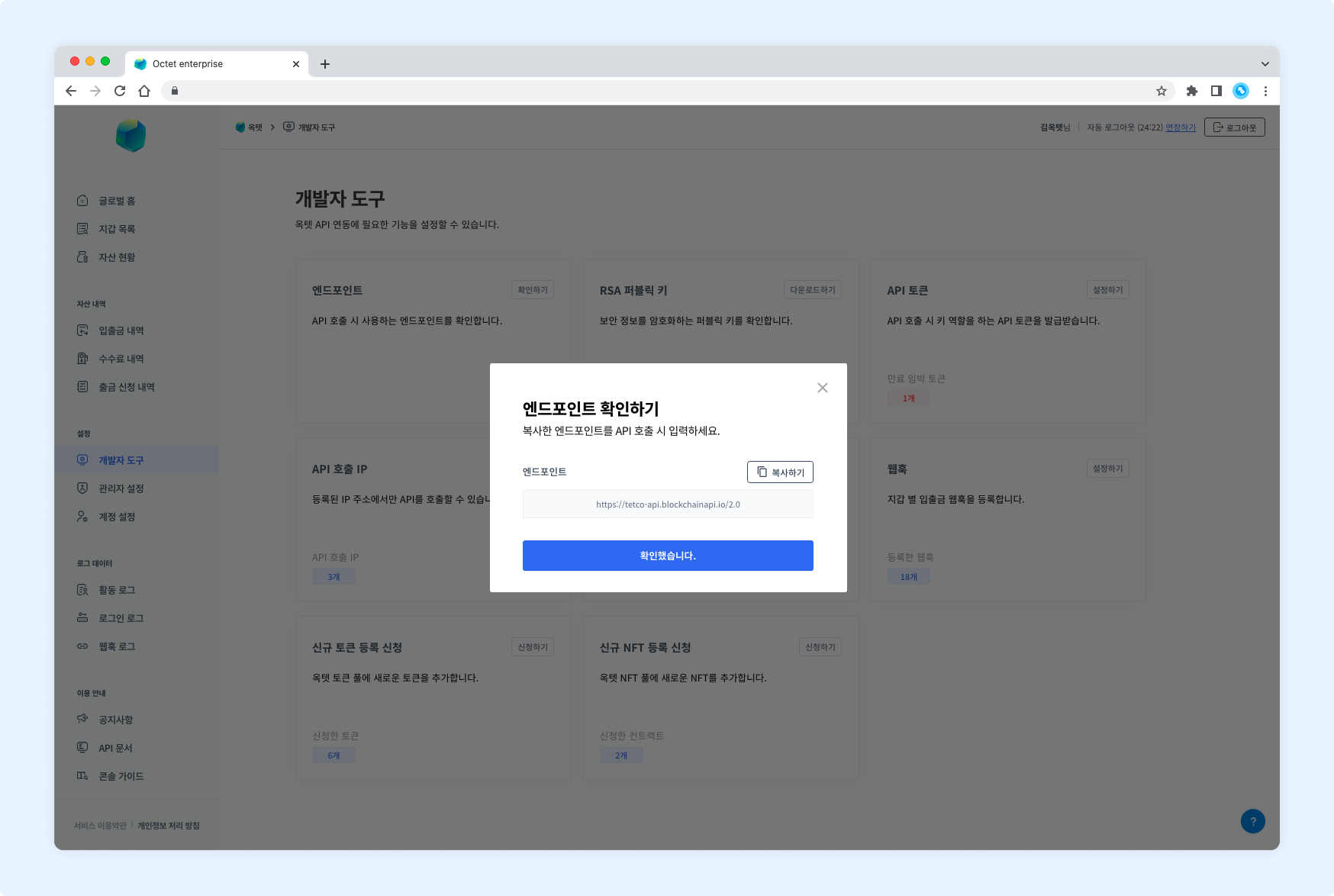
You can check the endpoint used for API calls.
The testnet and mainnet endpoints are different, so be sure to check the endpoint before calling the API.
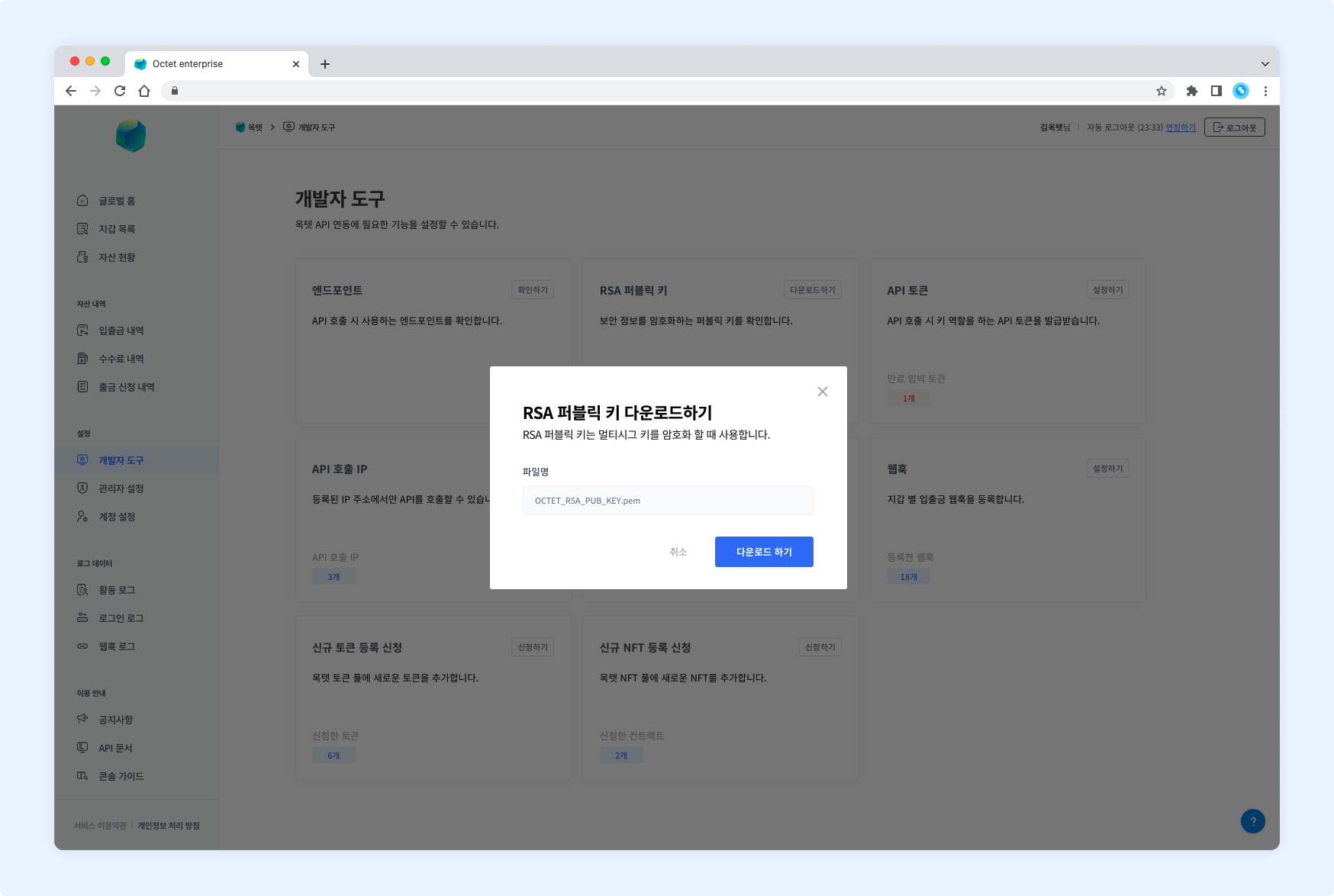
RSA public key
For end-to-end encryption, the multisig key must be encrypted with the RSA public key.
You can download a PDF file containing the RSA public key information needed for this.
Permission -
Owner
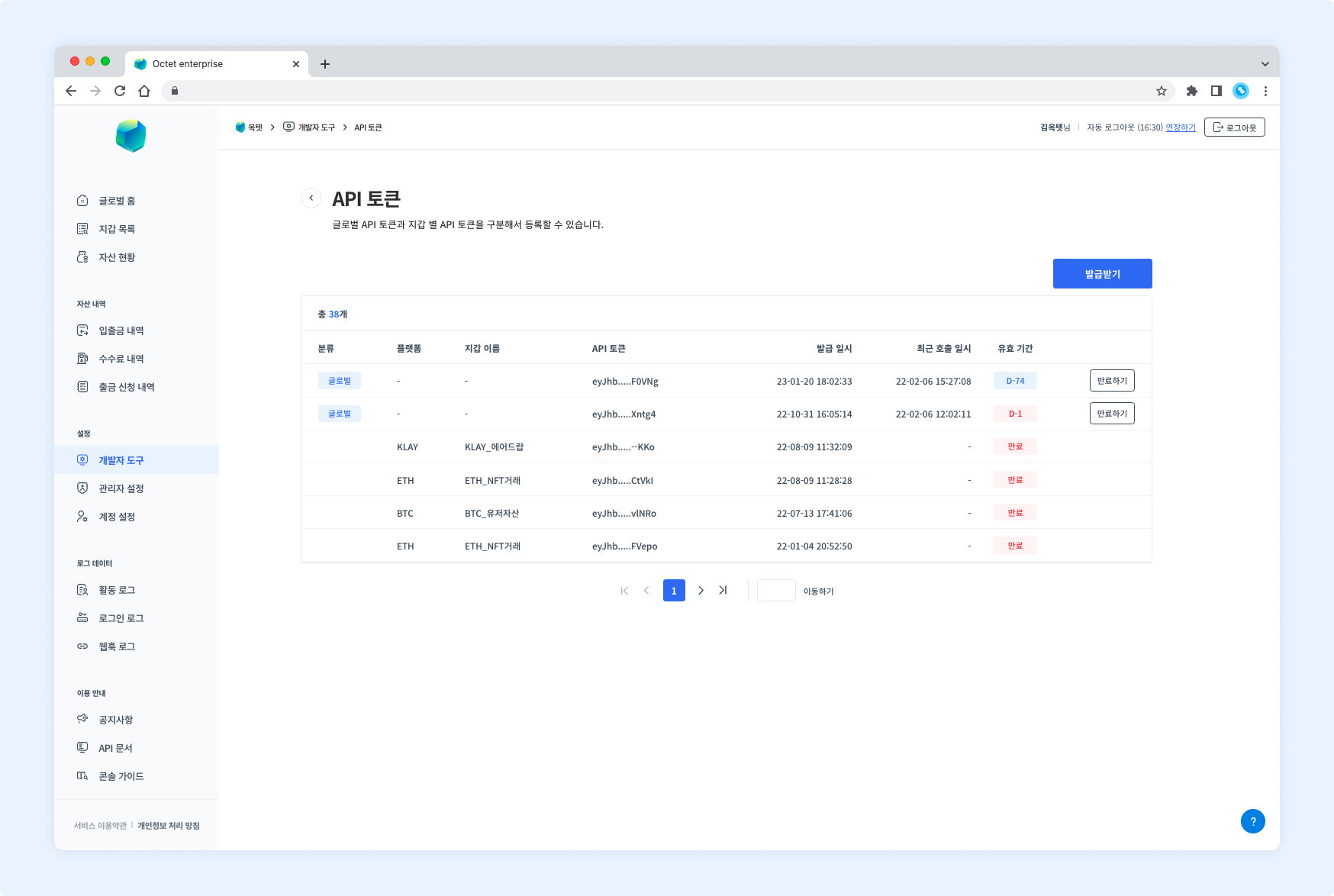
API token
An API token is a unique identifier used to request access to the API. The API token must be included in the header of every API call. On the API Token page, you can issue or expire API tokens. See here for details on using API tokens.
Permission
Owner- can issue and expire all API tokens.Manager- can issue and expire API tokens for wallets they have permission for.
Issuing
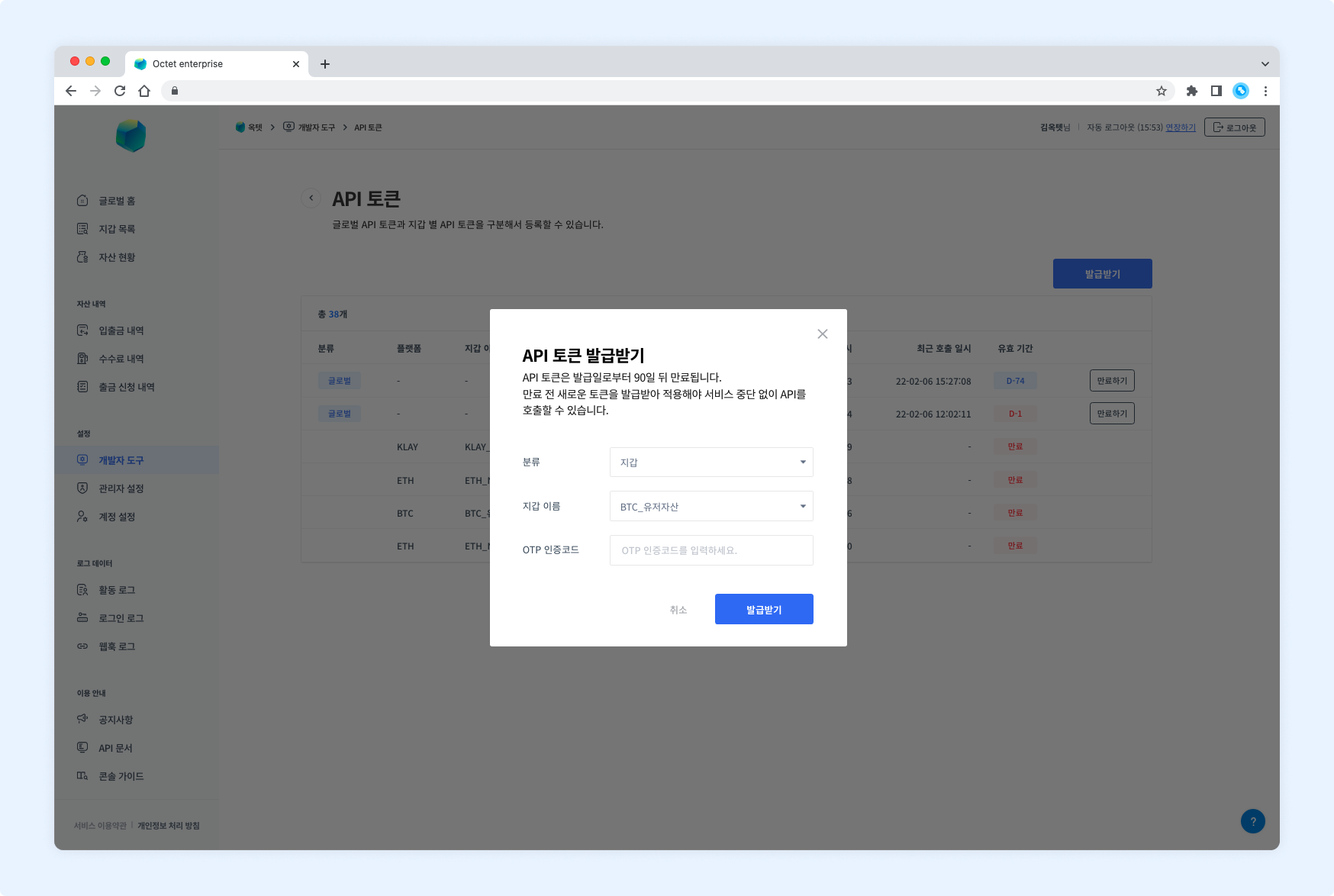
- Click the
Issuebutton. You are taken to the API token issuance page. - Set the API access. You can customize the permissions of the API token.
- Select the API token type.
- Global : can request access to all wallets.
- Wallet : can request access to a specific wallet.
- If you selected 'Wallet' in step 3, select the wallet to issue the API token for.
- Enter a name for the API token (optional).
- Enter the OTP code and click the
Issuebutton. - A new API token is issued.
TIP
An issued API token can only be viewed once, right after issuance. Copy it and store it securely so that it is not leaked.
Expiring
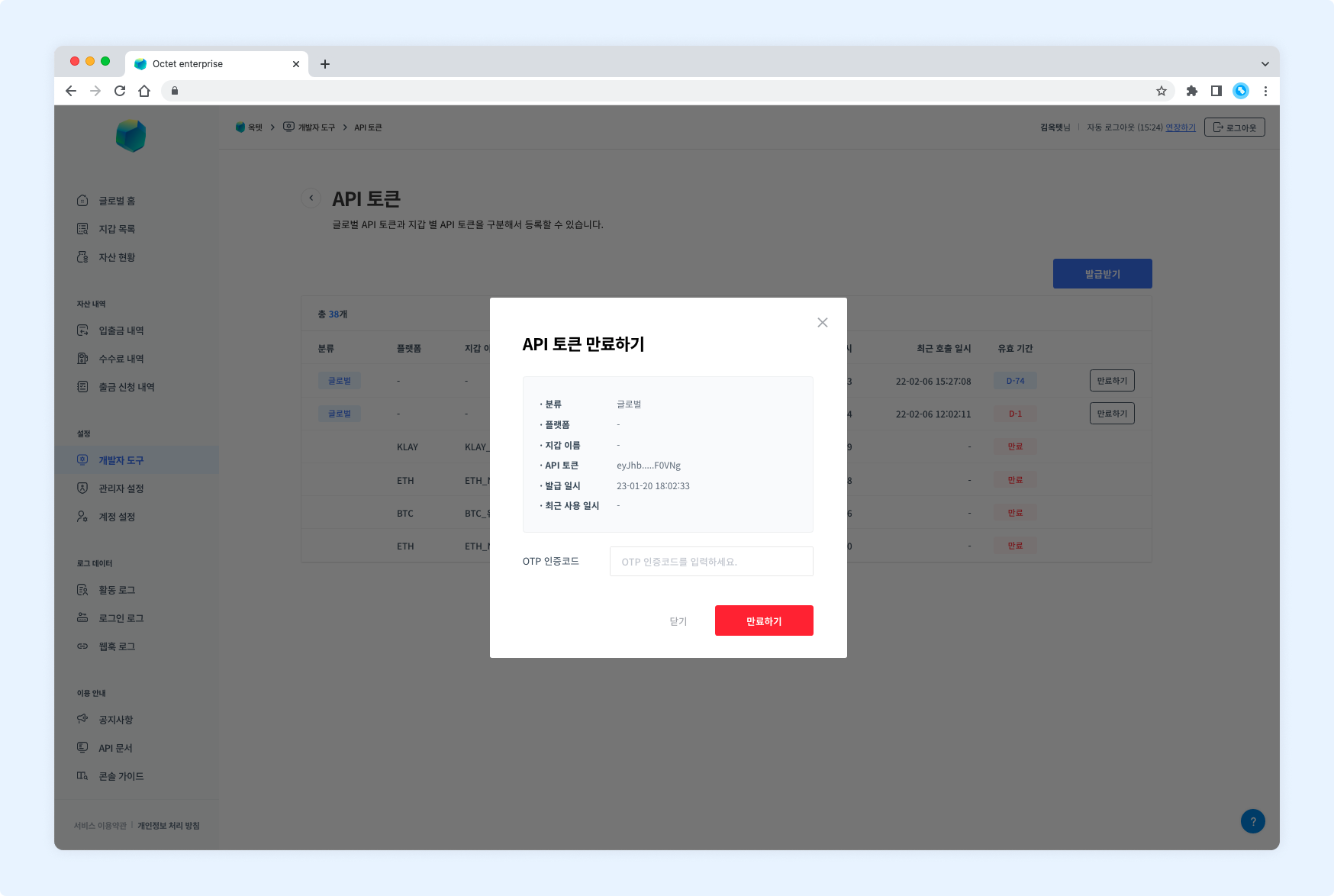
- Click the
Expirebutton. The API token expiration popup appears. - Check the information of the API token to expire.
- Enter the OTP code and click the
Expirebutton. - The API token is expired.
API call IP
An API call IP is an IP address that is allowed to call the API. For security, the API can only be called from registered IP addresses. Be sure to check the API call IPs before calling the API. By default, the IP address you first accessed the console from is registered as an API call IP. See here for details on using API call IPs.
Permission
Owneraccounts can register and delete all API call IPs.Manageraccounts can register and delete API call IPs for wallets they have permission for.
Registering
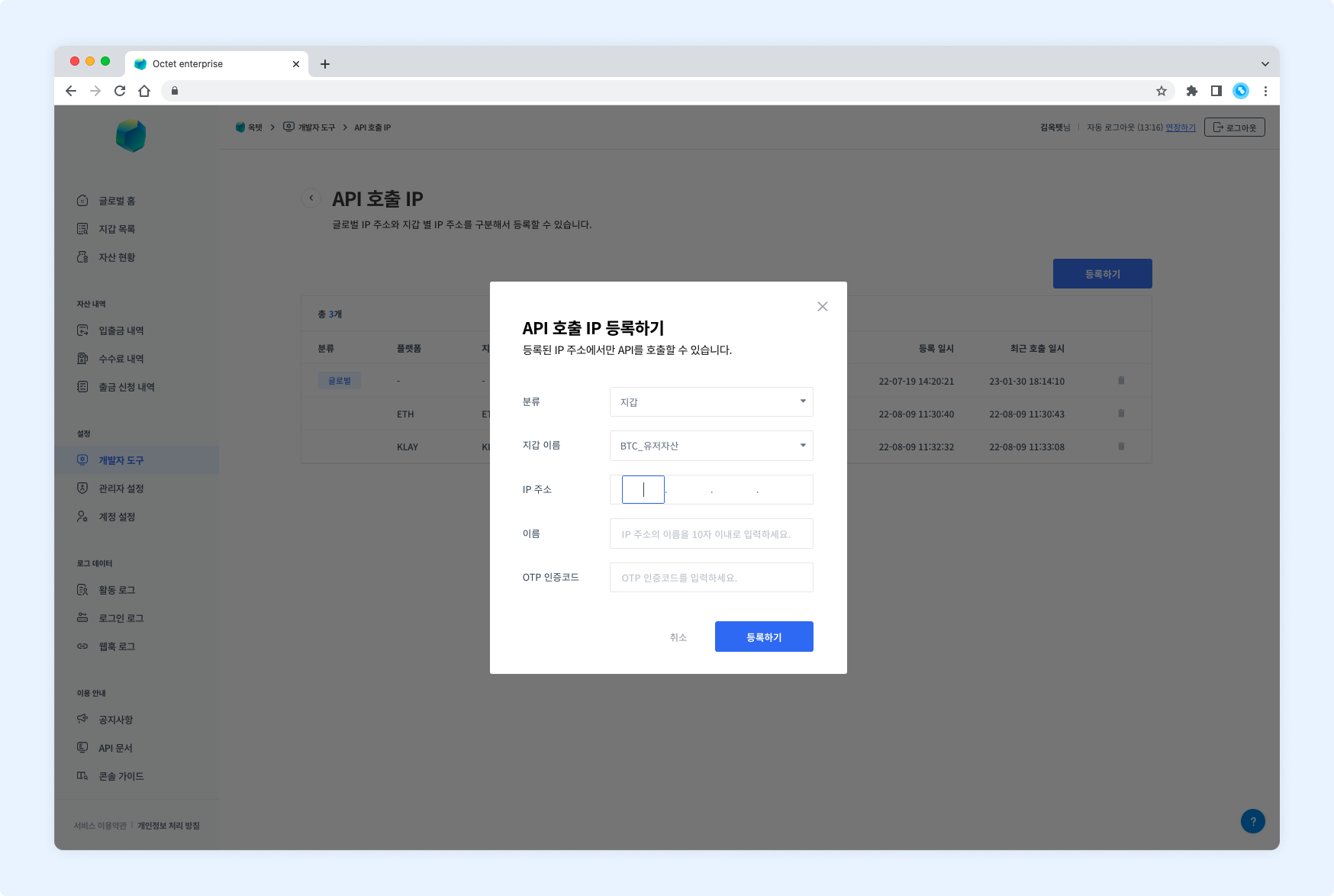
- Click the
Registerbutton. The API call IP registration popup appears. - Select the category of IP to register.
- Global : registers an IP that can call the API with a global API token.
- Wallet : registers an IP that can call the API with a specific wallet's API token.
- If you selected 'Wallet' in step 2, select the wallet to register the API call IP for.
- Enter the IP address to register.
- Enter a name (alias) for the IP address.
- Enter the OTP code and click the
Registerbutton. - The new API call IP is registered.
Deleting
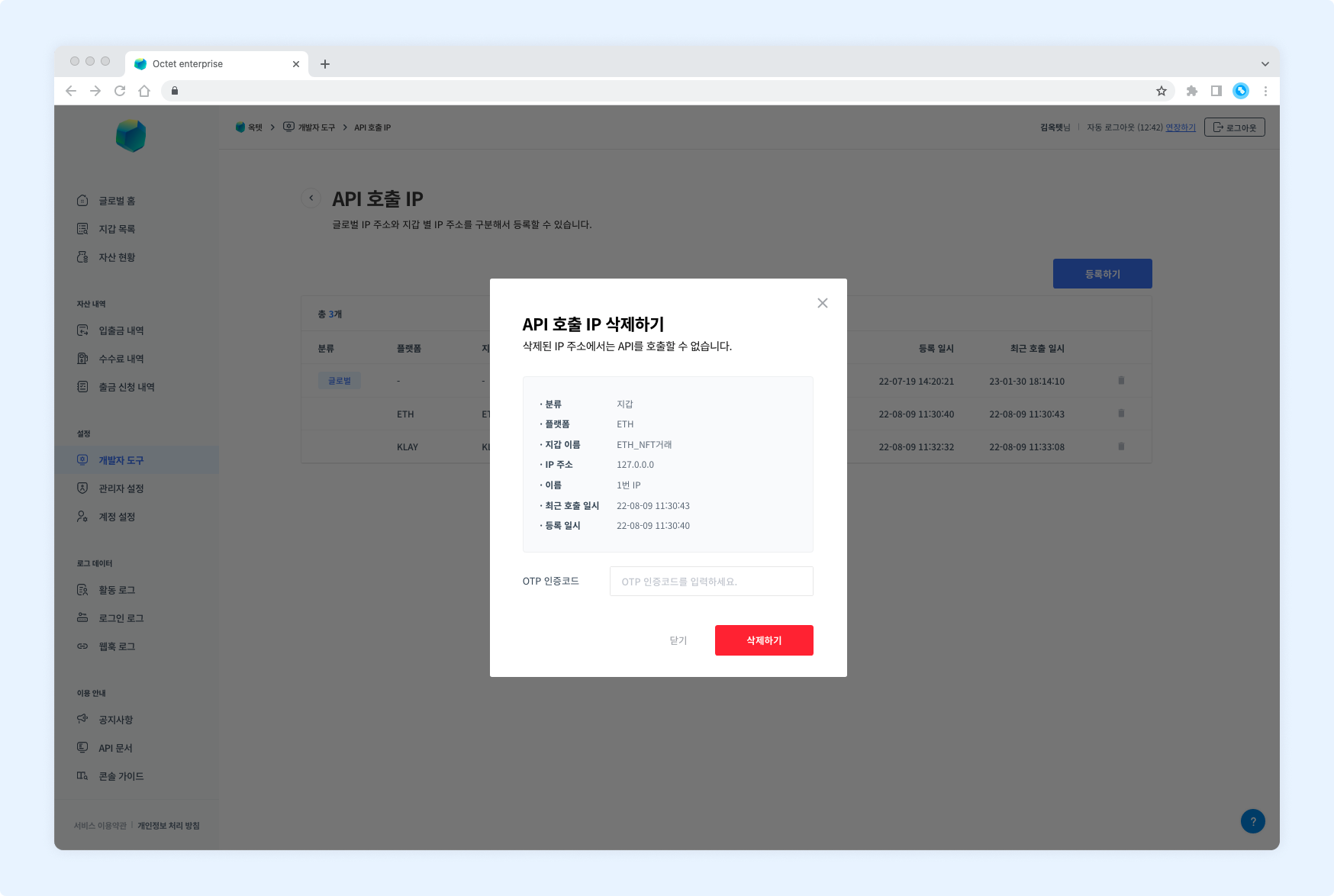
- Click the delete button. The API call IP deletion popup appears.
- Check the information of the API call IP to delete.
- Enter the OTP code and click the
Deletebutton. - The API call IP is deleted.
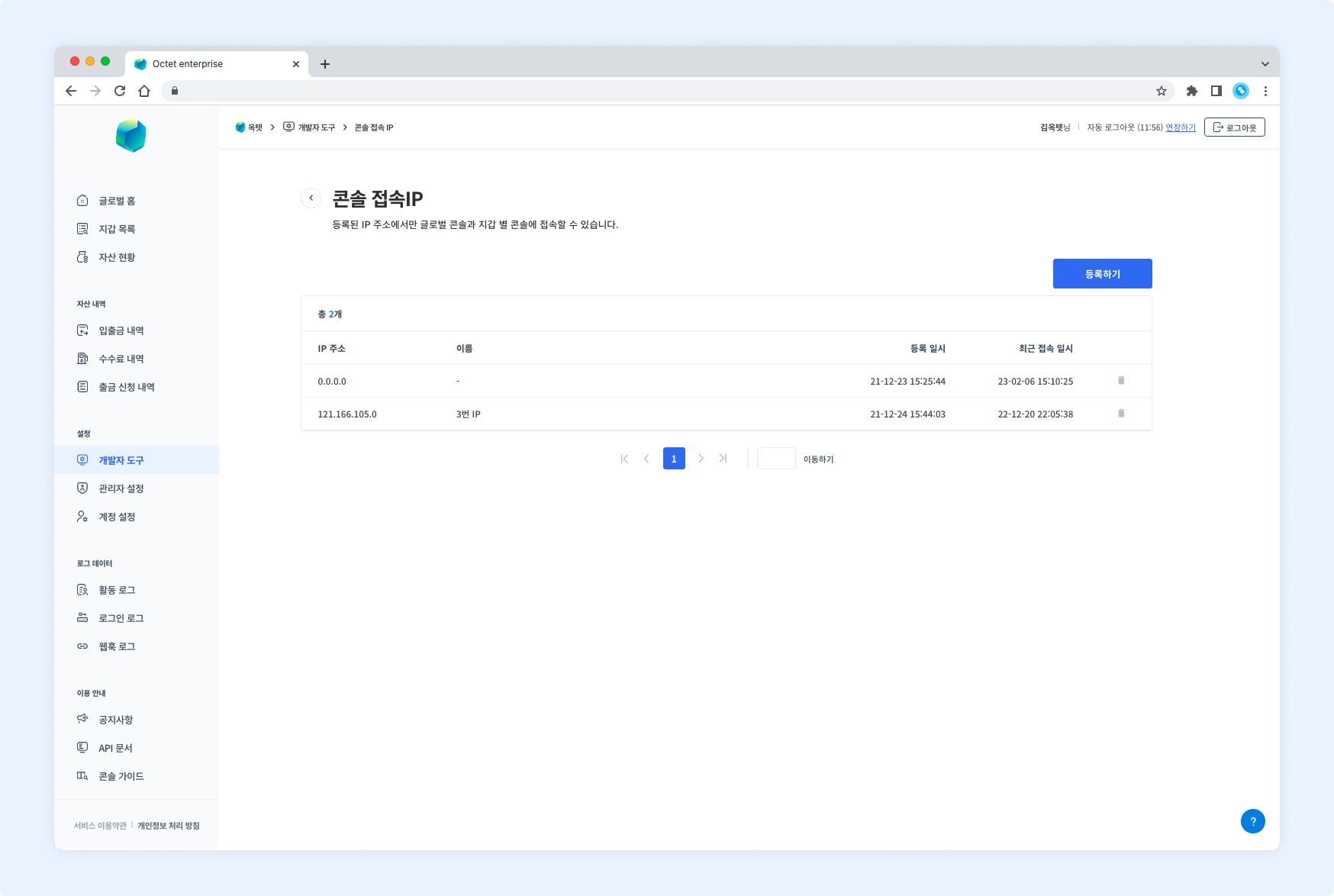
Console access IP
A console access IP is an IP address that is allowed to access the console. For security, the console can only be accessed from registered IP addresses.
Permission
OnlyOwneraccounts can register and delete console access IPs.
Registering
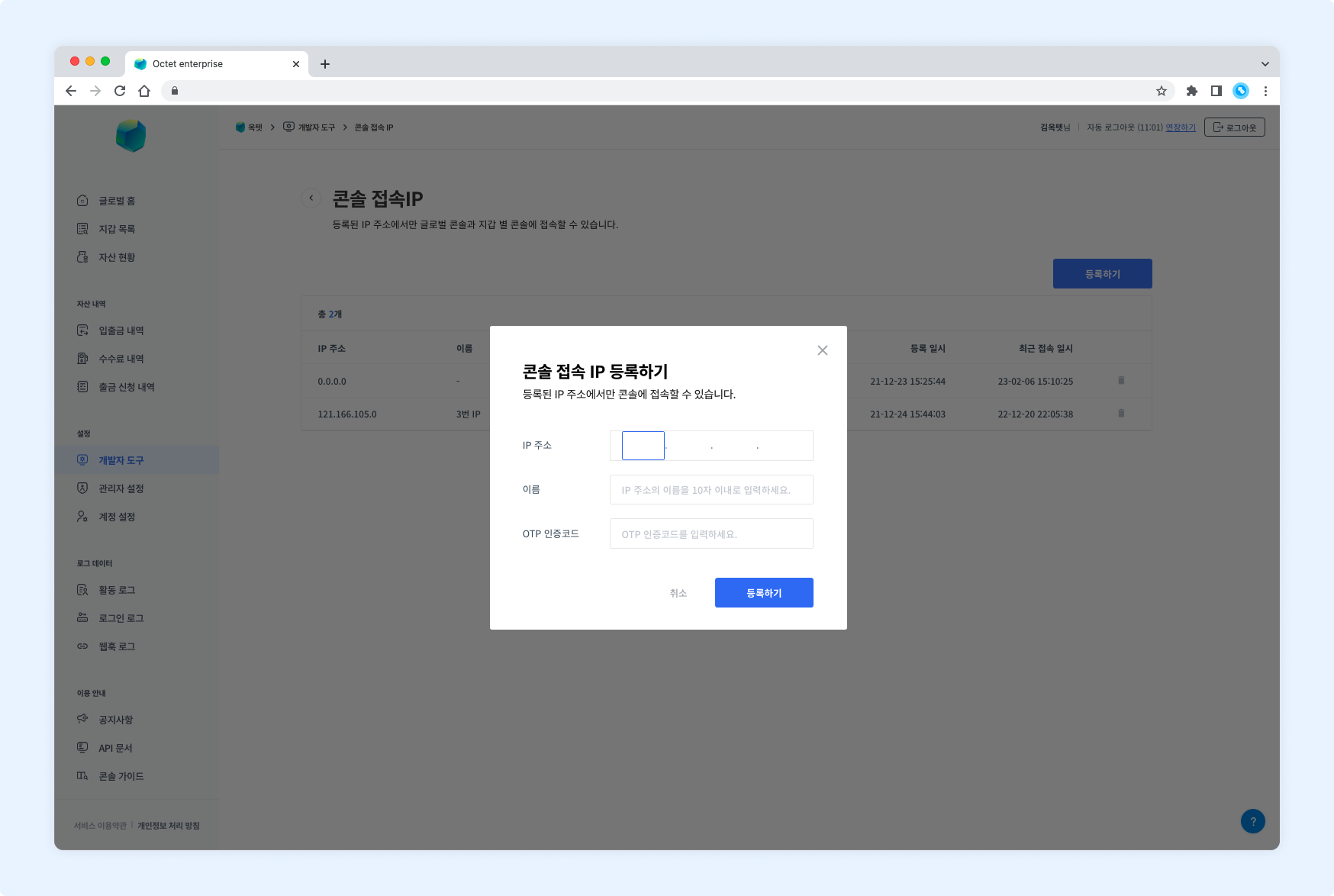
- Click the
Registerbutton. The console access IP registration popup appears. - Enter the IP address to register.
- Enter a name (alias) for the IP address.
- Enter the OTP code and click the
Registerbutton. - The new console access IP is registered.
Deleting
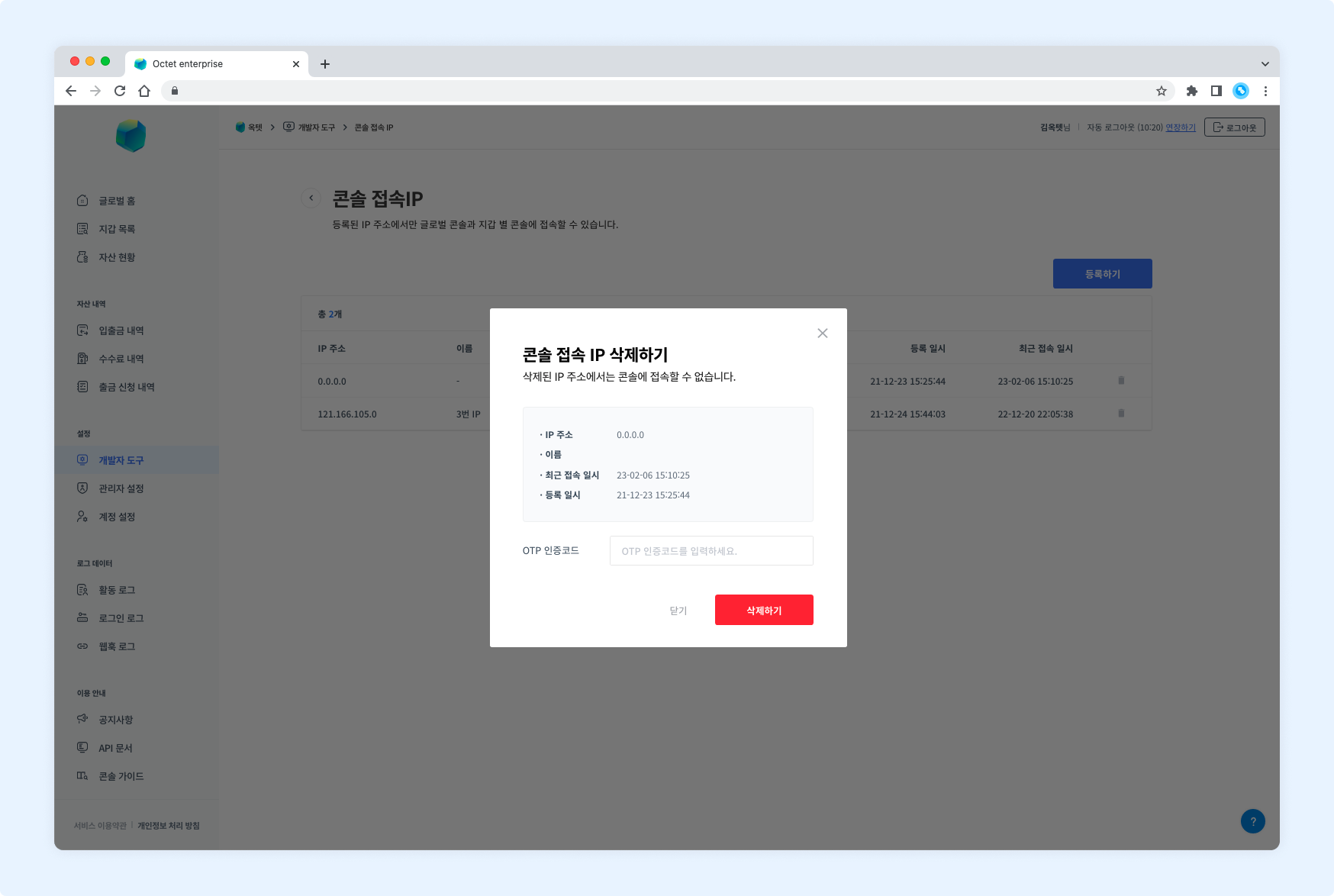
- Click the delete button. The console access IP deletion popup appears.
- Check the information of the console access IP to delete.
- Enter the OTP code and click the
Deletebutton. - The console access IP is deleted.
Webhook
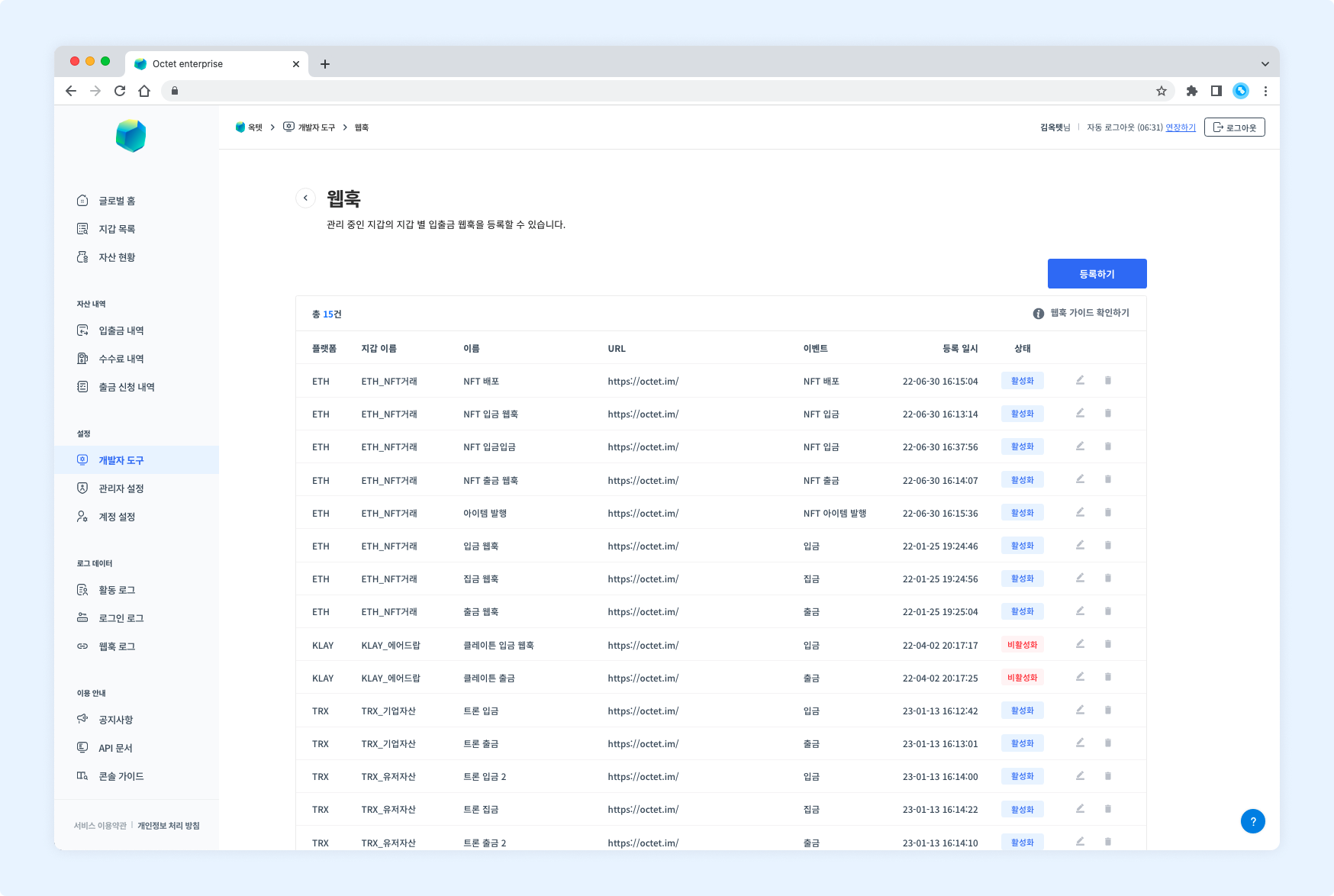
Octet provides webhooks so that you can track events in Octet, such as deposits and withdrawals, in real time. When you register a URL to receive the data of a specific event, Octet sends the data to that URL whenever the event occurs. See here for details on using webhooks.
Permission
Owneraccounts can register and delete webhooks for all wallets.Manageraccounts can register and delete webhooks for wallets they have permission for.
Registering
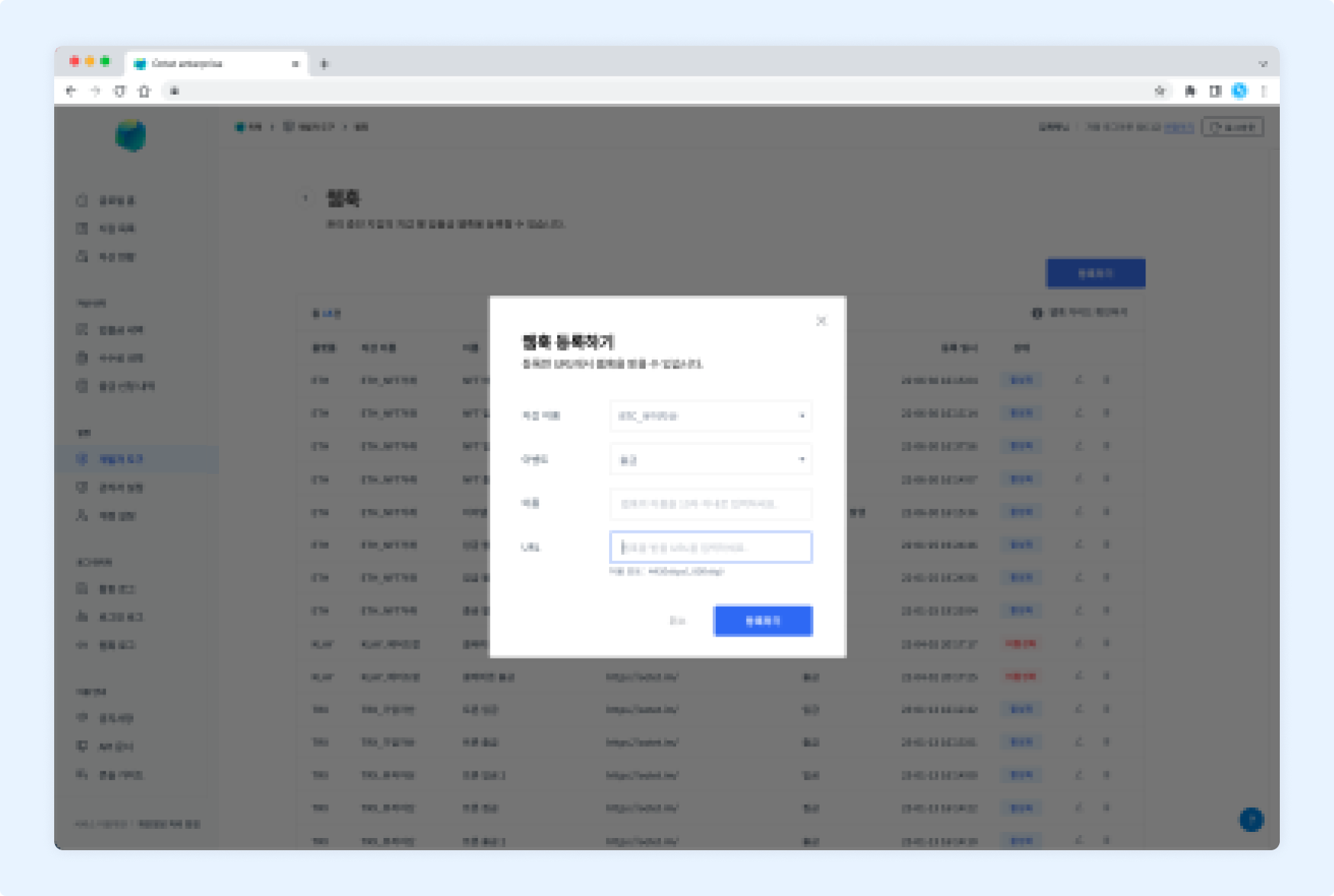
- Click the
Registerbutton. The webhook registration popup appears. - Select the wallet to register the webhook for.
- Select the event to register the webhook for.
- Enter a name (alias) for the webhook.
- Enter the URL to receive the webhook and click the
Nextbutton.- Choose whether to enable integrity verification.
- If you enable it, enter the hash key value to use.
- Enter the OTP code and click the
Registerbutton.
TIP
The allowed webhook ports are 443 and 80.
Deleting
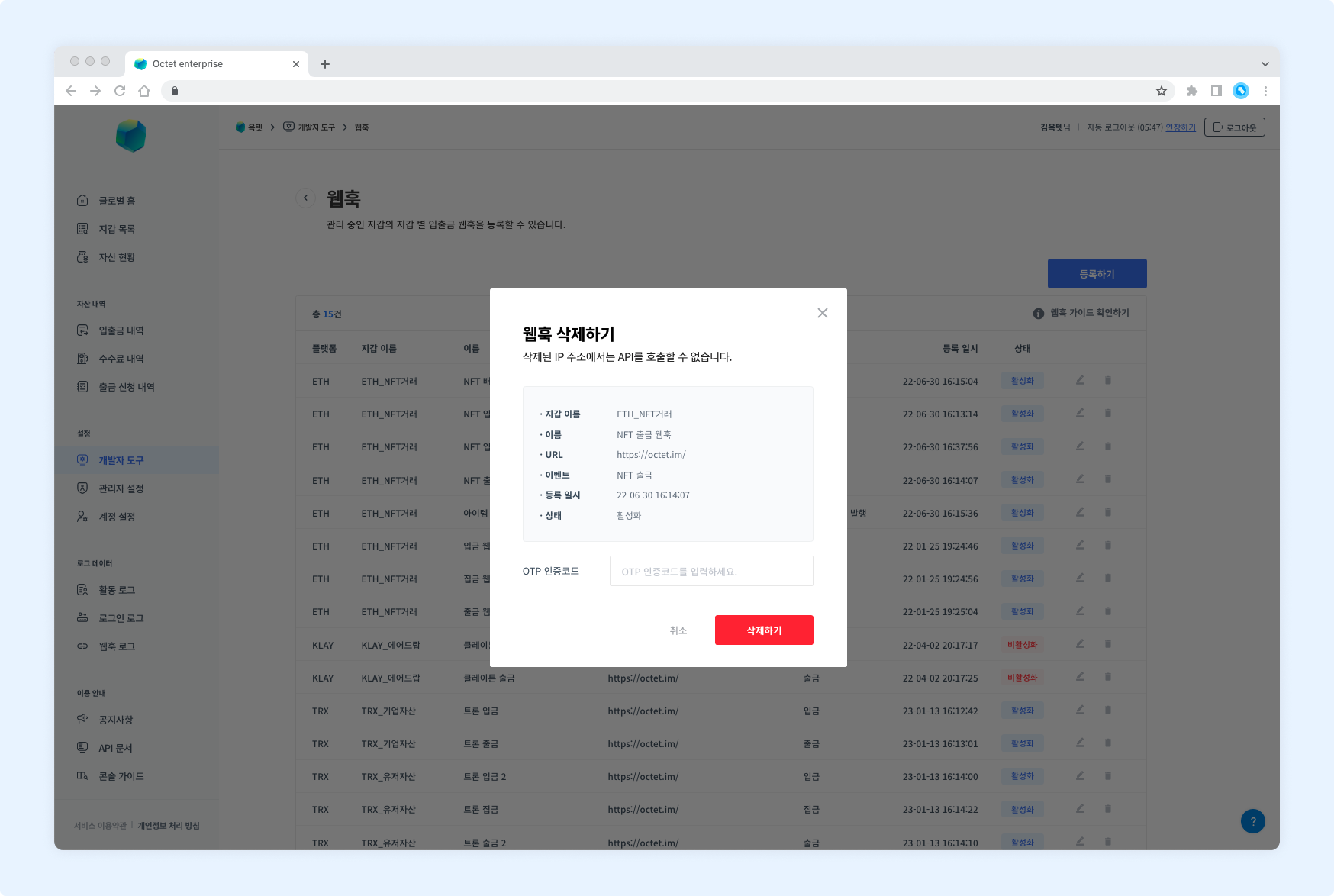
- Click the delete button. The webhook deletion popup appears.
- Check the information of the webhook to delete.
- Enter the OTP code and click the
Deletebutton. - The webhook is deleted.
Changing status
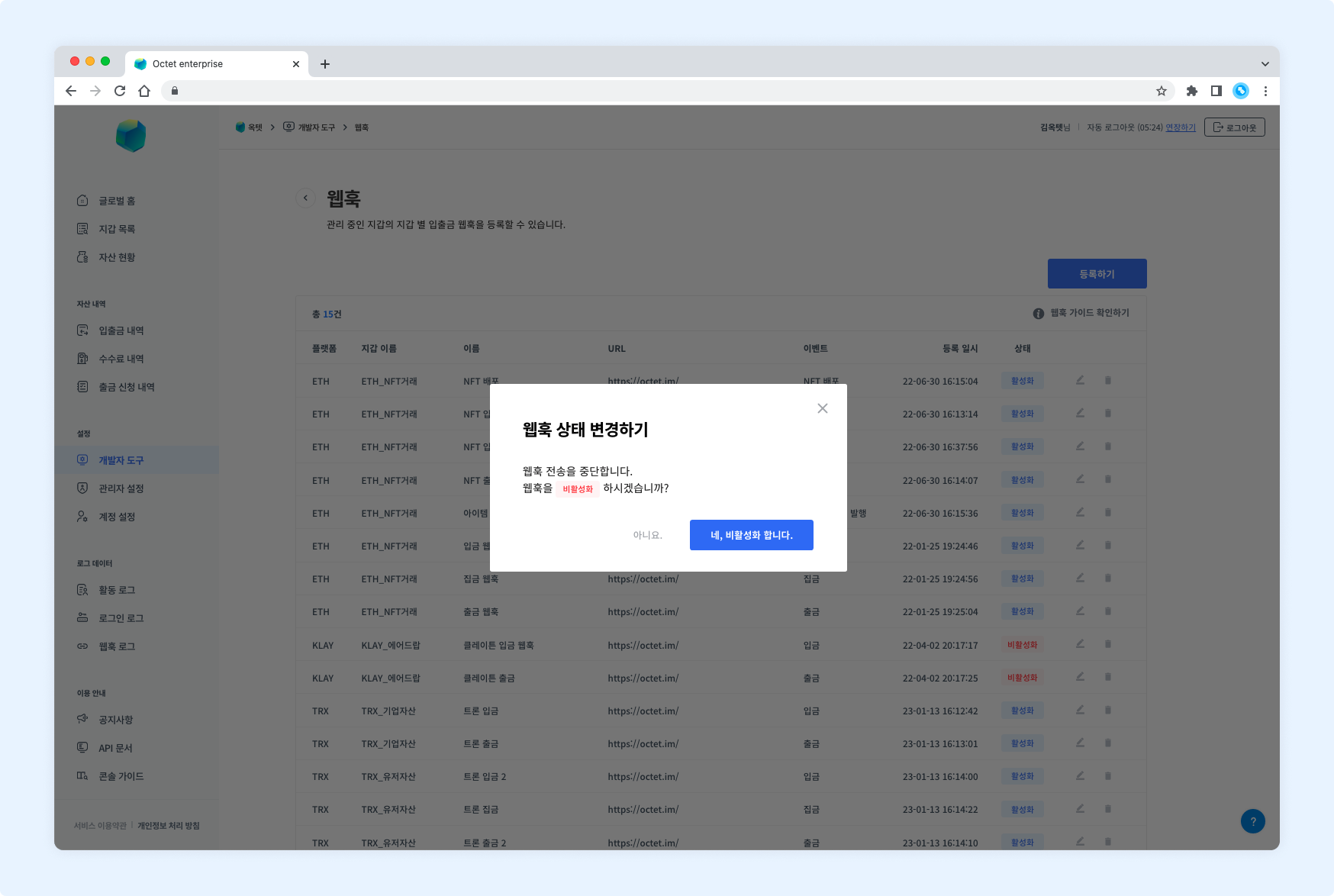
- Click the
Editbutton. The webhook status change popup appears. - Click the
DeactivateorActivatebutton. - The webhook status is changed.
Security alerts
You can send alerts so that you are aware when an outsider gains access or an unintended API call occurs. Configure alerts for each event to further strengthen your security.
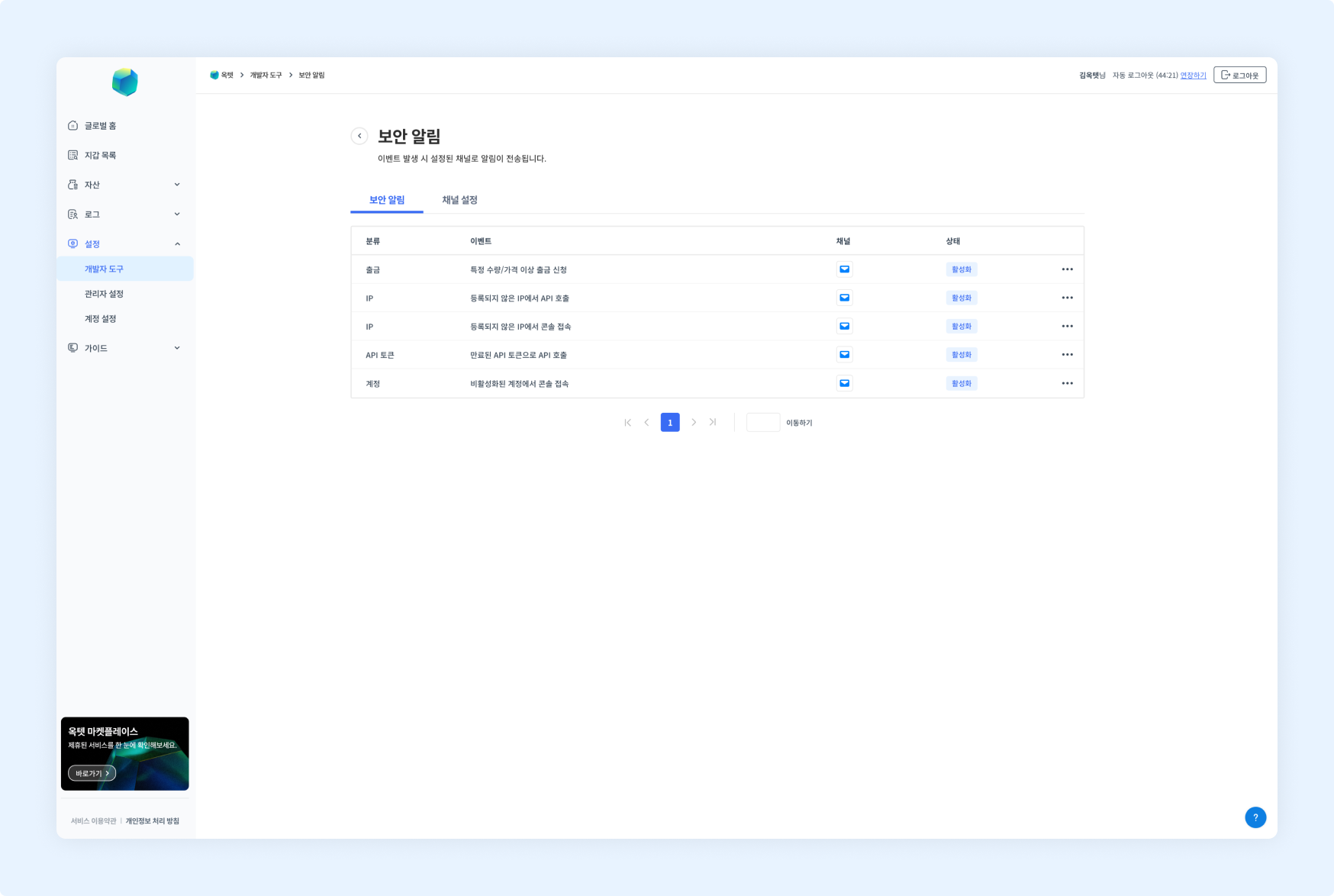
Security alert events
- Withdrawal request above a certain amount/price
- API call from an unregistered IP
- Console access from an unregistered IP
- API call with an expired API token
- Console access from a deactivated account
Permission -
Owner
Changing status
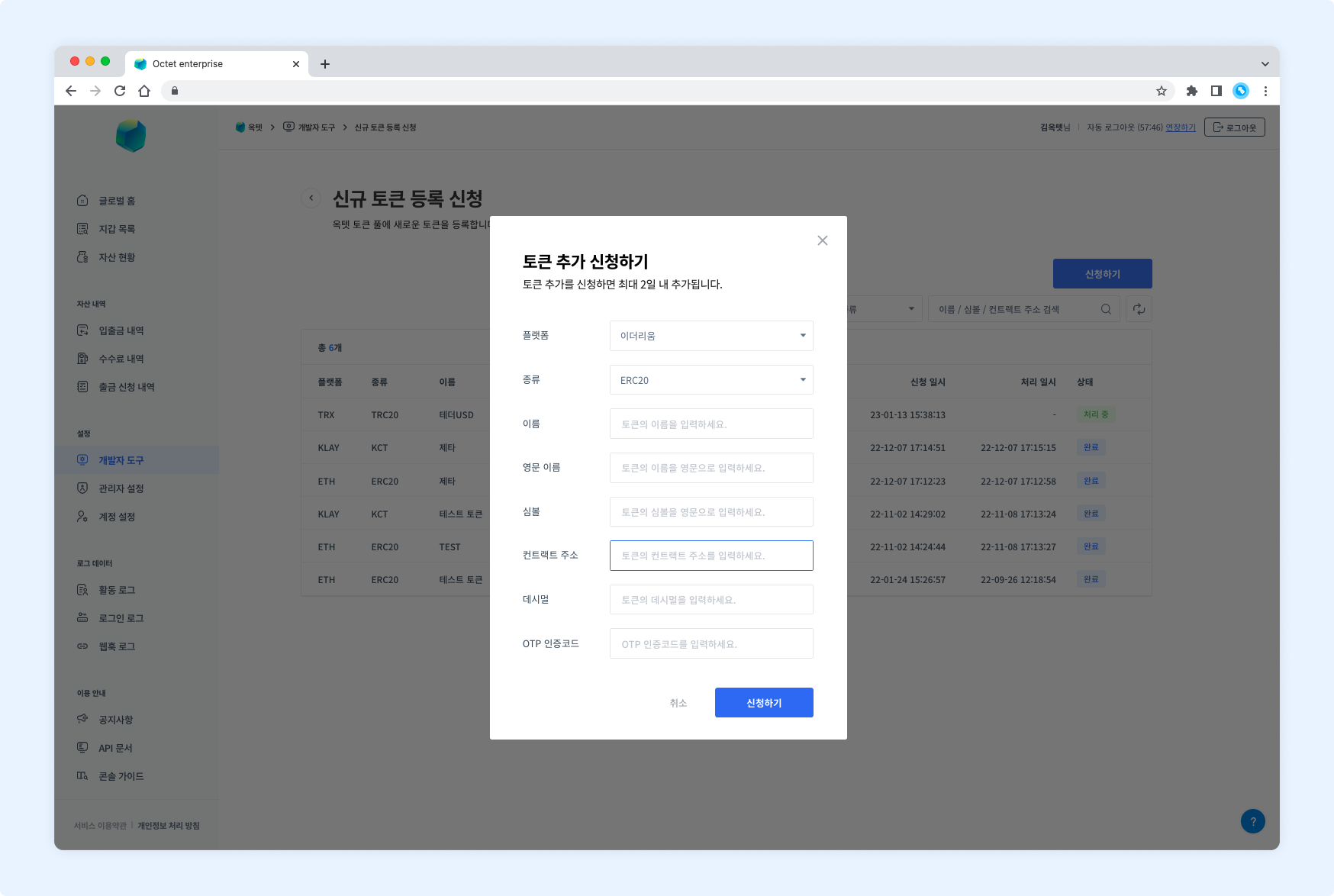
- Click the
Morebutton in the table row. - Click the
DeactivateorActivatebutton. The security alert status change popup appears. - Enter the OTP code and click the
Changebutton. - The alert status is changed.
Setting up channels
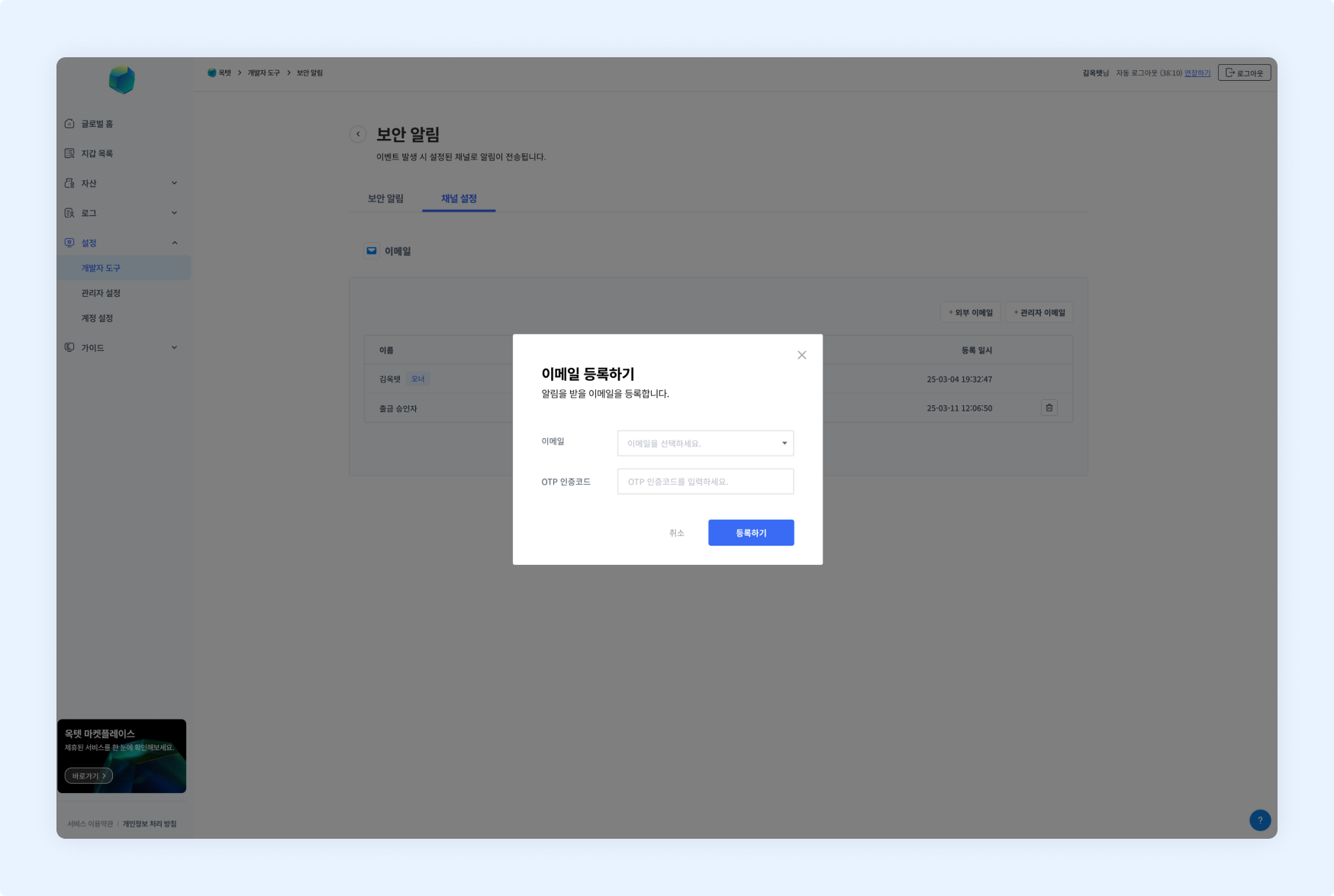
- Click the
External EmailorAdmin Emailadd button.- External email : register an email address that is not used in Octet.
- The email registration popup appears.
- Enter a name (alias) for the email.
- Enter the email address to register.
- Enter the OTP code and click the
Registerbutton.
- Admin email : select and register an email address already in use in Octet.
- The email registration popup appears.
- Select the email address to register.
- Enter the OTP code and click the
Registerbutton.
- External email : register an email address that is not used in Octet.
- The email address to receive alerts is registered.
Deleting channels
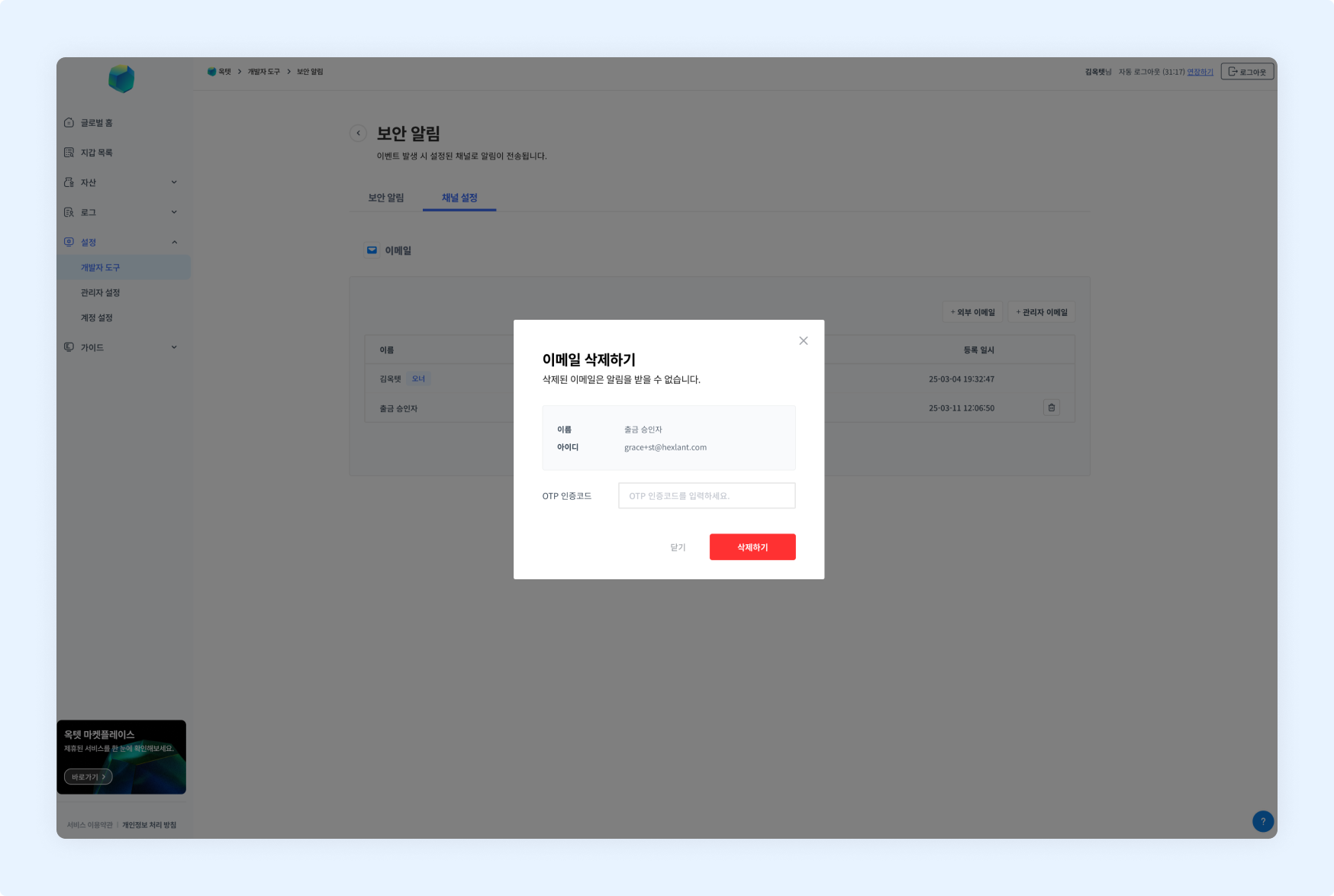
- Click the delete button. The email deletion popup appears.
- Enter the OTP code and click the
Deletebutton.
TIP
TheOwneremail cannot be deleted.
New token registration request
Octet only processes deposits of tokens registered to the wallet. If the token you want is not on the [Wallet Settings] > [Token Whitelist] page, you must request it on the new token registration request page. A requested token takes up to 2 business days to be registered.
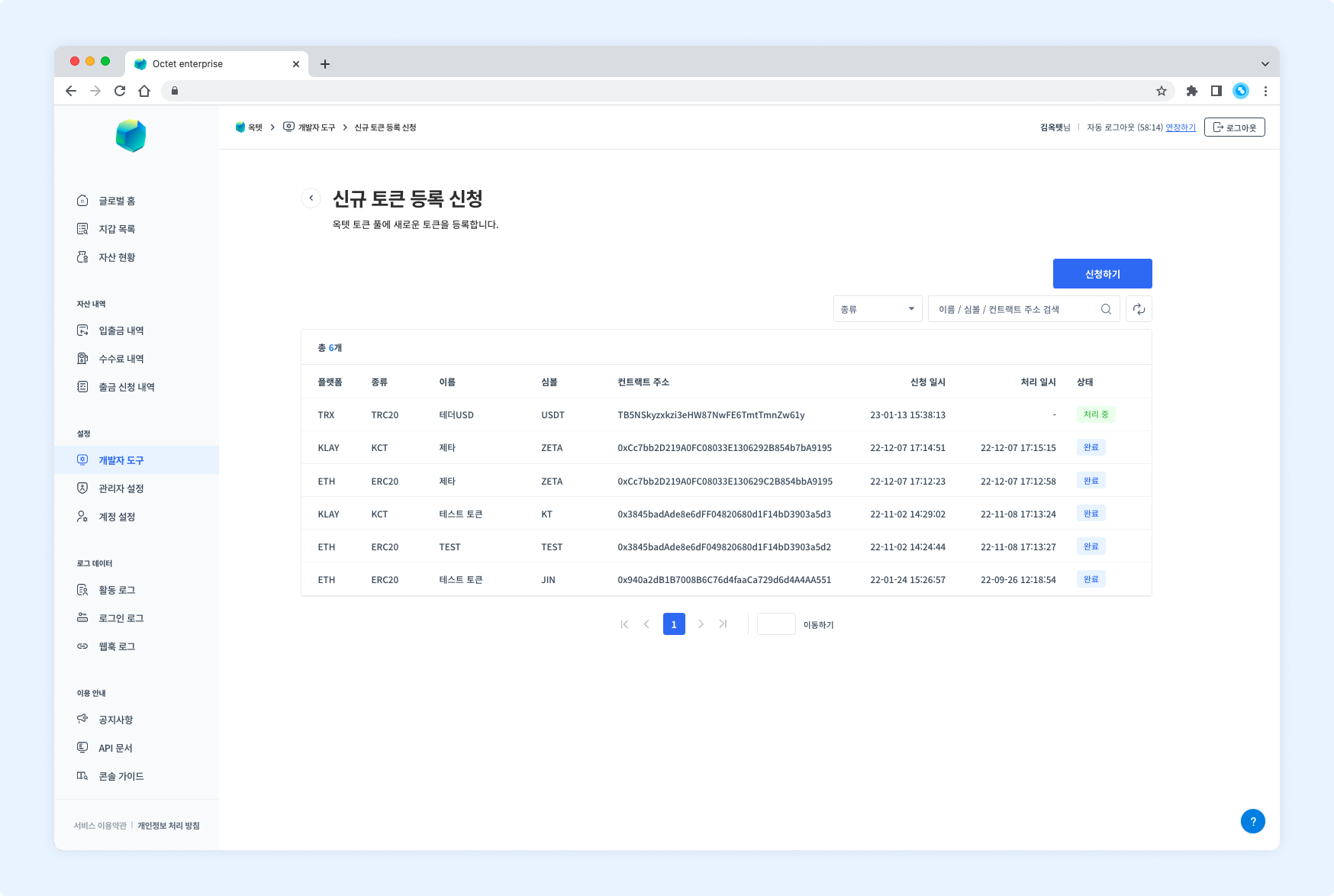
Permission - The
Ownerandall administratorscan request new token registration.
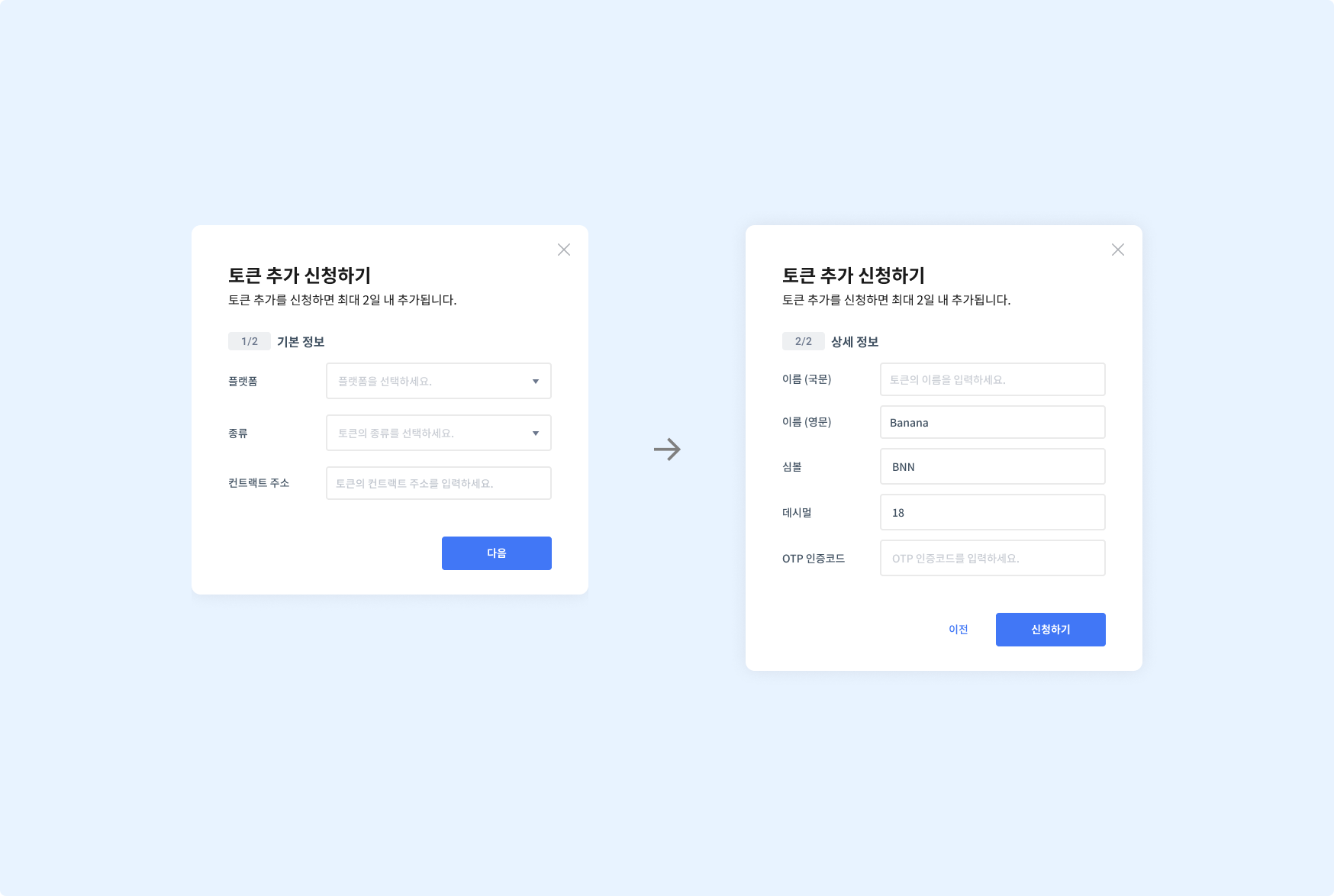
- Click the
Requestbutton. The new token registration popup appears. - Enter the basic information of the token to register (platform, type, contract address). The request cannot be made if the contract address is incorrect.
- Enter the token's detailed information (Korean name). The token's English name, symbol, and decimals are filled in automatically.
- Enter the OTP code and click the
Requestbutton.
New NFT registration request
When the NFT deposit method is Whitelist deposit, only NFTs registered to the wallet are processed for deposit. If the NFT you want is not in [Wallet Settings] > [NFT Deposit Whitelist], you must request it on the new NFT registration request page. A requested NFT takes up to 2 business days to be registered.
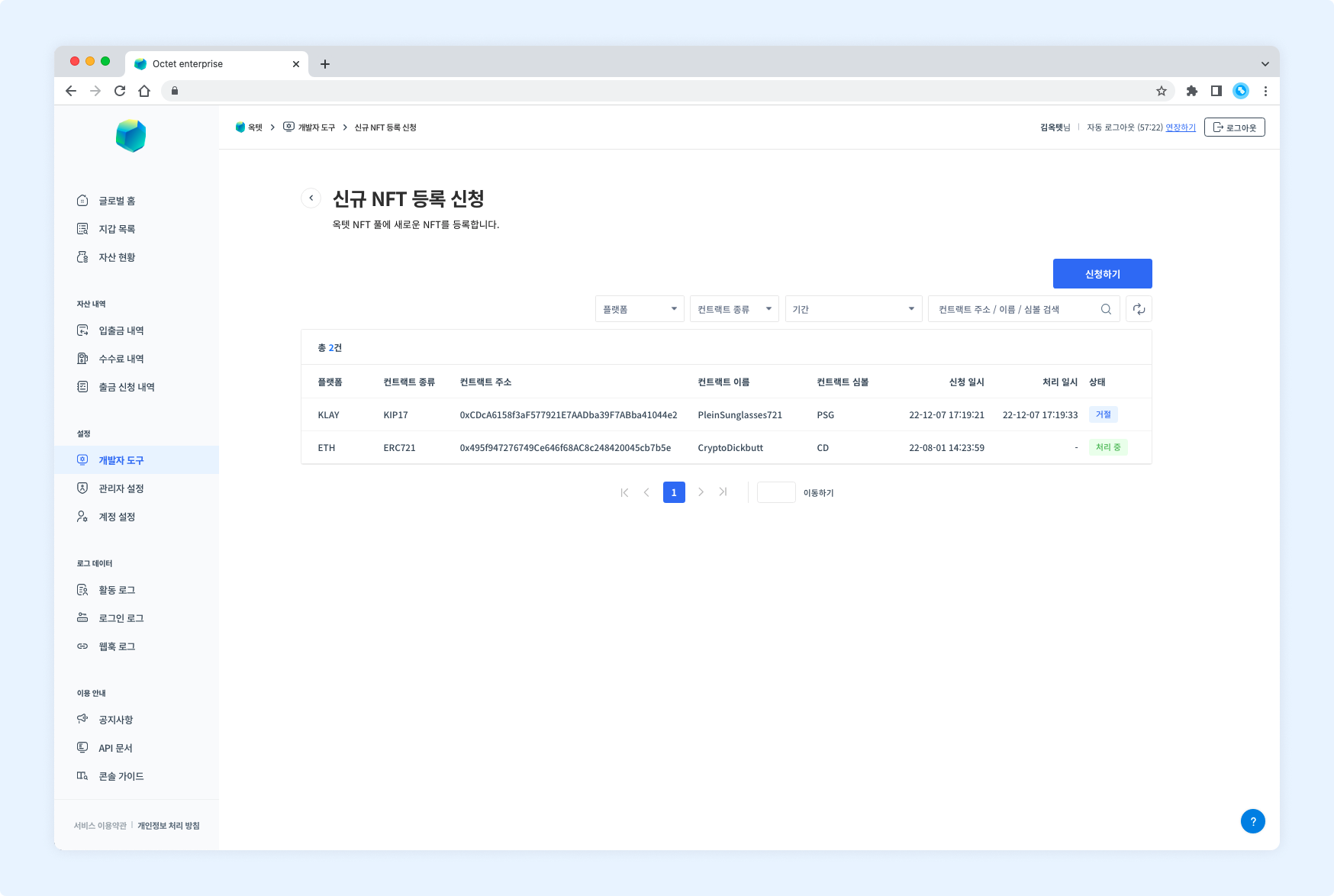
Permission - The
Ownerandall administratorscan request new token registration.
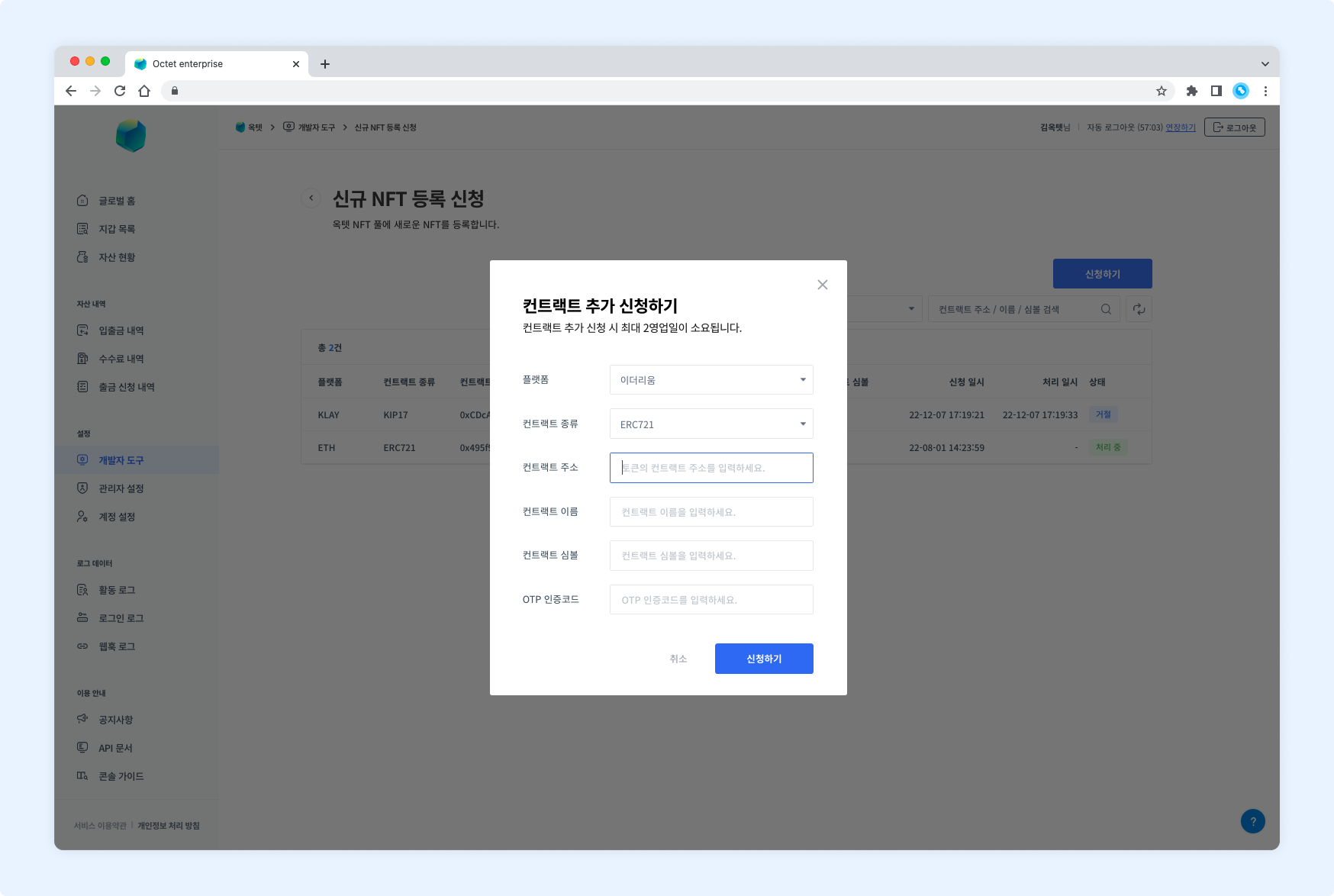
- Click the
Requestbutton. The new NFT registration popup appears. - Enter the basic information of the NFT to register. (platform, type, name, symbol)
- Enter the contract address of the NFT to register. The request is rejected if the contract address is incorrect.
- Enter the OTP code and click the
Requestbutton.
TIP
With the Add NFT Contract API, you can register a new NFT immediately without a registration review.
Withdrawal pause
If an unverified withdrawal occurs or withdrawals need to be stopped urgently, you can temporarily pause withdrawals in the console. Withdrawals can be paused at the global level or per wallet, and only the Octet team can lift a withdrawal pause. Contact the Octet team if you want a withdrawal pause lifted.
Permission -
Owner,Manager
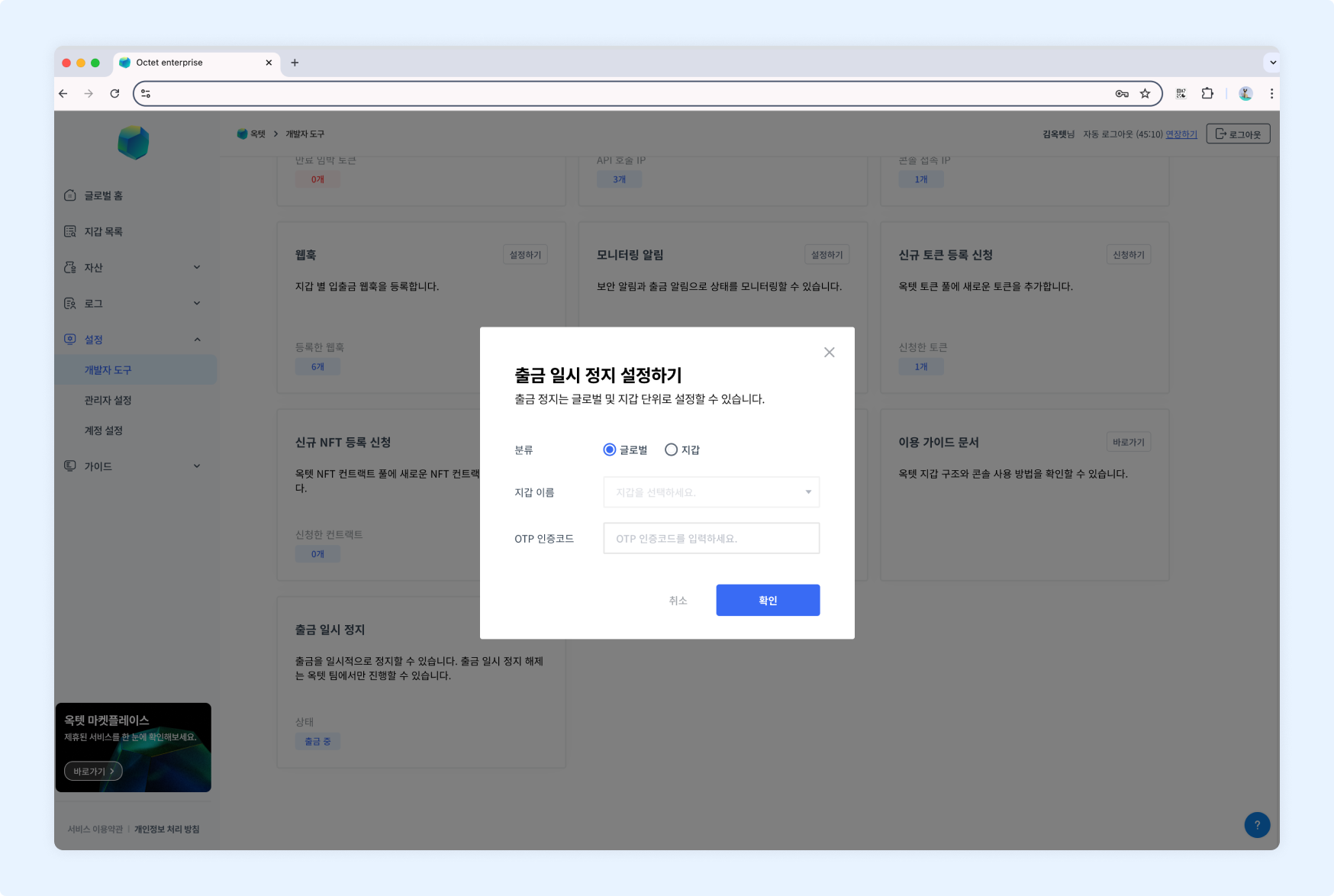
- Click the
Setbutton. The withdrawal pause popup appears. - Select the category of wallets to pause withdrawals for.
- Global: pauses withdrawals for all wallets. (Permission -
Owner) - Wallet: pauses withdrawals for a specific wallet. (Permission -
Manager)
- Global: pauses withdrawals for all wallets. (Permission -
- If you selected 'Wallet' in step 2, select the wallet to pause withdrawals for.
- Enter the OTP code and click the
Setbutton. - Withdrawals are paused.