Assets
Balances
You can view the balances of every wallet you have permission for. Balances are shown as of the current moment.
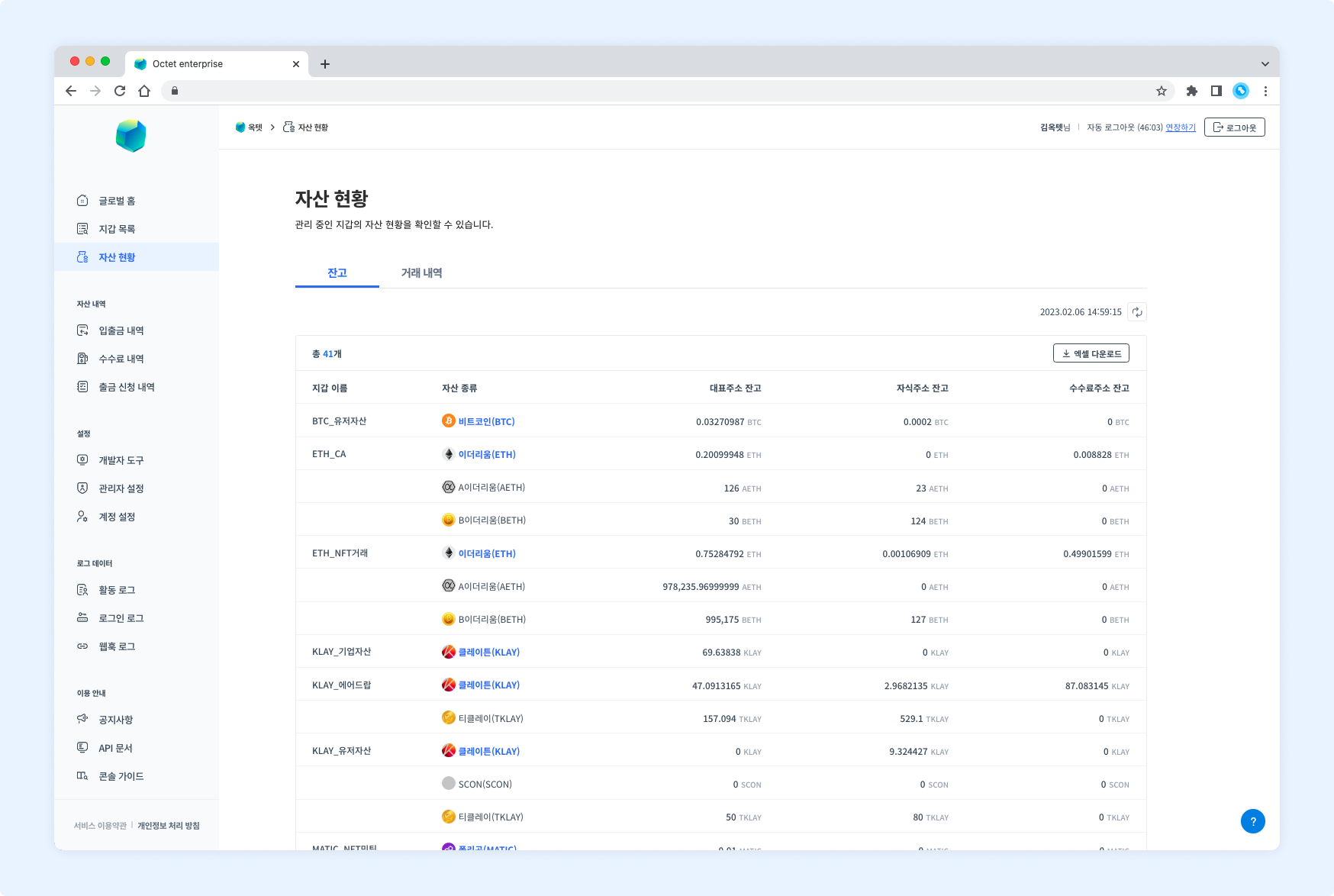
- Main address balance
- Child address balance
- Fee address balance
Downloading balances
Click the Download Excel button above the table to download the current balances as an Excel file.
Enter a file password and click the Download button.
Transaction history
You can view the transaction volume of every wallet you have permission for. By default, the volume for all periods is shown; set the filter at the top right to view the volume for a specific period.
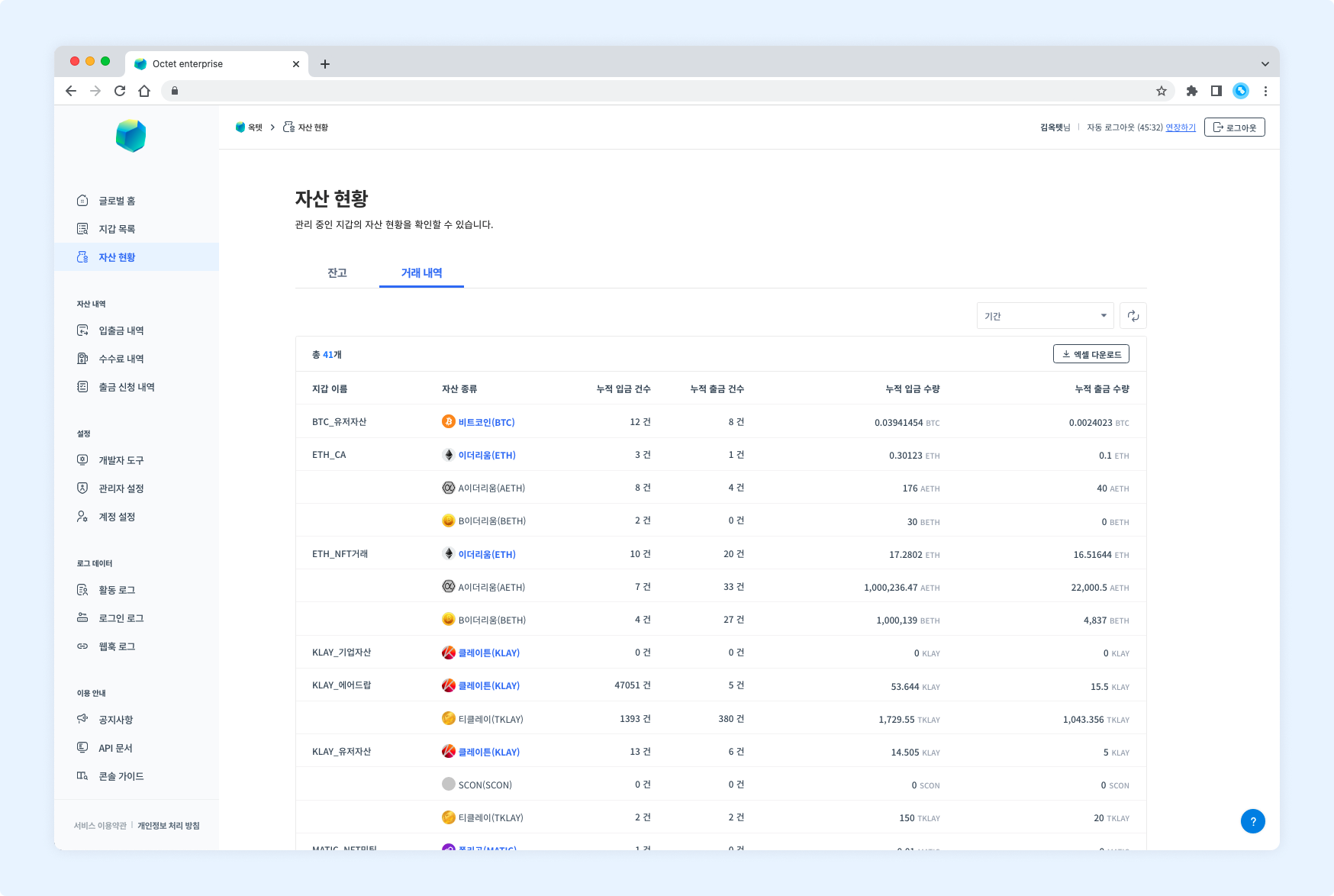
- Cumulative number of deposits / cumulative number of withdrawals
- Cumulative deposit amount / cumulative withdrawal amount
Downloading transaction history
Click the Download Excel button above the table to download the transaction volume for a specific period as an Excel file.
Select the period, enter a file password, and click the Download button.
Settlement history
Click the More button at the top right to open the settlement history page. You can issue a settlement statement for each wallet's assets.
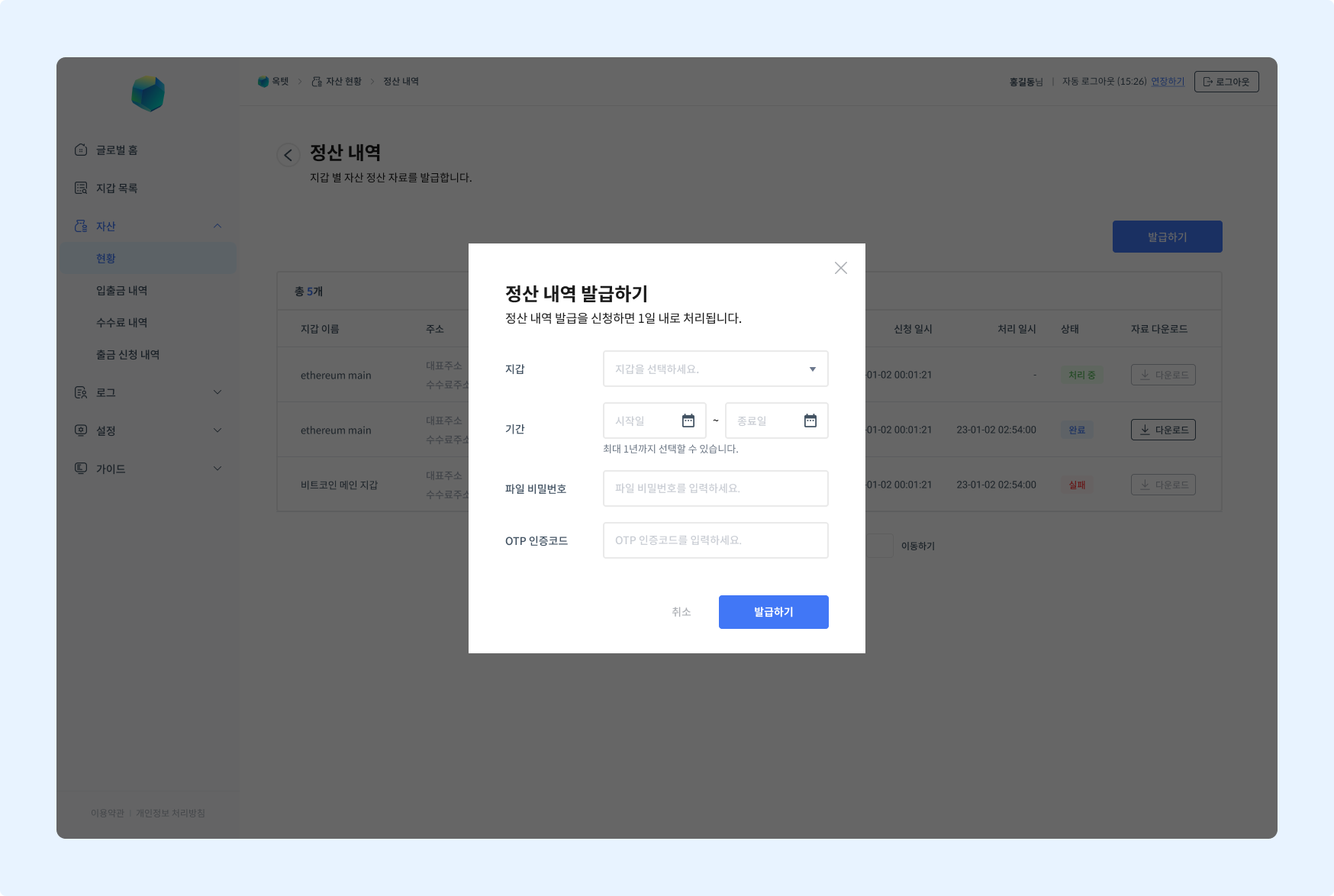
- Click the
Issuebutton. The settlement statement issuance popup appears. - Select the wallet to view the settlement history for.
- Select the period to view the settlement history for. You can select up to one year.
- Enter a file password.
- Enter the OTP code and click the
Issuebutton. - It takes some time for the settlement statement to be processed. You will be notified by email when processing is complete.
- Click the
Downloadbutton to download the settlement statement file.