Admins
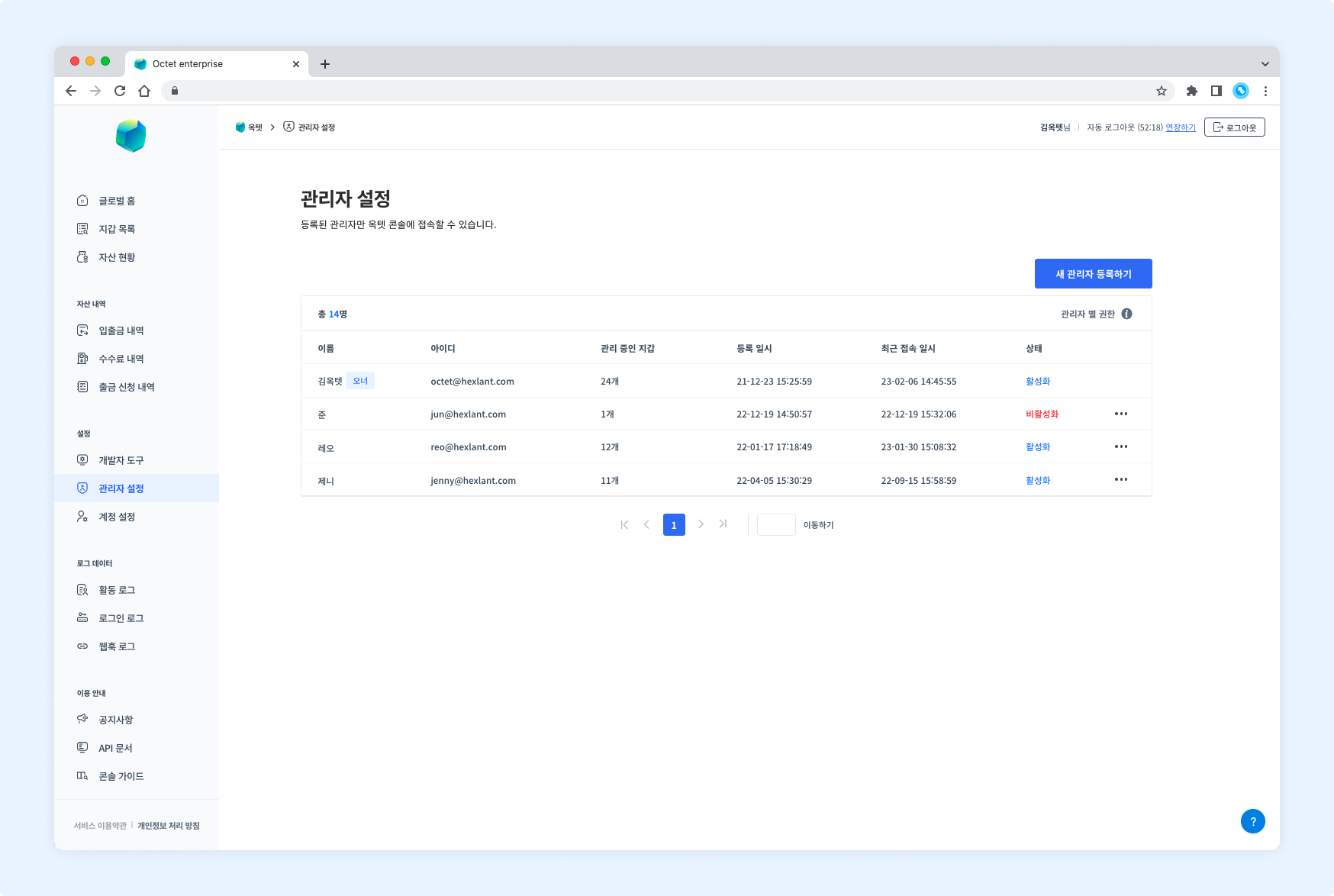
Adding an administrator
Administrators sign up through an invitation email sent by the Owner.
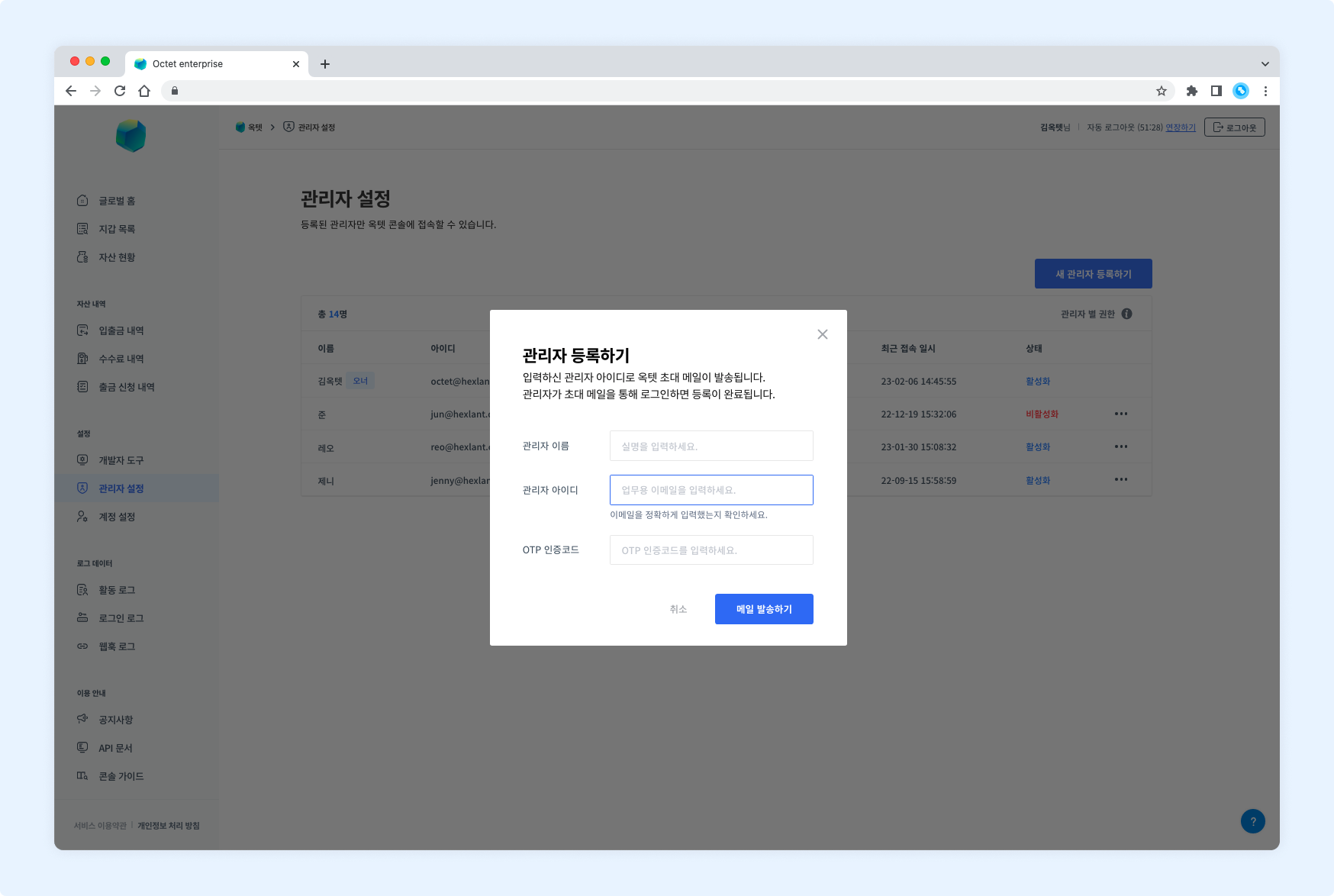
- Click the
Add New Adminbutton. The administrator registration popup appears. - Enter the administrator's name and email. An invitation email is sent to the entered email address.
- Enter the OTP code and click the
Addbutton. - Once the administrator completes sign-up through the invitation email, the administrator registration is complete.
TIP
You can cancel the registration before the administrator completes sign-up.
More>Cancel Registration> enter the OTP code and click theCancel Registrationbutton
Deleting an administrator
You can delete administrator accounts registered in the Octet console. A deleted administrator cannot be invited again.
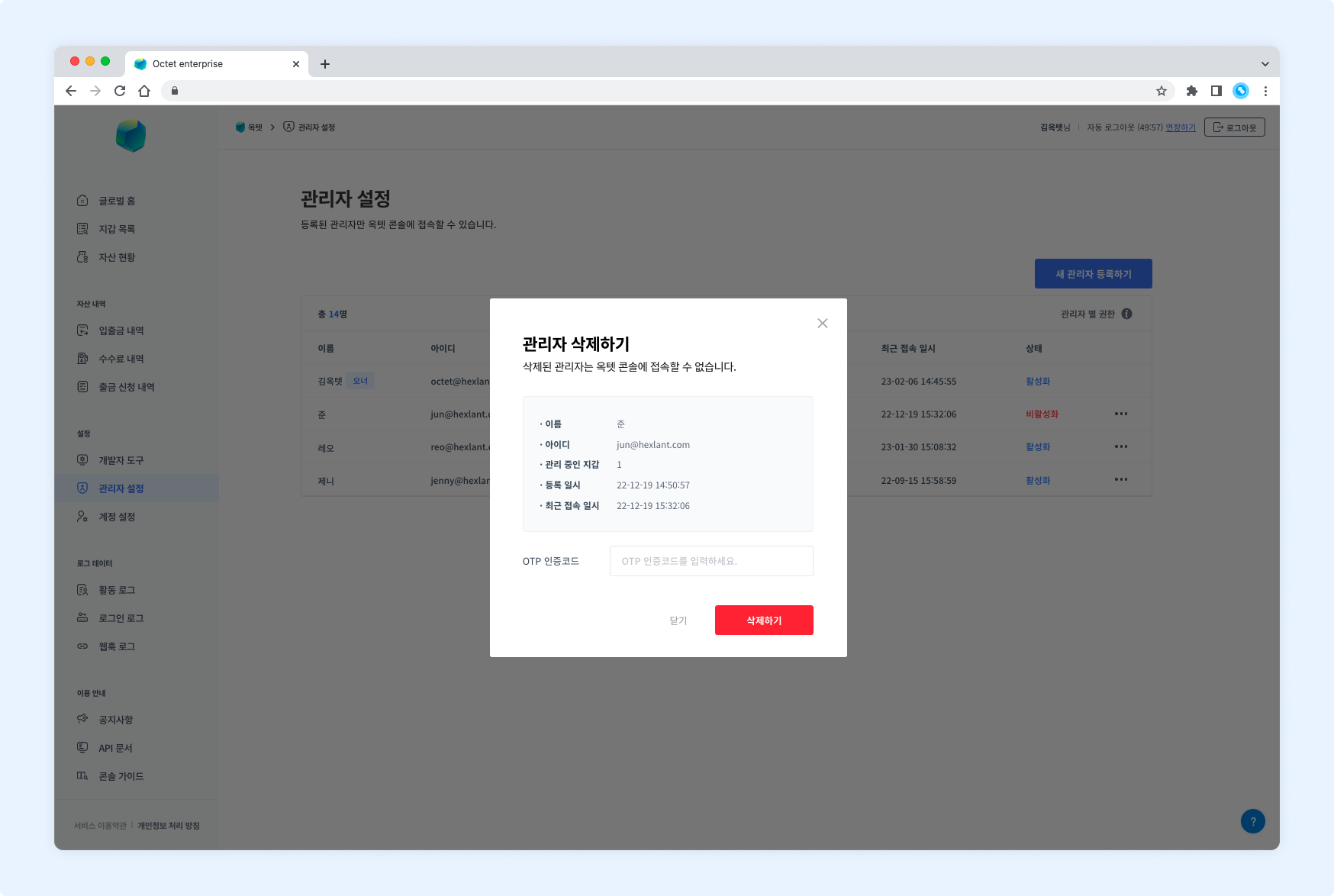
- Click the
Deletebutton. The administrator deletion popup appears. - Check the information of the administrator to delete.
- Enter the OTP code and click the
Deletebutton. - The administrator is deleted.
Changing administrator status
An account is deactivated when the password or OTP code is entered incorrectly 5 or more times. A deactivated account cannot access the Octet console. The Owner can change a deactivated administrator account back to active.
Conversely, if an account's access needs to be suspended temporarily, the Owner can change the administrator account to deactivated.
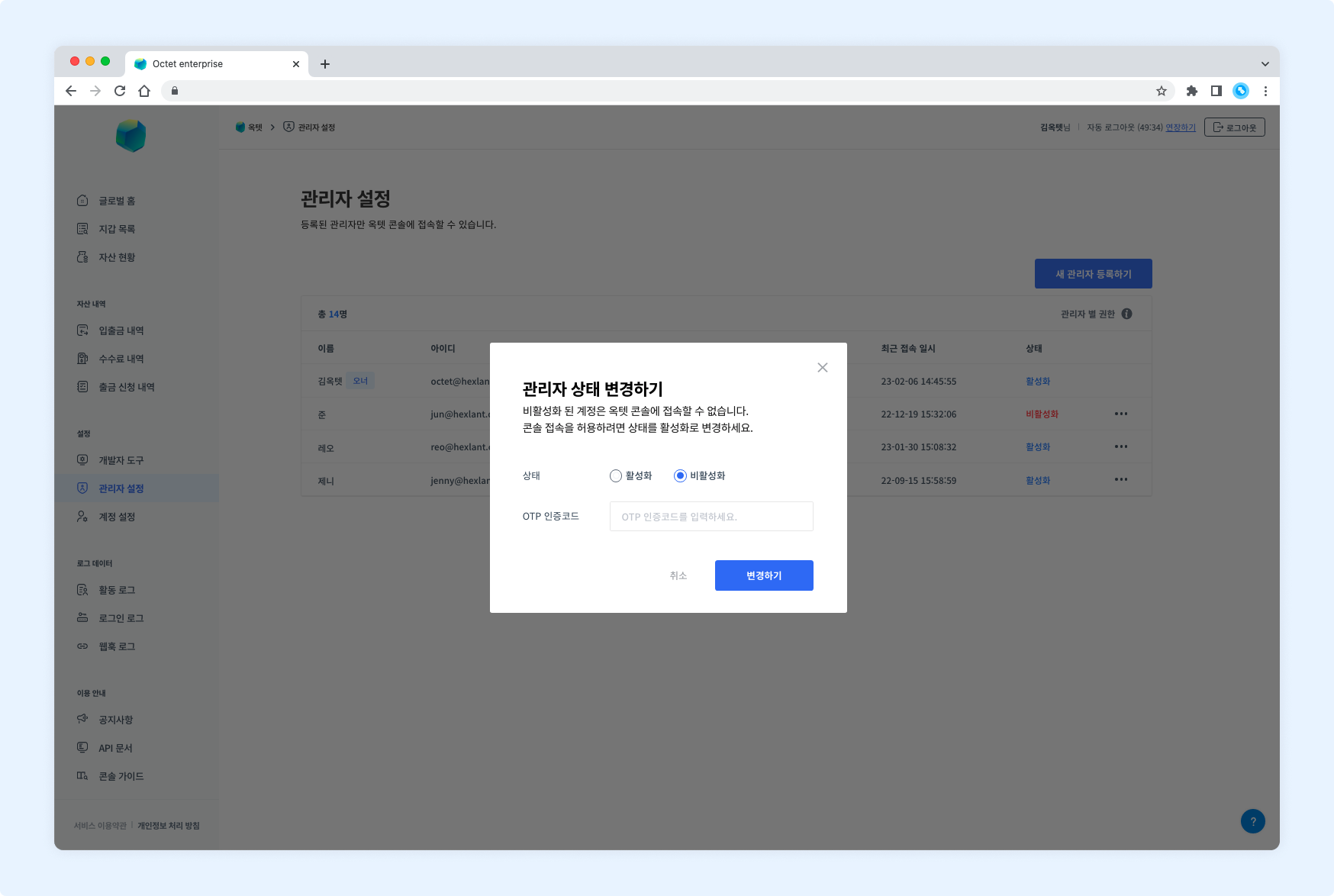
- Open the
Morebutton and clickChange Status. - Change the status to
ActiveorInactive. - Enter the OTP code and click the
Changebutton. - The administrator status is changed.