Account
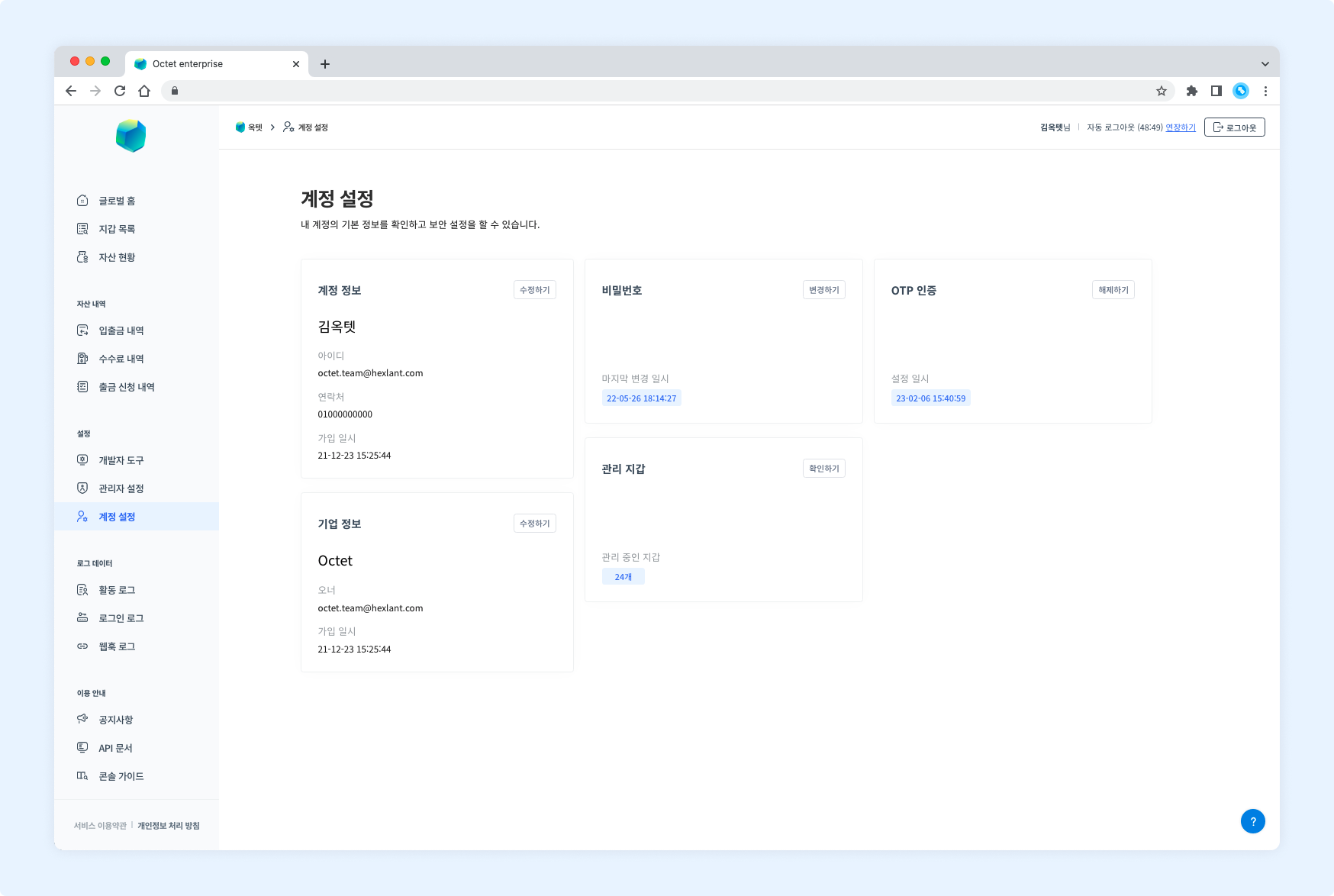
Account information
You can view and edit the basic information of your account.
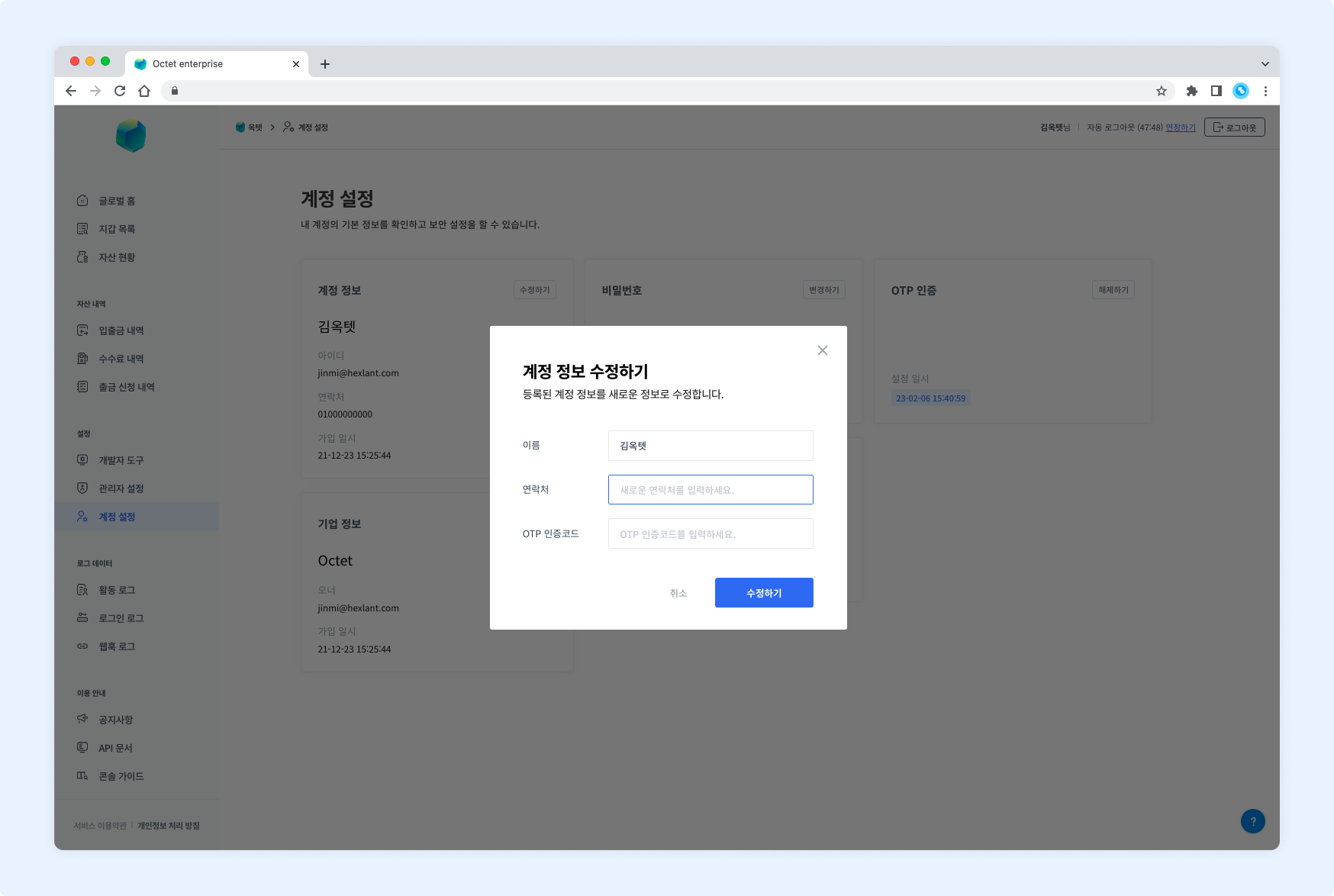
- Click the
Editbutton. The account information edit popup appears. - Enter the information to change. (name, phone number)
- Enter the OTP code and click the
Editbutton. - The account information is updated.
Company information
You can view and edit the basic information of your group.
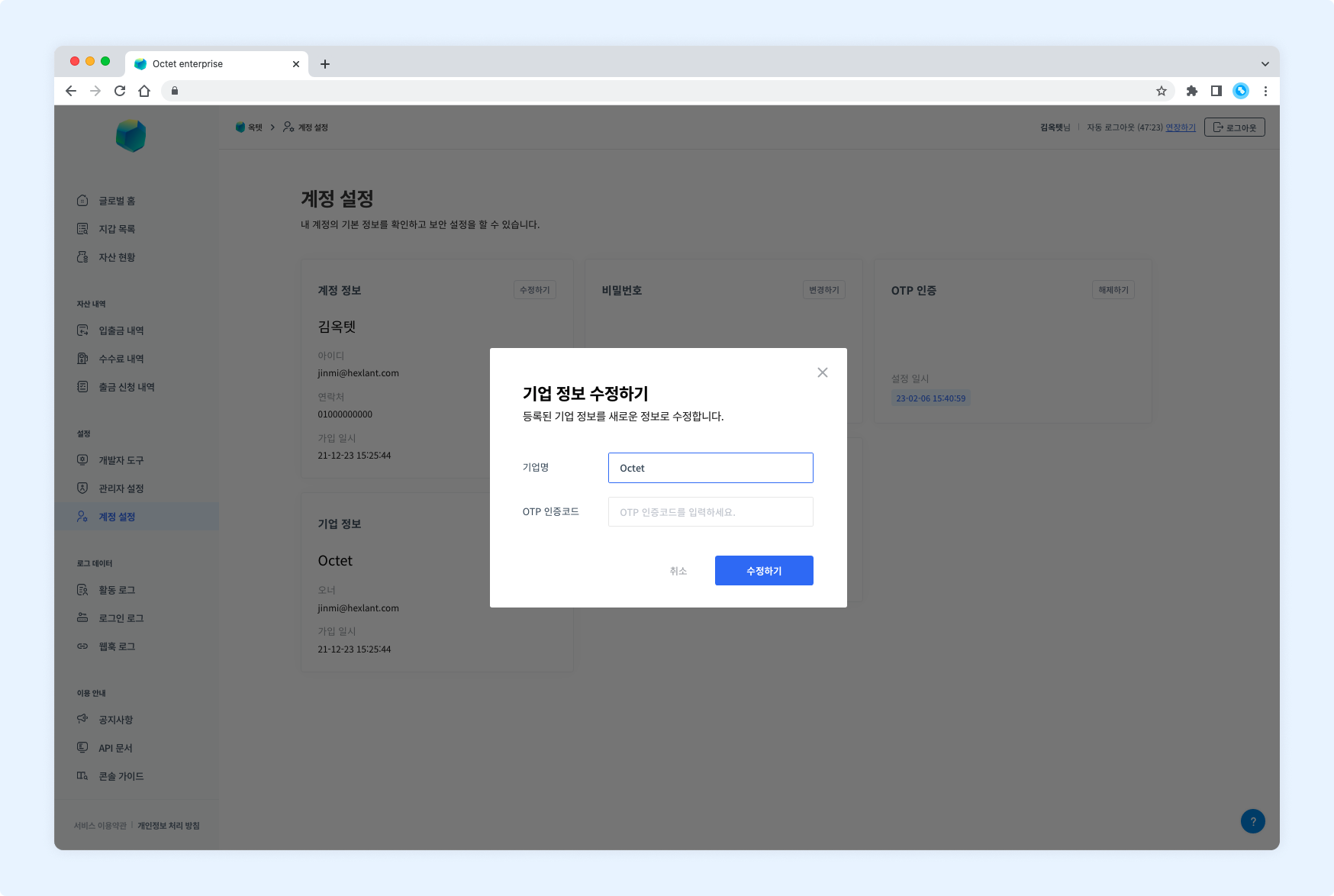
- Click the
Editbutton. The company information edit popup appears. - Enter the new company name.
- Enter the OTP code and click the
Editbutton. - The company information is updated.
Password
You can change the password of your account. For security, change your password every 90 days.
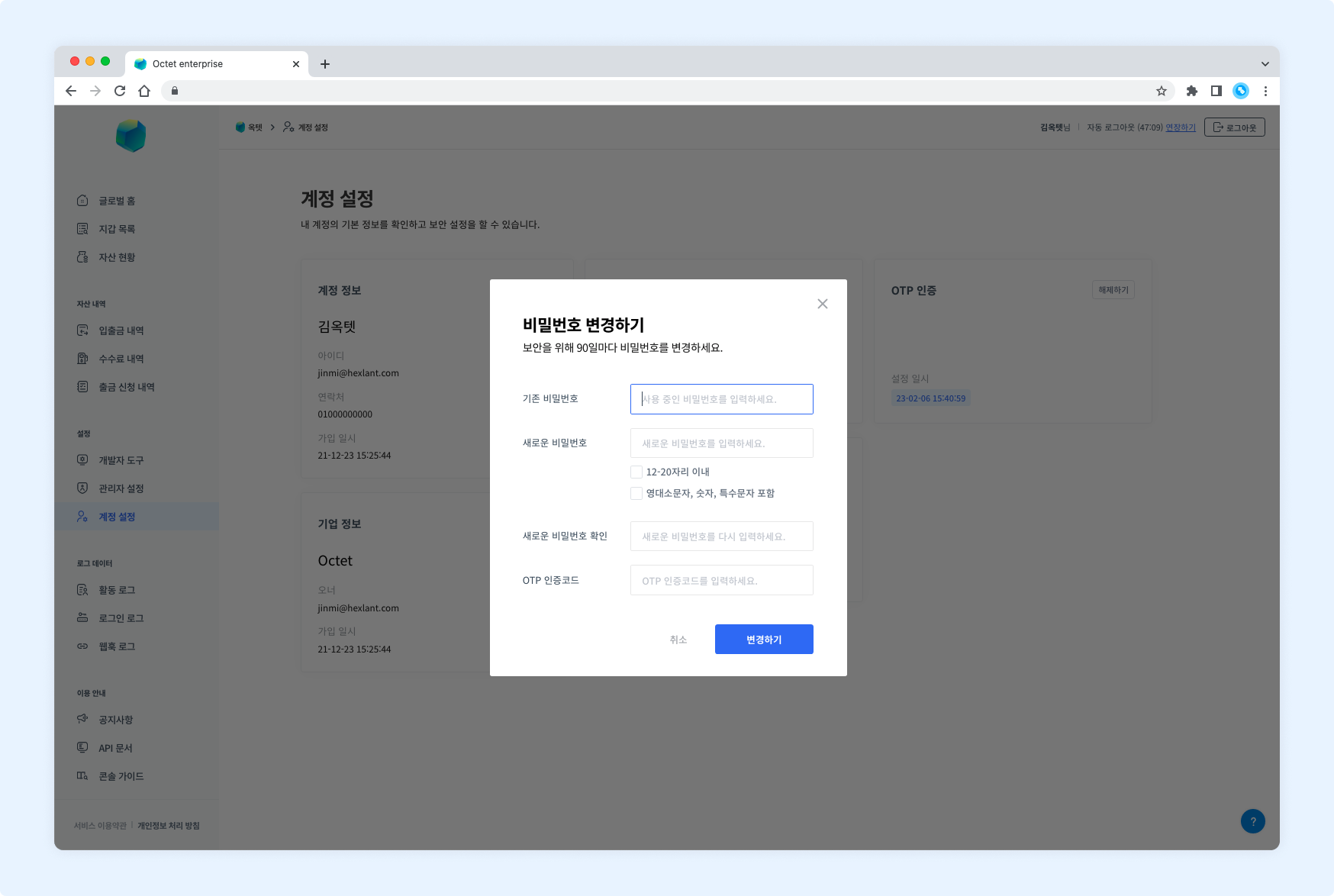
- Click the
Changebutton. The password change popup appears. - Enter your current password, then enter the new password.
- Enter the OTP code and click the
Changebutton. - The password is changed.
TIP
The password must be 12~20 characters long and include uppercase and lowercase letters, numbers, and special characters.
OTP authentication
Setting up
You can set up two-factor authentication for security.
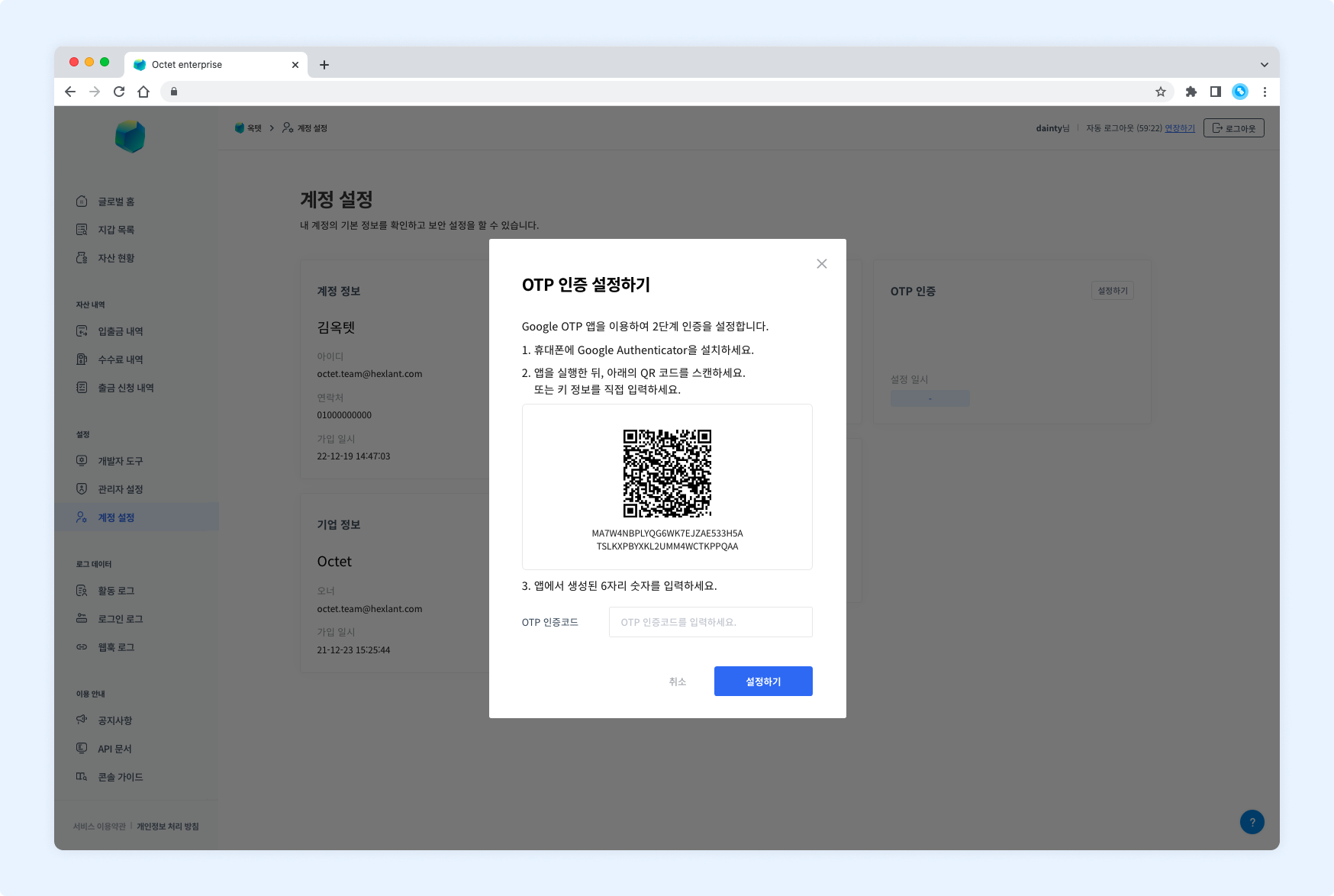
- Click the
Set Upbutton. The OTP authentication setup popup appears. - Install the Google Authenticator app on your phone.
- Open the app and scan the QR code in the popup or enter the key information.
- Enter the 6-digit number generated by the app and click the
Set Upbutton. - OTP authentication is set up.
Disabling
If you disable OTP authentication, several features, including withdrawal management and wallet settings, are restricted.
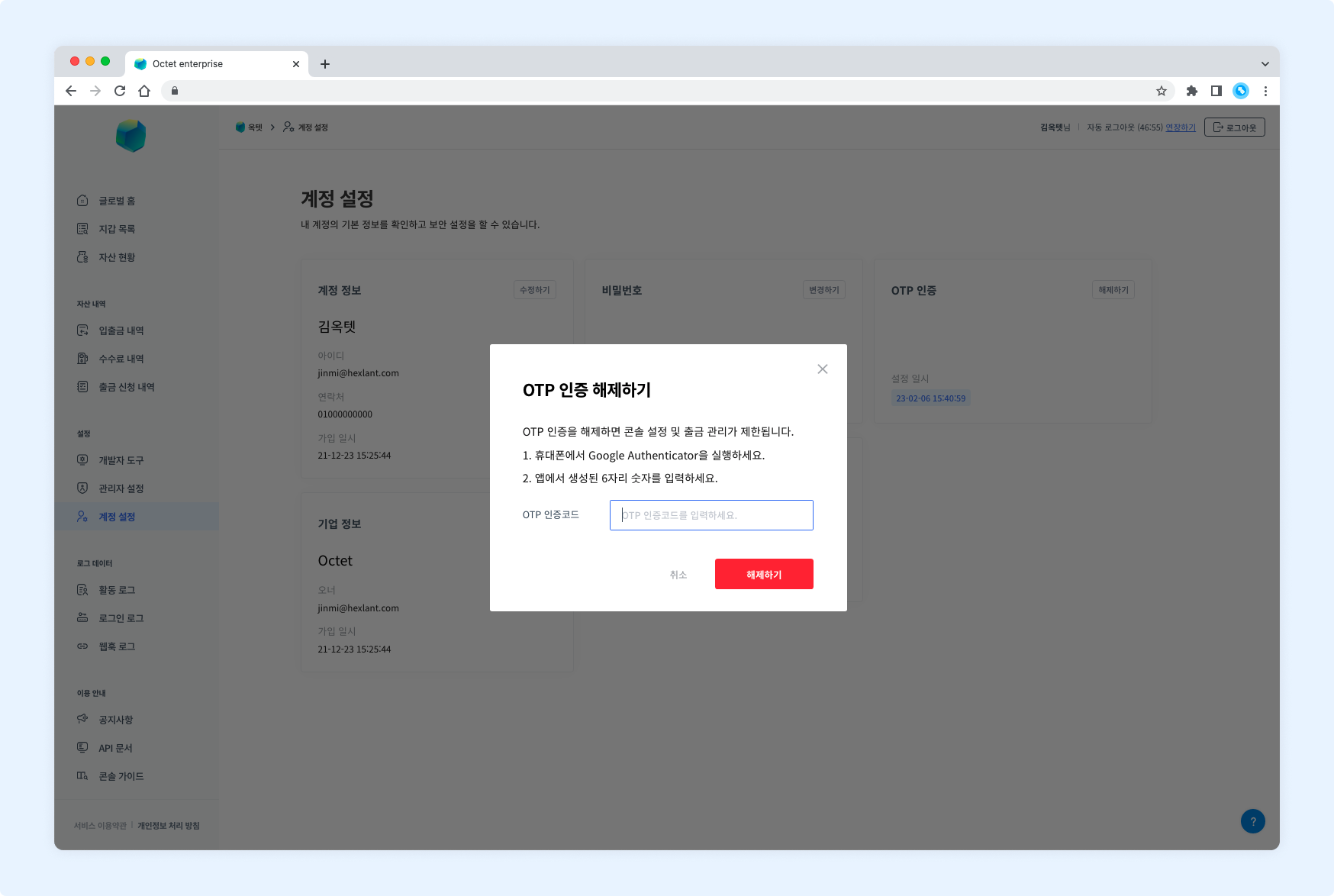
- Click the
Disablebutton. The OTP authentication disable popup appears. - Open the Google Authenticator app.
- Enter the 6-digit number generated by the app and click the
Disablebutton. - OTP authentication is disabled.
Services in use
Service
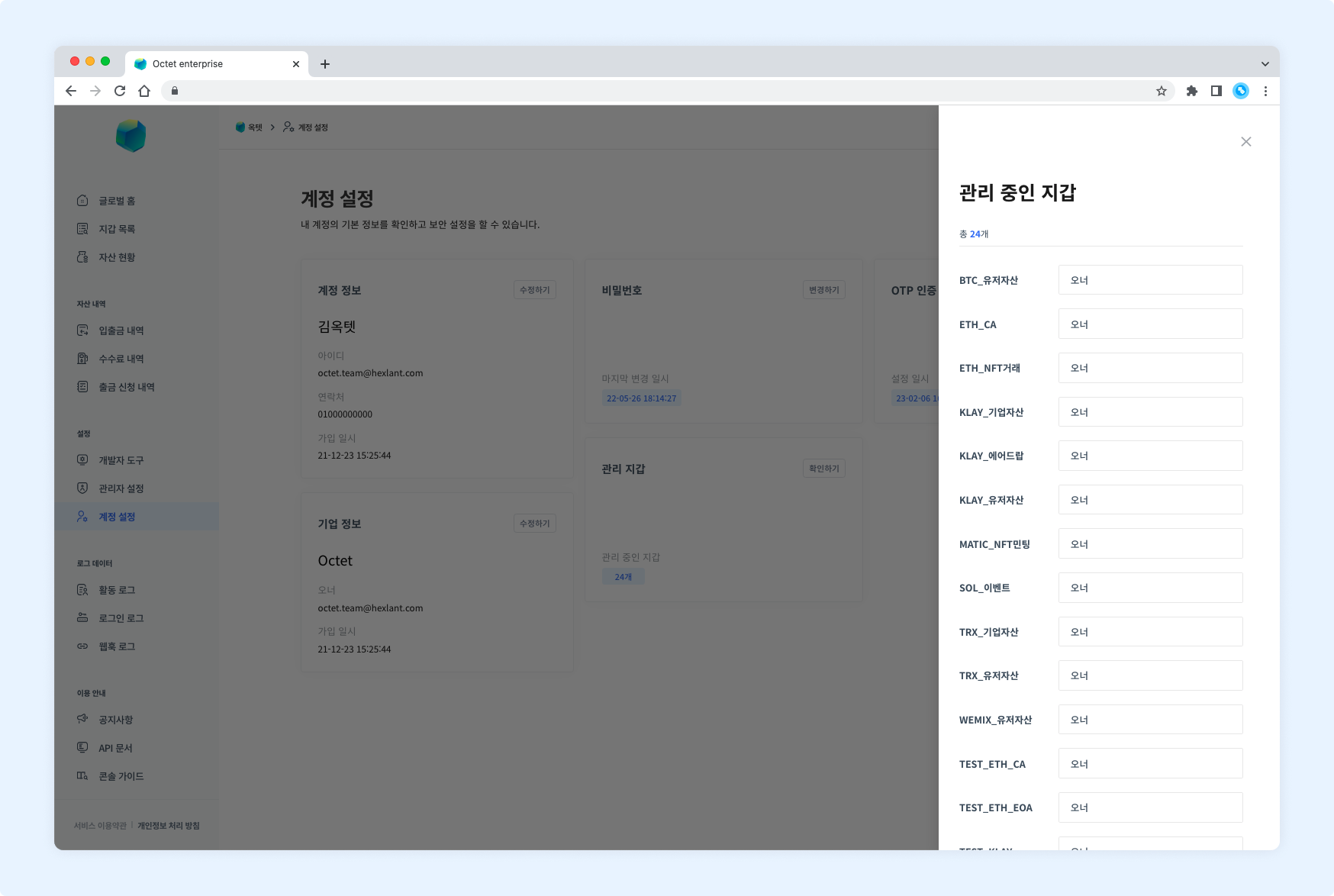
You can view the basic information, payment information, and platforms in use for the service you are subscribed to.
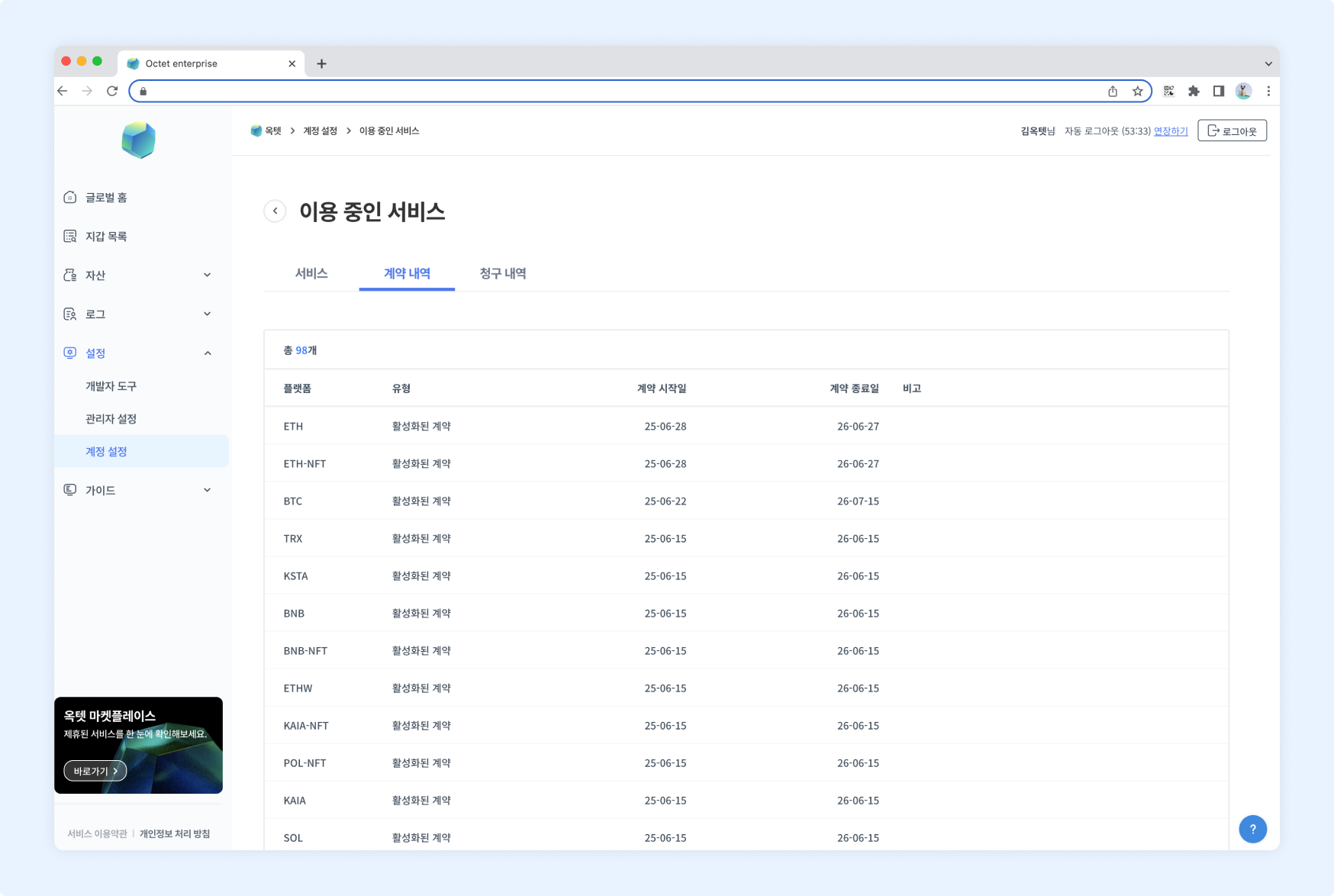
Contracts
You can view your contract history.
Billing
You can view the charges billed each month. You can check the plan and billed amount of the service you are using and download invoices.
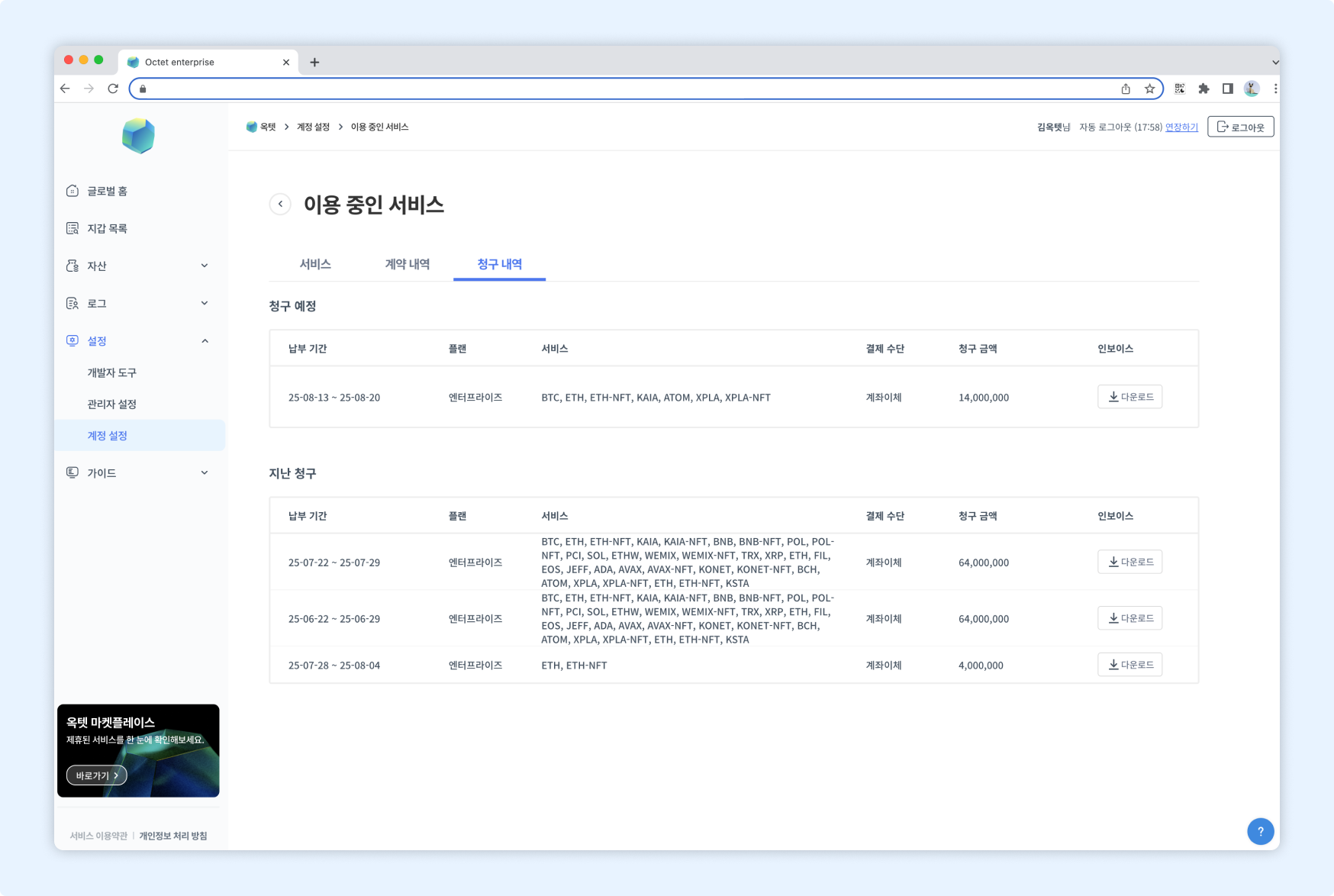
Click the Download button to download the invoice file.
Language/Currency
You can set the language and currency to use. The console is available in Korean or English, and asset values can be shown in KRW or USD.
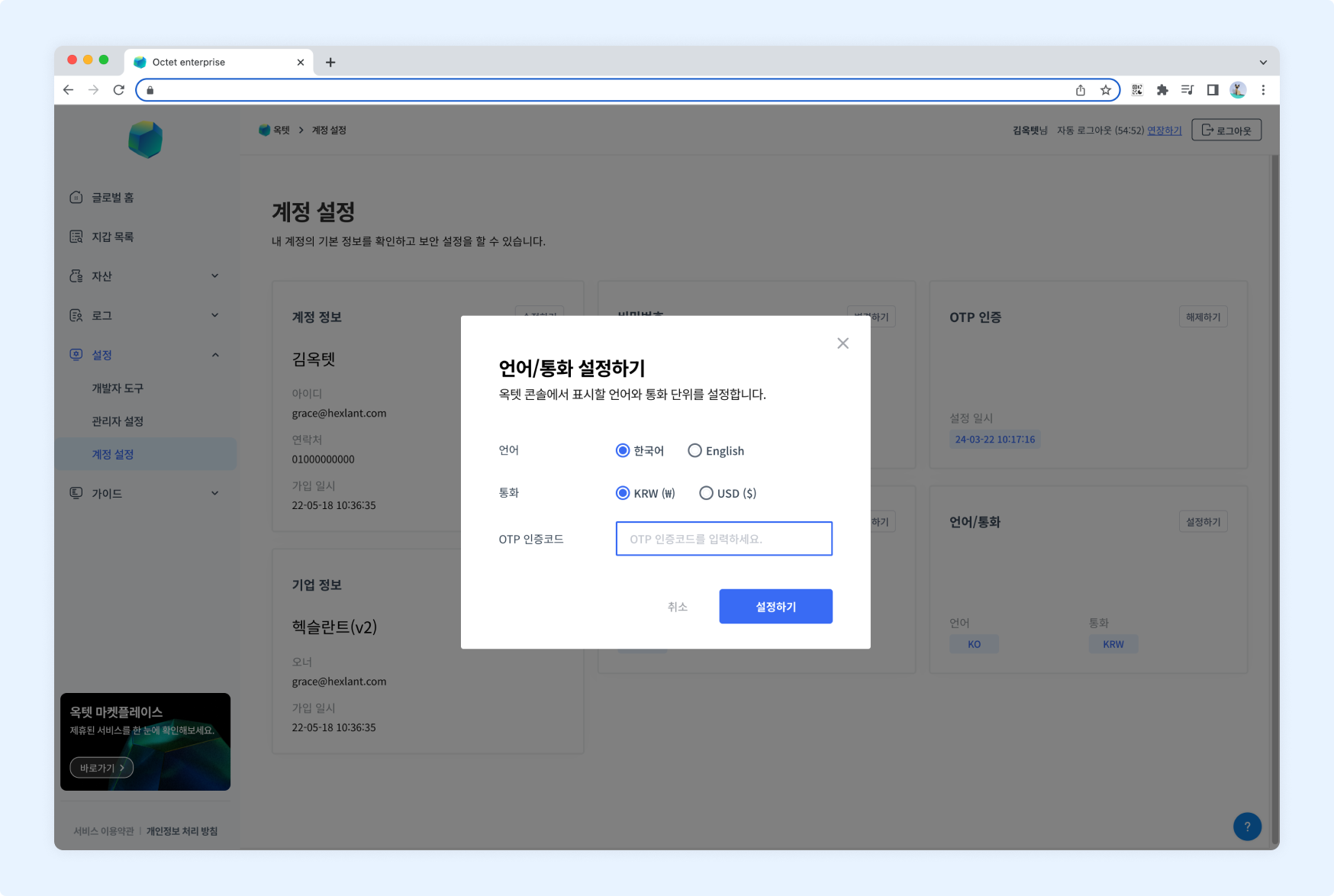
- Select the language to use.
- Select the currency to use.
- Enter the OTP code and click the
Setbutton. - The language/currency settings are changed.